
When your computer shows an error while saving files, it means the system or application cannot complete the save process successfully. This issue can occur in Microsoft Word, Excel, PDF editors, image editing software, or even when saving files to cloud storage platforms.
Computer Error in Saving Files. Many users panic when they see a save error because they fear losing important work. Fortunately, most file-saving issues have simple solutions. Understanding what causes the error is the first step toward fixing it and preventing future data loss.
Why Is My Computer Not Letting Me Save Files?
One of the most common reasons behind file-saving problems is insufficient storage space. If your hard drive or SSD is nearly full, the system may not have enough room to create temporary files required during the saving process. Computer Error in Saving Files
Another common cause is folder permission restrictions. Sometimes Windows prevents applications from writing data to certain locations. Computer Error in Saving Files: Corrupted user profiles, outdated software, and network drive issues can also trigger save-related errors that stop documents from being stored properly.Computer Error in Saving Files
Low Disk Space Can Cause Save Errors
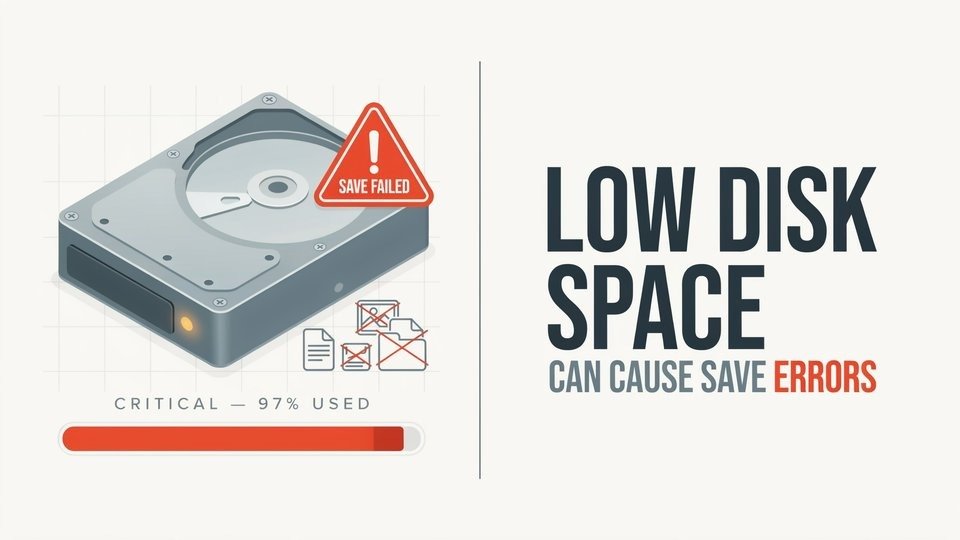
Every application needs temporary storage while processing and saving files. When available disk space becomes critically low, programs may fail to complete the save operation and display an error message.
Regularly deleting unnecessary files, clearing temporary folders, and moving large media files to external storage can significantly reduce the risk of save failures. Maintaining at least 10–15% free storage is generally recommended for smooth system performance.
File Permission Issues and Access Denied Errors
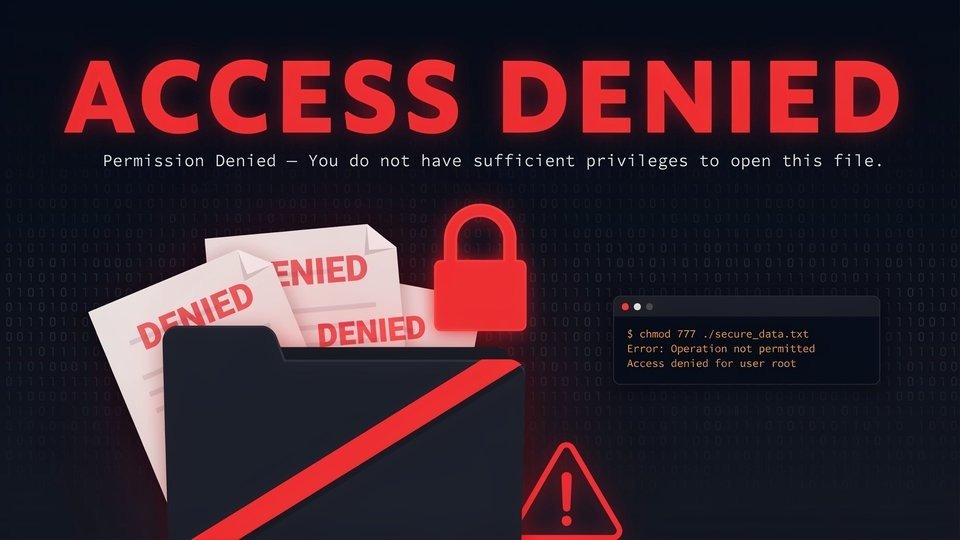
Permission-related problems are among the leading causes of saving failures. If the folder you’re using has restricted access, the application won’t be able to write new data to it.
This issue often appears on office computers, shared systems, or network drives. Saving the file to your Desktop or Documents folder can help determine whether folder permissions are responsible for the error. Running the application as an administrator may also resolve the problem.
Corrupted Files Can Prevent Successful Saving
A damaged document or project file can become impossible to save correctly. Corruption often happens after unexpected shutdowns, software crashes, malware infections, or interrupted transfers.
Instead of repeatedly saving over the same file, create a duplicate copy and save it with a new name.
How to Fix Failed to Save File Errors
If you’re searching for how to fix failed to save file, start with the simplest solutions first. Restart the application and attempt to save the file using a different name or location.
If the issue continues, update the software, check disk space, verify folder permissions, and temporarily disable third-party add-ins. These steps solve the majority of file-saving problems without requiring advanced troubleshooting.
Network Drives and Cloud Storage Problems
Modern users frequently save files directly to cloud platforms such as Google Drive, OneDrive, and Dropbox. While convenient, synchronization conflicts can sometimes prevent files from saving correctly.
Internet interruptions, storage quota limits, and account authentication problems may all trigger save errors. Saving a local copy first ensures your work remains protected even if the cloud service encounters issues.
How to Fix a File That Says Error
When a file displays an error message during saving, avoid making repeated save attempts. Continuous failed writes can sometimes worsen file corruption and make recovery more difficult.
Instead, create a backup copy, use auto-recovery tools if available, and try exporting the file into another format. Many users successfully recover documents by saving them as PDF, TXT, or another compatible file type.
Renaming the document, saving it to a different location, and restarting Word are often effective solutions. Checking Windows security settings and antivirus restrictions can also help eliminate permission conflicts.
Advanced Solutions for Persistent Save Errors
If standard troubleshooting does not work, deeper system issues may be involved. Running the Windows Disk Check utility can identify hard drive errors that interfere with saving files.
You should also scan for malware, update device drivers, and repair corrupted system files using built-in Windows tools. These advanced fixes can resolve recurring save errors that basic methods fail to address.
Best Practices to Prevent Future File-Saving Problems
Preventing save errors is much easier than recovering lost work. Regular backups, cloud synchronization, and frequent manual saves provide important protection against unexpected failures.
Keeping software updated, monitoring storage capacity, and using reliable antivirus protection can significantly reduce the likelihood of encountering save-related issues in the future. Small preventative steps often save hours of frustration later.
Final Thoughts
A computer error in saving files is frustrating, but it is rarely permanent. Most save failures occur because of storage shortages, permission restrictions, software glitches, corrupted files, or cloud synchronization problems.
By identifying the root cause and applying the appropriate fix, you can quickly restore normal functionality and protect your important documents. Following good file management practices will also help prevent future save errors and reduce the risk of losing valuable data.
FAQs
Why is my computer not letting me save files?
Your computer may have low storage space, restricted folder permissions, corrupted files, or software issues that prevent successful saving.
How to fix a file that says error?
Create a backup copy, use file recovery tools, save the document in another format, and check for corruption issues.
How to fix Word cannot complete the save due to a file permission error?
Save the file to a different location, run Word as administrator, check folder permissions, and ensure no other program is using the file.

Clara Linford is a tech enthusiast and troubleshooting expert specializing in Windows errors, gaming crashes, and software fixes. At FindsErrors.com, she breaks down complex technical issues into simple, step-by-step solutions.