
So your Windows Update has been sitting at the same percentage for the last hour. Or maybe it says “Working on updates 0%” and it’s just… staring at you. You’re wondering if you should wait, restart, or throw the laptop out the window.
Here’s the good news: this is one of the most common Windows problems in 2026, and it’s almost always fixable without losing any data.
But before you start clicking things, let’s figure out what’s actually happening because a stuck update at 0% and a stuck update at 99% have completely different causes.
How Long Is Too Long? (This Is What Nobody Tells You)
Most guides just say “if it’s stuck, try these fixes.” Nobody actually answers the real question: when should you start worrying?
Here’s a rough guide:
- 0–15 minutes: Completely normal. Windows is downloading files in the background. Just let it be.
- 15–45 minutes: Still okay for large updates. In January 2026, Microsoft pushed a cumulative update for Windows 11 24H2 that was over 1.2 GB. On slower connections, these take time.
- 45 minutes to 1 hour at the same percentage: This is where you should start paying attention. If the little circle animation is still spinning, Windows is doing something just very slowly.
- If it has been stuck on the same number for over an hour, it’s likely frozen. Now it’s time to start troubleshooting.
One more thing: if you restarted and you’re now sitting at the blue screen that says “Working on updates Do not turn off your PC” that’s a different situation. Give it at least 30–40 minutes before doing anything. Interrupting that screen mid-process is what actually causes problems.
Windows Update Stuck at 0% What’s Going On?
When the update is stuck at 0%, it usually hasn’t even started downloading properly. This is almost never a corrupted file issue it’s more likely one of these three things:
Your Windows Update service has hiccupped. The background service that manages updates sometimes gets stuck in a weird state, especially after a previous failed update attempt. It’s sitting there pretending to work but not actually doing anything.
The SoftwareDistribution folder has a corrupt or incomplete download. This folder is where Windows temporarily stores update files. If a previous download failed halfway, Windows sometimes doesn’t clean it up properly and just gets confused trying to work with broken files.
A third-party security app is blocking the connection. VPNs and some antivirus programs interfere with Windows Update’s connection to Microsoft’s servers without throwing any obvious error.
Also Read:Windows 11 Apps Freezing While Saving to Cloud Storage | 8 Fixes (2026)
Windows Update Stuck at 35% (or Any Middle Percentage)
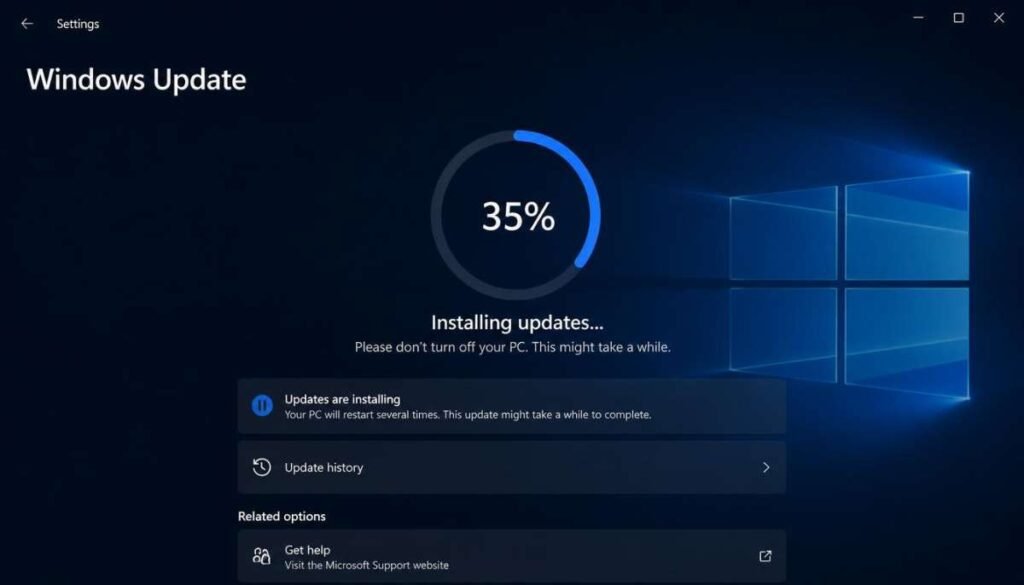
Mid-percentage freezes are the most unpredictable because they can mean several different things depending on the exact number and what the update is doing.
What’s typically happening here is that Windows has downloaded the update successfully, but it’s now in the middle of actually installing it unpacking files, replacing system components, updating drivers. This is where the process demands the absolute highest level of precision .
If it’s been over 45 minutes at the same mid-number with the spinner still going, it might still be working. But if the hard drive activity light on your laptop/PC is blinking, it’s definitely still doing something. If there’s no disk activity at all, that’s when you have a real freeze.
Windows Update Stuck at 99% or 100%
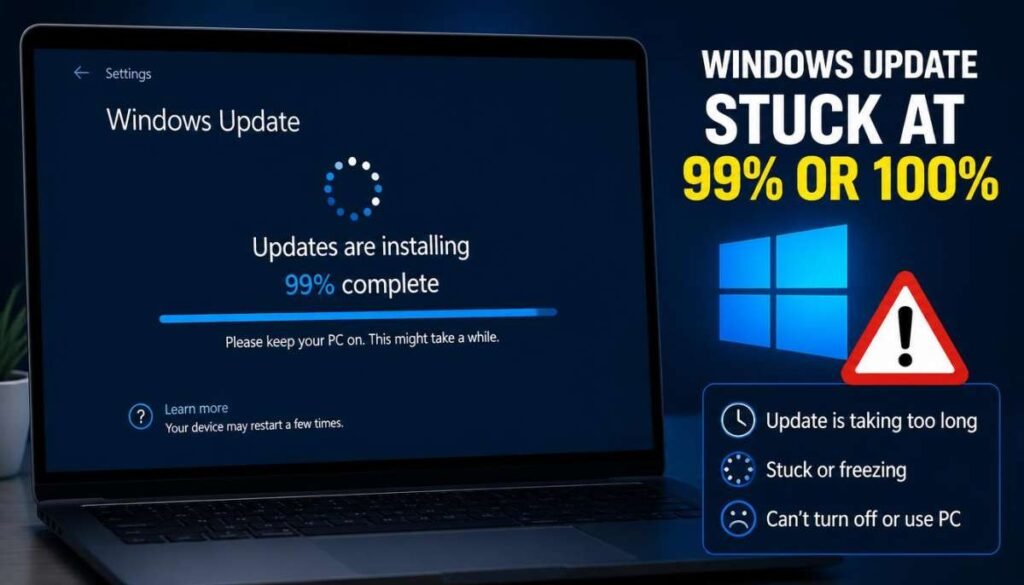
This is the most stressful one because it feels like you’re so close. You waited an hour, you’re at 99%, and now nothing.
The honest answer is that “99%” doesn’t mean 99% of the work is done. It just means Windows has reached a certain internal checkpoint. The remaining 1% often involves finalizing system registry changes, which can take surprisingly long on older hardware or HDDs (if you’re still on one).
Wait at least 30 minutes at 99% before doing anything. Many people have restarted here and caused real problems it’s the worst point to interrupt.
Fix 1: Run the Windows Update Troubleshooter First
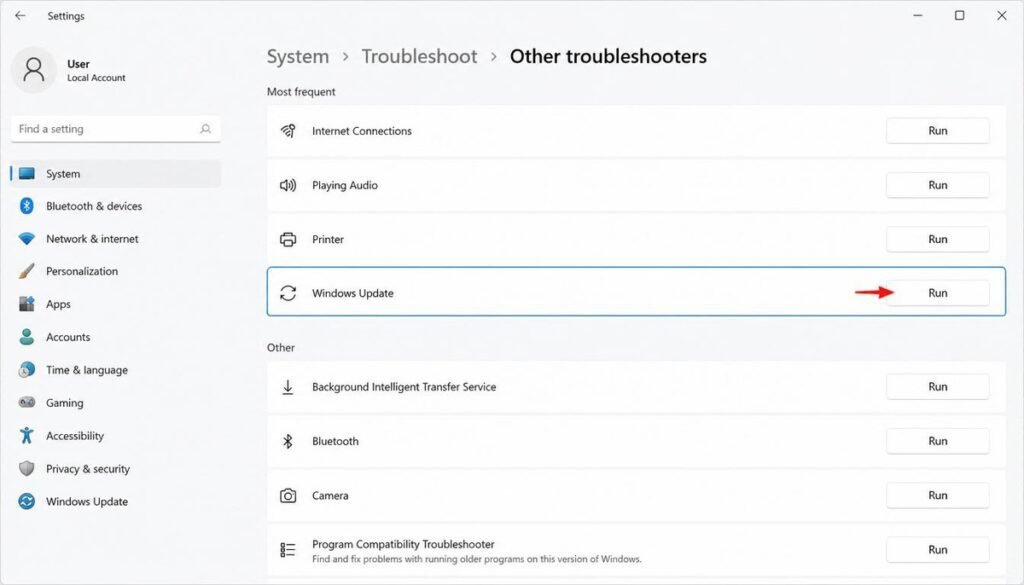
Before anything else, try the built-in troubleshooter. It won’t always fix the problem, but it only takes 2 minutes and occasionally saves you from doing everything manually.
Run Windows Update Troubleshooter
On Windows 11:
Go to:
Go to Settings → System → Troubleshoot → Other troubleshooters → Windows Update, then click Run.
Let the troubleshooter complete. If it detects any issue, click “Apply this fix” and restart your PC. After restarting, check for Windows updates again.
On Windows 10:
Go to:
Open your Settings app and follow this path: Update & Security > Troubleshoot > Additional troubleshooters. From there, select Windows Update and launch the tool..”
Let it finish, click “Apply this fix” if it finds a problem, then restart your device and check for updates again.
If you see “Troubleshooting couldn’t identify the problem”, that is normal. Continue with the next troubleshooting method.
Fix 2: Clear the Software Distribution Folder (This One Actually Works)
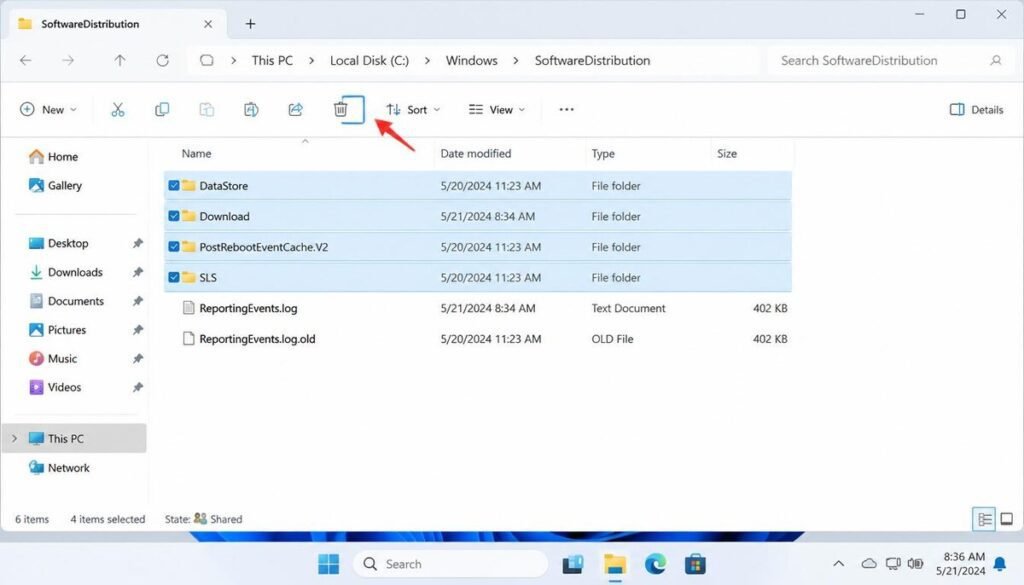
This is the fix that resolves the problem in probably 60–70% of stuck update cases. You’re basically deleting Windows Update’s temporary download cache and making it start fresh.
Here’s how to do it properly:
Clear Windows Update Cache
Step 1: Shut down all running Windows Update services.
Open Command Prompt as Administrator:
- Search for “cmd” in the Start menu.
- Open the Command Prompt with elevated privileges by right-clicking it and selecting Run as administrator
- Run these commands one at a time:
net stop wuauserv
net stop bits
You should see “The service was stopped successfully” for both commands. If Windows says the service was not running, that is also fine continue to the next step.
Step 2 Delete Windows Update Cached Files
Open File Explorer and go to:
C:\Windows\SoftwareDistribution\Download
Select all files inside the folder (Ctrl + A) and delete them.
These are only temporary Windows Update files. Windows will automatically create new files when it checks for updates again.
Step 3 Restart Windows Update Services
Open Command Prompt as Administrator again and run:
net start wuauserv
net start bits
Step 4: Reboot your computer and see if the updates go through
Restart your computer, then go to Windows Update settings and check for updates again.
In most cases, Windows will download the update files again and complete the installation without getting stuck.
Fix 3: Restart Windows Update Services via Services Manager
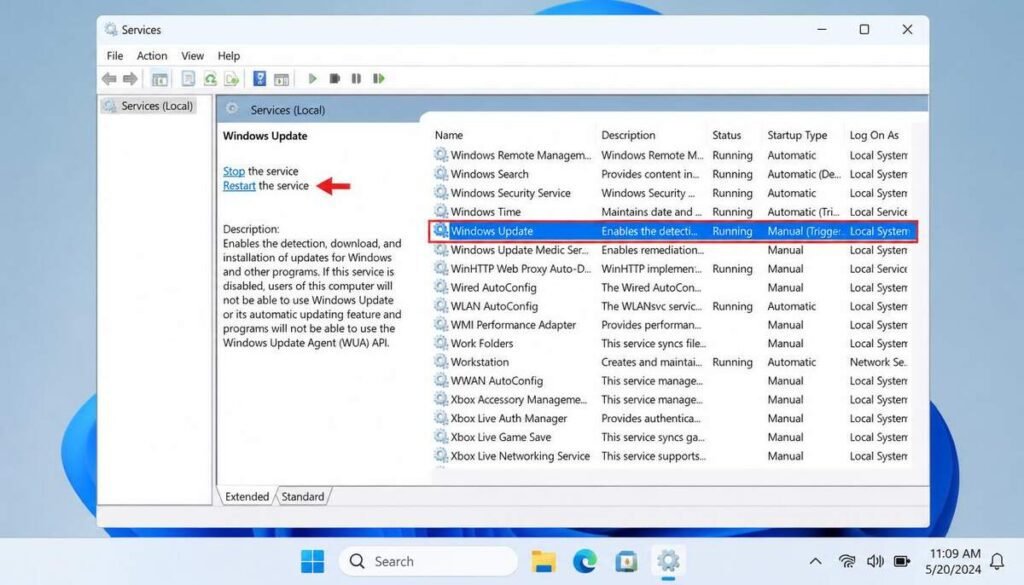
This is a slightly different approach from Fix 2 useful if you’re not comfortable with Command Prompt.
Press Windows + R, enter services.msc, and press Enter.
In the list, find these three services:
- Windows Update
- Background Intelligent Transfer Service (BITS)
- Cryptographic Services
For each one: right-click → Stop. Wait a few seconds, then right-click → Start.
Close the window, then go to Settings → Windows Update → Check for updates.
Fix 4: Run SFC and DISM to Fix Corrupted System Files
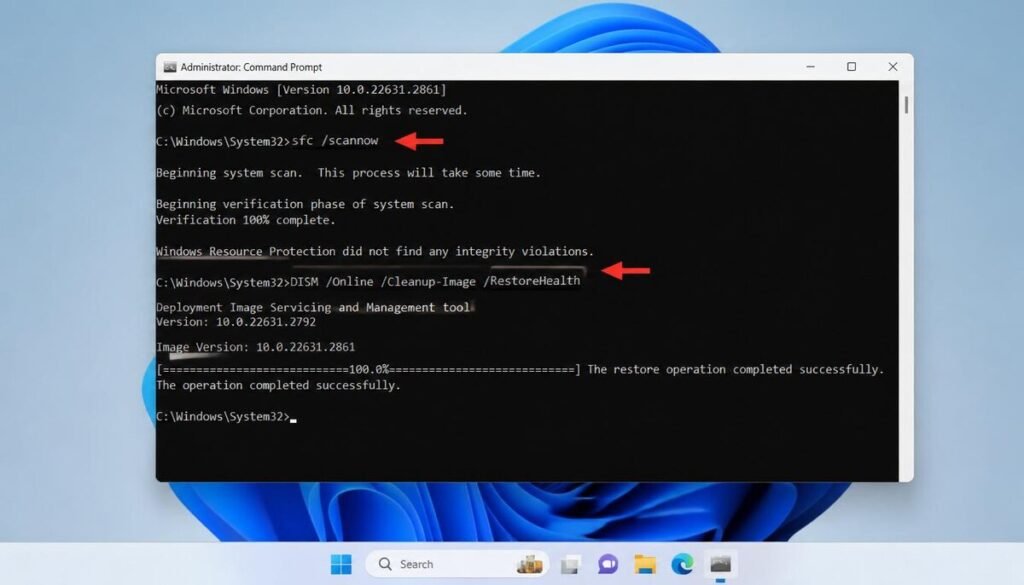
If the update keeps failing or freezing at the same spot repeatedly, there’s a chance some core Windows system files are corrupted. This can happen after an abrupt shutdown, a power cut during a previous update, or certain malware infections.
The good news is Windows has two built-in tools to detect and fix this.
Open Command Prompt as Administrator and run:
sfc /scannow
This scans all protected system files and replaces corrupted ones. It takes 5–15 minutes. Don’t close the window.
After it finishes, run:
DISM /Online /Cleanup-Image /RestoreHealth
DISM goes deeper it repairs the Windows image itself using files from Microsoft’s servers. This one can take 20–30 minutes. Again, let it finish completely.
Restart your PC and try the update again. If SFC or DISM reported finding and fixing issues, there’s a good chance your update will go through this time.
Fix 5: Download and Install the Update Manually
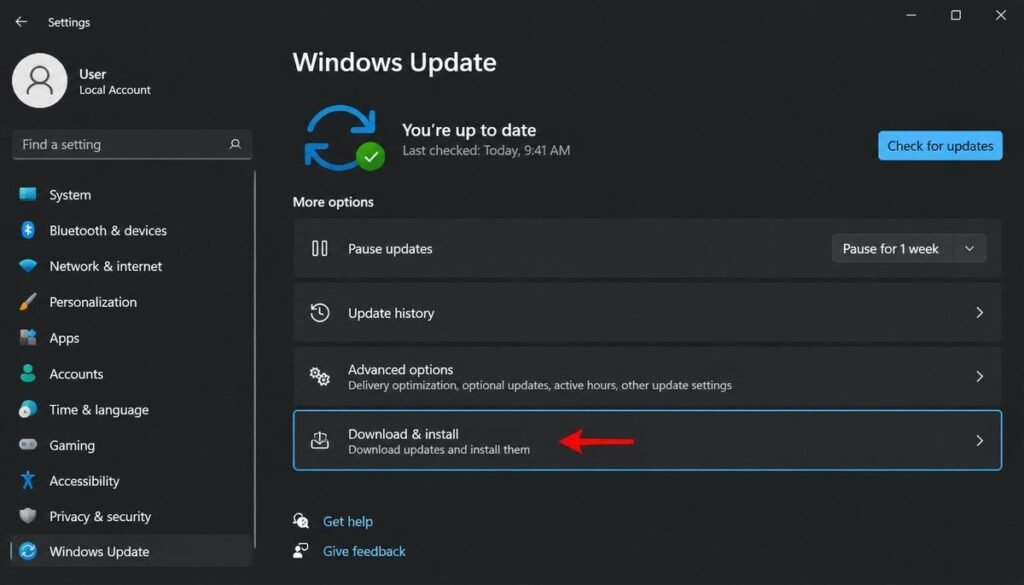
If Windows keeps getting stuck on the same update no matter what you try, skip the automatic process and just install it yourself.
Go to: catalog.update.microsoft.com
In the search box, enter the update’s KB number. You can find this number in Settings → Windows Update → Update History. It looks like “KB5034765” or similar.
Search for your KB number, find the version that matches your Windows (Windows 10 or 11) and your system type (x64 for most modern PCs), and download it.
Run the downloaded file as Administrator. This bypasses Windows Update entirely and installs directly. It usually takes 10–15 minutes and requires a restart.
This approach works almost every time for stubborn updates that keep failing through the normal path.
Fix 6: Disable VPN and Third-Party Antivirus Temporarily
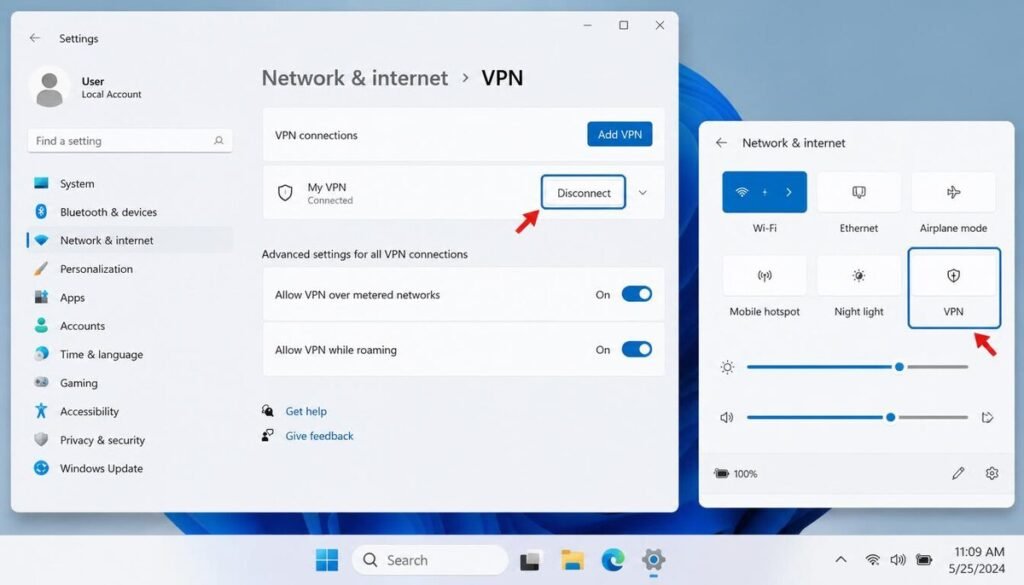
Two things that silently block Windows Update more often than people realize:
VPN: Windows Update connects to specific Microsoft CDN servers. Some VPNs route this traffic through slow servers or block it entirely. Disconnect your VPN, then try checking for updates.
Third-party antivirus (especially real-time protection): Bitdefender, Norton, Avast, Kaspersky all of them have been known to interfere with Windows Update at various points. Temporarily disable real-time protection (just for 10 minutes while the update downloads), run the update, then turn it back on.
Don’t permanently disable your antivirus — just pause it for the duration of the update process.
Fix 7: Free Up Disk Space
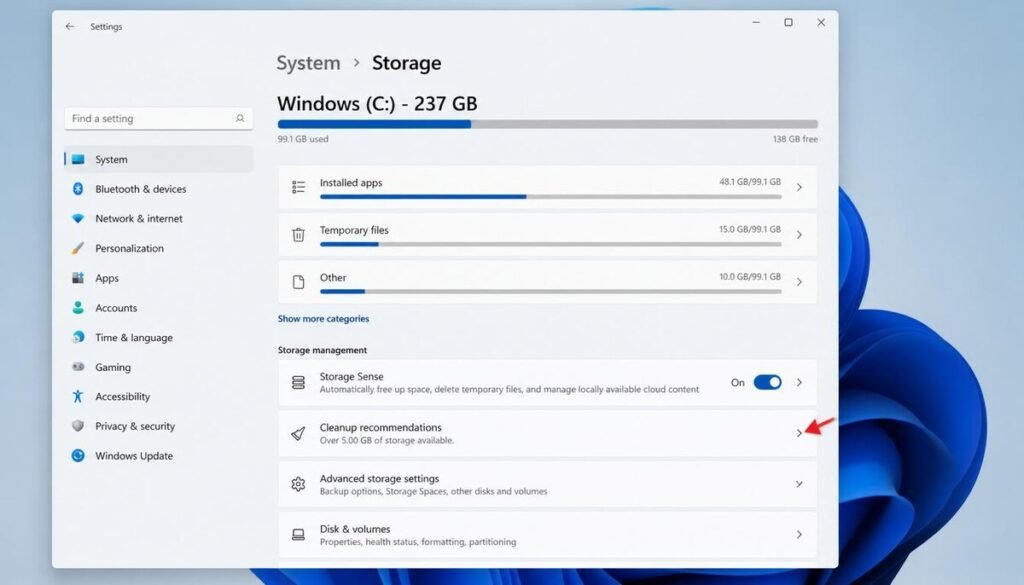
Windows needs a minimum of around 10–15 GB free space on your C: drive to download and install major updates. If you’re running tight, the update will either get stuck or fail silently.
Check your free space: Open File Explorer → right-click C: drive → Properties.
If you’re under 10 GB free, run Disk Cleanup (search it in Start), check “Windows Update Cleanup” and “Temporary files,” and clean up. You can also go to Settings → System → Storage → Cleanup recommendations for a quick way to free space.
Is It Safe to Force Restart During a Windows Update?
This is the question everyone is afraid to ask because they’re scared of the answer. Here it is honestly:
During download (0% to starting installation): Yes, you can safely restart. Windows hasn’t committed any changes yet. The download will start over but nothing will be damaged.
During installation (when it’s actively installing and you see the spinning circle): Risky. If you interrupt here, Windows might roll back automatically (which is fine) or in rare cases leave the system in a half-updated state that causes boot problems.
At the “Do not turn off your PC” blue screen: Do NOT force restart if you can avoid it. If you’ve been waiting over 2 hours with no disk activity at all, a restart is your only option but be prepared to potentially use Startup Repair if the PC doesn’t boot normally. For reference on how to handle that, check our guide on fixing Windows boot and BSOD errors.
If you do force restart and something goes wrong blue screen, error codes, won’t boot don’t panic. Most of these are recoverable. You can look up the specific error code using our Windows Error Code Lookup tool to find out exactly what happened and how to fix it.
Why Does Windows Update Get Stuck So Often in 2026?
Honestly, it’s a combination of factors that haven’t improved as much as they should have.
Microsoft’s update system tries to be smart about when and how it downloads — it uses BITS (Background Intelligent Transfer Service) so updates don’t hog your bandwidth. But this also means updates are more sensitive to network interruptions, service conflicts, and background processes than a simple file download would be.
Windows 11 24H2 in particular has had documented issues with certain cumulative updates getting stuck on systems running older SSDs or HDDs. Microsoft has acknowledged some of these and pushed patches, but if your system is a few years old and hasn’t been maintained (full disk, outdated drivers, old security software), you’re more likely to hit these problems.
The good news is that the fixes above cover the vast majority of cases and once you’ve done Fix 2 (clearing SoftwareDistribution) and Fix 4 (SFC + DISM) on a system, it tends to be much more reliable for future updates too.
Frequently Asked Questions About Windows Update Issues
How long should Windows Update take in 2026?
For minor security updates, Windows Update usually takes around 10–25 minutes to complete. Major feature updates, such as a new Windows 11 version, can take 45 minutes to 2 hours, depending on your hardware performance and internet speed.
My PC has been stuck on the “Working on updates” screen overnight. What should I do?
If there has been no hard drive activity for several hours, a forced restart may be necessary. After restarting, boot into Safe Mode and run the following command to check for system file issues:
sfc /scannow
This will scan Windows files and repair any corrupted files it finds.
Will clearing the SoftwareDistribution folder delete my installed programs?
No. Clearing the SoftwareDistribution folder only removes temporary Windows Update download files. Your installed programs, personal files, and system settings will remain unchanged.
Your Windows update is completely frozen, but you have urgent work to get done right away . Can I pause it?
Yes, if the update is still downloading and you have not restarted your PC yet. Go to:
Settings → Windows Update → Pause updates
However, if Windows has already restarted and is installing updates on the update screen, it is better to let the process finish. If the update fails or remains stuck, continue with the recommended fixes.

Clara Linford is a tech enthusiast and troubleshooting expert specializing in Windows errors, gaming crashes, and software fixes. At FindsErrors.com, she breaks down complex technical issues into simple, step-by-step solutions.