
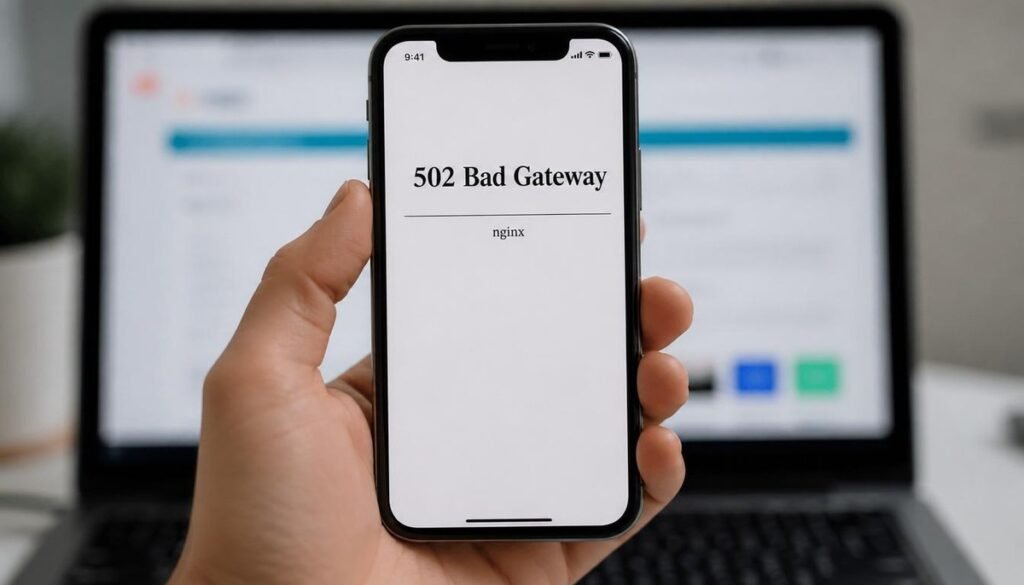
You’re trying to log into an app or website on your phone, but instead of signing in, you’re greeted with a 502 Bad Gateway error. The page refuses to load, the login button doesn’t respond, and you’re left wondering what went wrong. Don’t worry this error is usually temporary, and in most cases, it’s caused by a server communication problem rather than anything you’ve done.
Here’s the short answer it’s not your fault. A bad gateway error means the server your phone is trying to reach got an invalid response from another server behind it. You’re not doing anything wrong. The problem is between the servers, not your device.
That said, there are things you can fix on your end right now.
What Bad Gateway Error Actually Means on Mobile
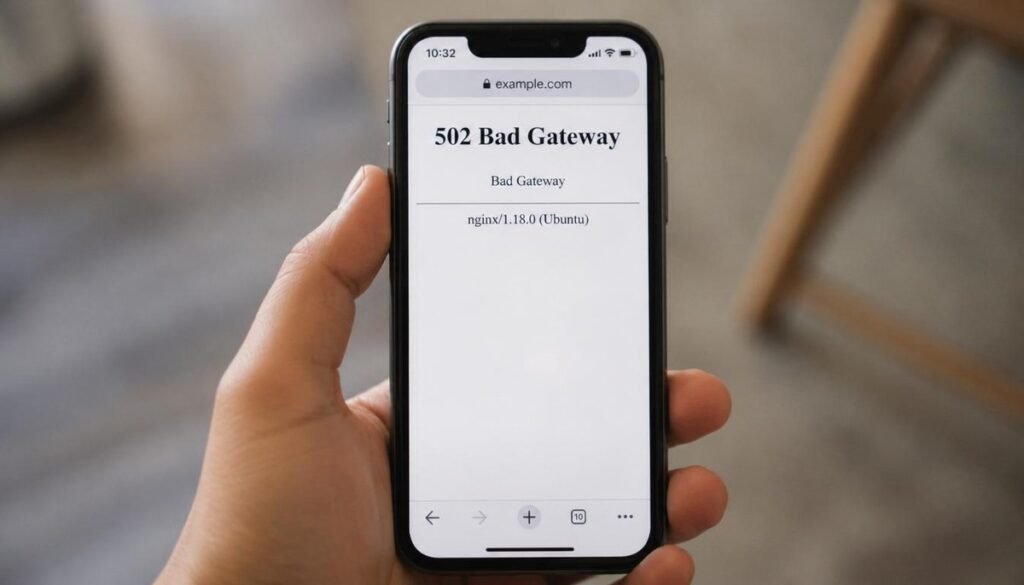
When you tap login on your phone, your request travels through multiple servers before you get access. One of those servers acts as a middleman called a gateway or proxy. If that middleman gets a broken or no response from the server behind it, it returns a 502 error to your screen.
On mobile, this happens more often than on desktop because mobile networks have higher latency and packet loss. Your connection drops for a fraction of a second during the login process and the server times out. That’s all it takes.
Also Read: IMS Service Has Stopped: 6 Fixes That Actually Work on Android
App vs Browser The Fix Changes Depending on Where the Error Appears
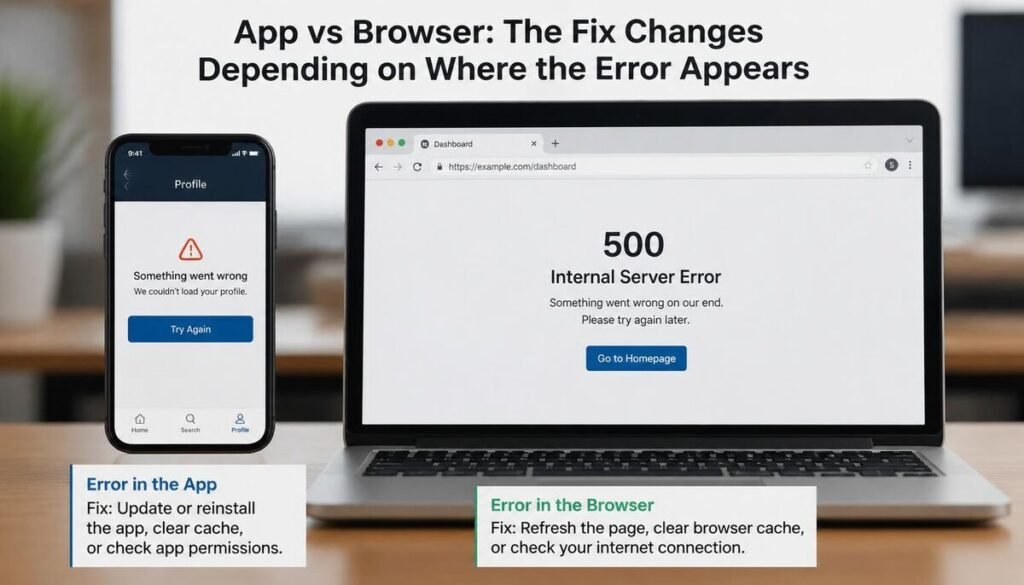
This is the first thing to figure out before trying anything else.
If the error is appearing inside an app, the problem is usually a cached login session or outdated app data conflicting with the server.
If the error is appearing in your mobile browser during a website login, the problem is more likely a browser cache issue or a temporary network problem.
Both show the same 502 error message. The fix is different for each.
Quick Fixes to Try First

These take under a minute and solve the problem more often than you’d expect.
Refresh the login page. If you’re using a mobile browser, pull down to reload the page. If the error appears inside an app, close the app completely, reopen it, and try logging in again. This simple step often fixes temporary connection issues.
Switch networks. If you’re on WiFi, turn it off and use mobile data instead. If you’re on mobile data, connect to WiFi. A network switch forces your phone to establish a fresh connection, which often clears a temporary server communication issue.
Wait two minutes and try again. Server overload causes most 502 errors. The server recovers on its own within minutes in most cases. Trying again after a short wait costs nothing and works more often than people expect.
Fix Bad Gateway Error on Android
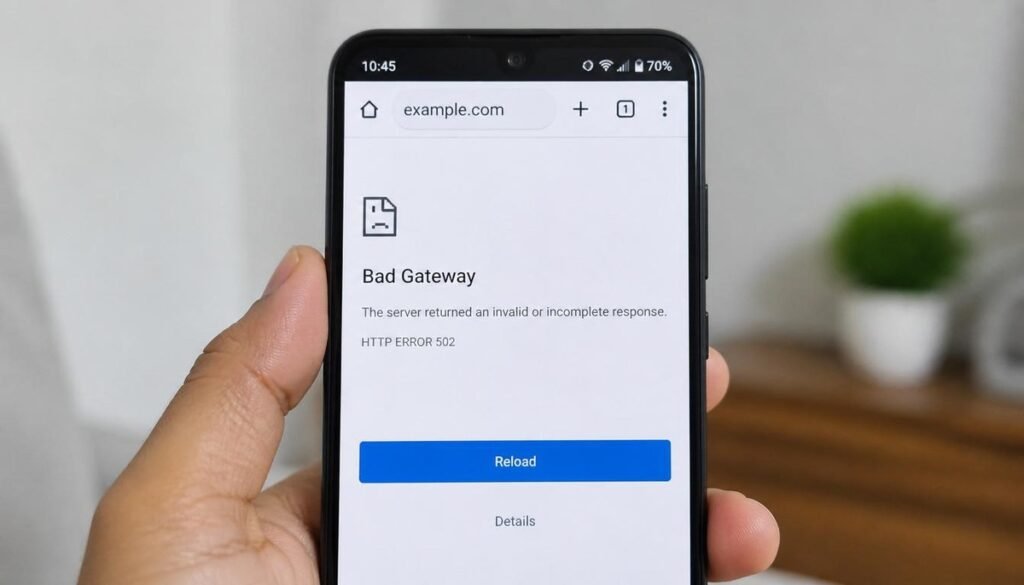
Clear App Cache on Android
Go to Settings, then Apps, find the app giving the 502 error, tap Storage, and hit Clear Cache. Do not tap Clear Data unless you’re okay with logging in fresh — Clear Data removes your saved credentials along with the cache.
After clearing cache, reopen the app and try logging in again.
Clear Browser Cache on Chrome Android
Open Chrome, tap the three dots in the top right, go to Settings, then Privacy and Security, then Clear Browsing Data. Select Cached Images and Files plus Cookies and Site Data. Tap Clear Data.
Reopen the login page and try again.
Reset Network Settings Android
If the above steps don’t work, go to Settings, then General Management or System depending on your device, then Reset, then Reset Network Settings. This resets WiFi passwords, Bluetooth connections, and mobile data settings to default.
It sounds drastic but it fixes network-level issues that cause persistent 502 errors.
Fix Bad Gateway Error on iPhone
Clear Safari Cache on iPhone
Go to Settings, scroll down to Safari, tap Clear History and Website Data. Confirm when prompted.
If you’re using Chrome on iPhone instead of Safari, open Chrome, tap the three dots, go to Settings, Privacy, then Clear Browsing Data and clear cache and cookies.
Reset Network Settings on iOS
Go to Settings, then General, then Transfer or Reset iPhone, then Reset, then Reset Network Settings. Enter your passcode when prompted.
Your WiFi passwords will be removed so make sure you have them noted before doing this.
Sign Out and Sign Back In
For app-based 502 errors on iPhone, signing out of the app completely and signing back in clears the cached session that is often causing the conflict. Go to the app’s account settings, find the sign out option, log out fully, then log back in fresh.
When the Problem Is the Server Not Your Phone
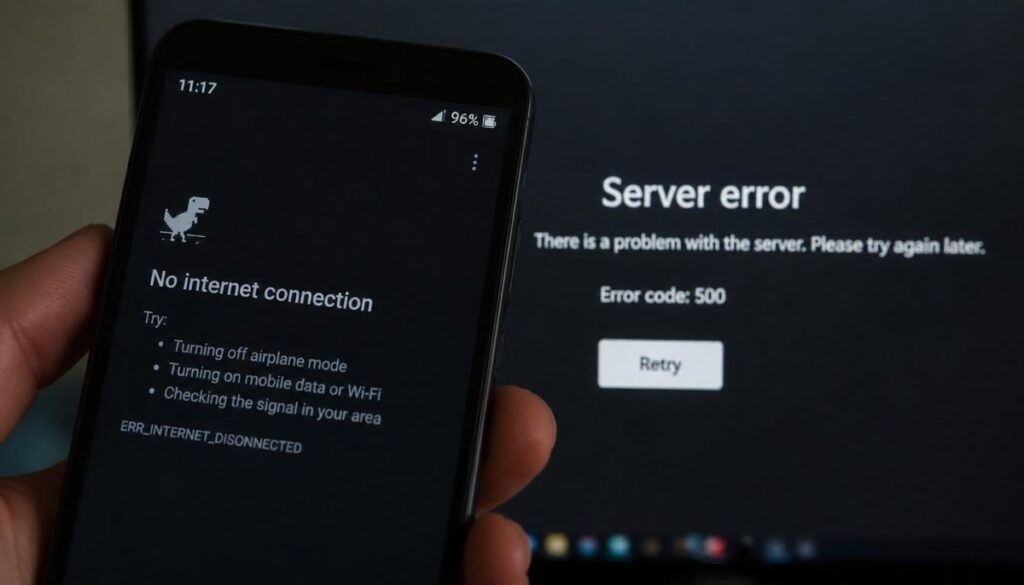
If you have tried every fix above and the 502 error is still appearing, the problem is on the website’s end not your device.
Go to downdetector.com and search the website or app name. If hundreds of other people are reporting the same error at the same time, the server is down and nothing you do on your phone will fix it.
In this case, the only fix is to wait. Server-side 502 errors resolve on their own once the website’s team fixes the backend issue. Checking back every 15 to 30 minutes is the most practical approach.
VPN Causing Bad Gateway on Mobile Login

If you have a VPN running on your phone, turn it off before trying to log in. VPNs route your connection through their own servers, which adds another layer to the server communication chain. If the VPN server has any issue, it can return a 502 to your login request even when the actual website is working fine.
Disable the VPN, try logging in, and re-enable it afterward if the login succeeds.
Final Thoughts
A bad gateway error during mobile login is almost always temporary. The server communication breaks, your phone gets the 502, and once you clear the cache or switch networks the problem disappears.
Work through the fixes in order quick fixes first, then cache clearing, then network reset, then check if the site is down entirely. Most people find a solution within the first two steps.
If nothing works and the site is showing as down for everyone, the fix is out of your hands. Give it thirty minutes and try again.
FAQs About Bad Gateway Error Mobile Login Fix
Why am I getting a 502 Bad Gateway error when logging into an app?
A 502 Bad Gateway error usually means the app’s server received an invalid response from another server it depends on. In most cases, the issue is on the server side rather than your phone. However, clearing the app cache, restarting the app, or switching between Wi-Fi and mobile data can often resolve temporary connection issues.
Can I fix a Bad Gateway error on my phone without reinstalling the app?
Yes. Reinstalling the app is rarely the first solution. Start by refreshing the login page, clearing the app or browser cache, changing your network connection, and restarting your phone. These steps solve most temporary 502 errors without removing the app.
Why does the 502 error happen on mobile but not on my computer?
Mobile devices often switch between network towers, experience higher latency, or temporarily lose connection during login requests. This can interrupt communication between servers and trigger a 502 Bad Gateway error, while a desktop connected to a stable internet connection may not experience the same issue.

Clara Linford is a tech enthusiast and troubleshooting expert specializing in Windows errors, gaming crashes, and software fixes. At FindsErrors.com, she breaks down complex technical issues into simple, step-by-step solutions.