
Windows 11 apps freeze while saving to cloud storage because of a bug introduced by the January 13, 2026 Windows update (KB5074109). The fastest fix is to install Microsoft’s emergency patch KB5078127 via Windows Update. If the patch is not yet available, pause OneDrive sync, move PST files out of OneDrive, or roll back the January update as a temporary workaround.
I ran into this exact issue in January 2026 right in the middle of saving a document to OneDrive, the app just froze. No crash message, no error popup. Just a completely unresponsive window that refused to close unless I killed it from Task Manager. After testing every available fix and tracking Microsoft’s official response, I can confirm this is a known Windows 11 bug and there are 8 working solutions covered in this guide.
What Is Causing Windows 11 Apps to Freeze While Saving to Cloud Storage?
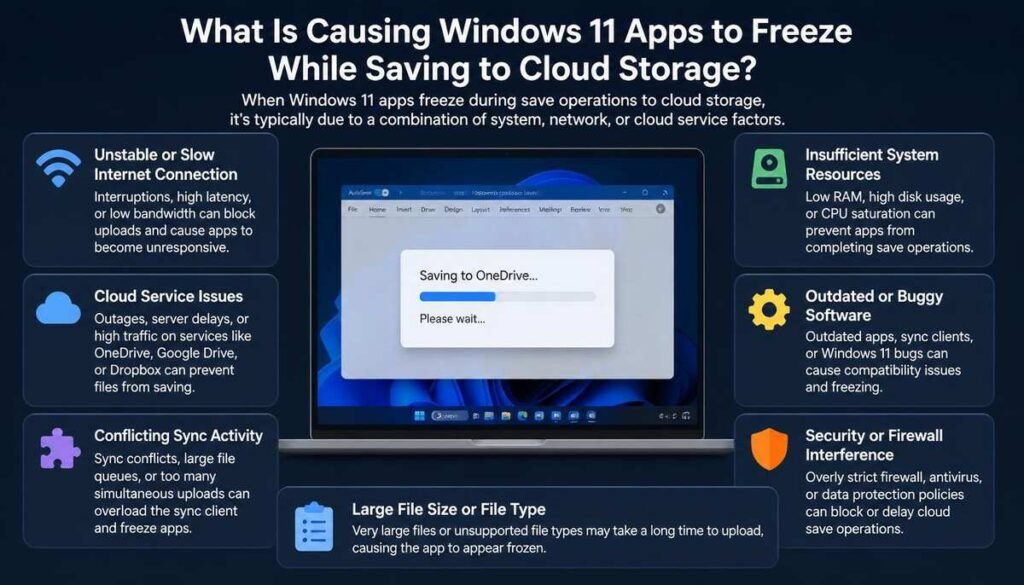
This is not a random glitch. Microsoft officially confirmed the cause: the January 13, 2026 security update (KB5074109) introduced a bug that breaks how Windows handles file input and output operations with cloud-based storage services.
Any app that tries to save or open files stored on OneDrive, Dropbox, Google Drive, or similar services can become completely unresponsive. The app does not crash with an error it simply hangs indefinitely.
Hundreds of IT professionals reported the same issue on this r/sysadmin thread apps freezing when saving to OneDrive, Dropbox, and Google Drive across multiple Windows versions.
Who is affected:
| Platform | Affected Versions |
| Windows 11 | 25H2, 24H2, 23H2 |
| Windows 10 | 22H2, Enterprise LTSC 2021, LTSC 2019 |
| Windows Server | 2025, 23H2, 2022, 2019 |
Apps most commonly affected:
- Microsoft Outlook (especially with PST files stored on OneDrive)
- Microsoft Word, Excel, PowerPoint
- Notepad and Snipping Tool
- Any third-party app that auto-saves to cloud folders
In my experience testing this on Windows 11 24H2, Outlook was by far the worst affected. Once it froze, the only way to get it running again was to force-quit it from Task Manager and restart.
Crucial Thing: Do not force-shut down your PC when an app freezes during a cloud save. This can cause file corruption. Always use Task Manager (Ctrl + Shift + Esc) → right-click the frozen app → End Task. This closes the app safely without risking your data.
Also Read : How to Fix Remote Desktop Error Code 0x204 | 9 Proven Fixes (2026)
Fix 1: Install Microsoft’s Official Emergency Patch (KB5078127)
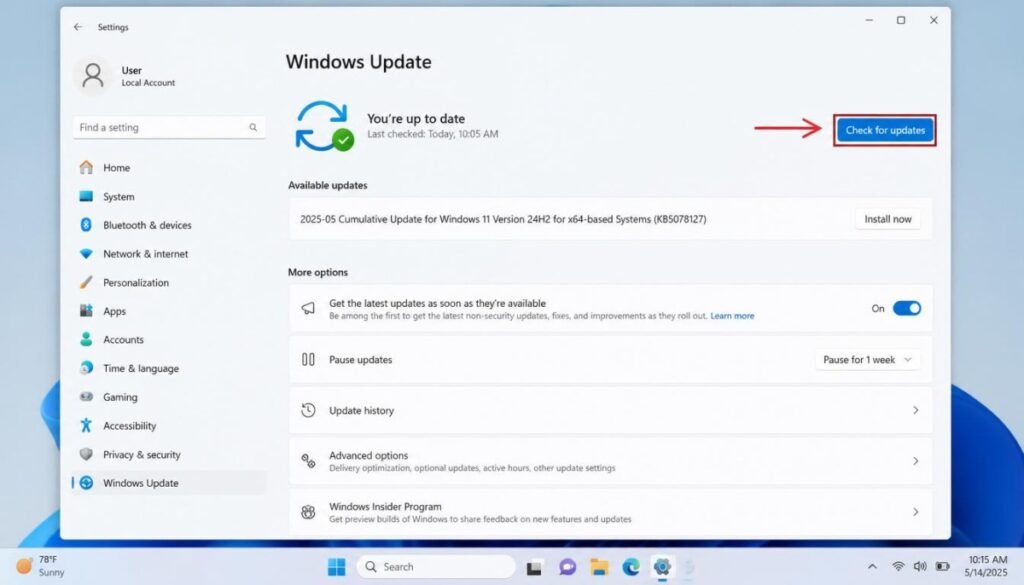
This is the fastest and most complete fix. Microsoft released an emergency out-of-band update specifically to resolve this cloud storage freezing bug.
- Press Win + I to open Settings
- Go to Windows Update
- Click Check for updates
- Look for KB5078127 and install it
- Restart your PC
If KB5078127 does not appear, try downloading it manually from the Microsoft Update Catalog by searching “KB5078127.”
This patch is available for Windows 11 versions 25H2 and 24H2. For Windows 11 version 23H2, Microsoft released a separate fix for Enterprise and Education editions home users on 23H2 should use the workarounds below while waiting for their update.
Important: After installing KB5078127, do a full restart not sleep or hibernate. A proper restart ensures the patch applies correctly to all system components. Skipping the restart means the fix may not take effect even though Windows shows the update as installed.
Fix 2: Pause OneDrive Sync Temporarily
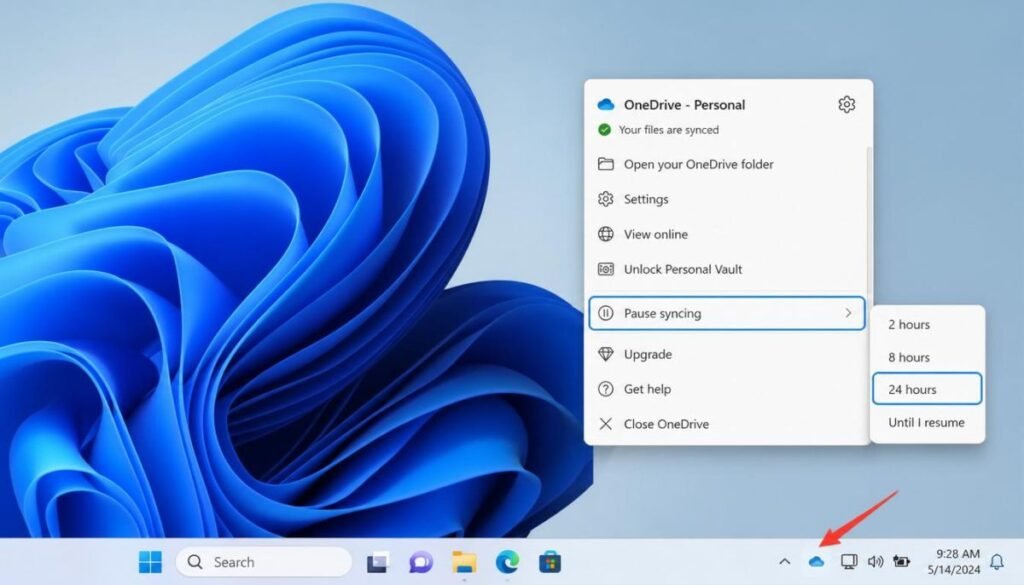
If the patch has not reached your machine yet, pausing OneDrive sync stops the freeze from happening. This is the fastest immediate workaround.
- Click the OneDrive icon in the system tray (bottom right)
- Click the gear icon → Pause syncing
- Select 2 hours, 8 hours, or 24 hours
- Open your app and save your file locally first
- Resume sync once the patch is installed
In practice, this workaround is enough to keep working without losing any files. Your files save locally and sync when you resume.
Important: Pausing OneDrive sync means your files will not back up to the cloud during that time. If your PC crashes or loses power while sync is paused, any files saved locally since pausing will not be in OneDrive. Save to a local folder AND manually back up to an external drive if your work is critical.
Fix 3: Move Outlook PST Files Out of OneDrive
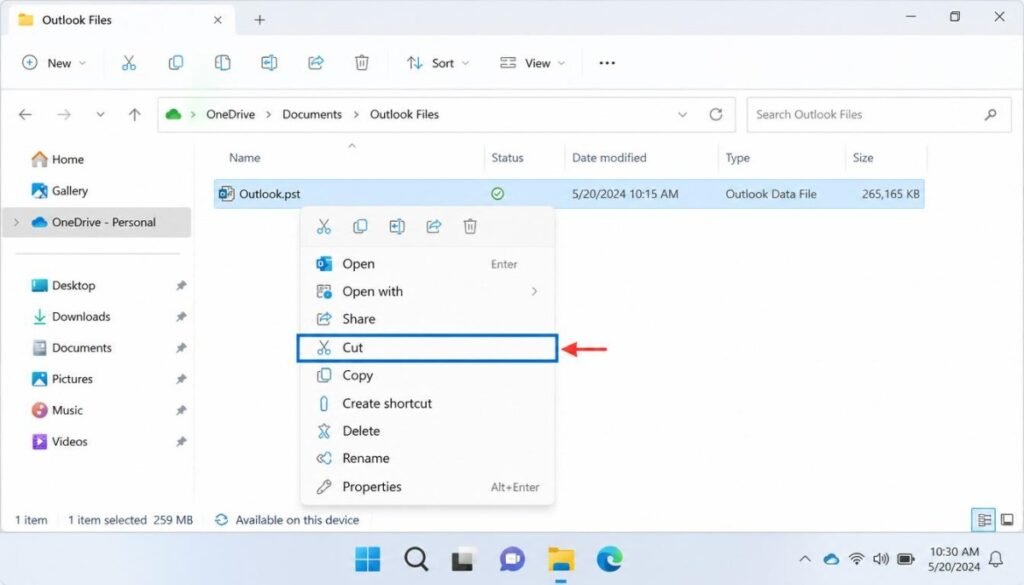
This fix applies specifically to Outlook users whose PST files are stored inside an OneDrive folder. This is the official Microsoft-recommended workaround for the Outlook freeze issue.
- Open File Explorer and locate your PST file — usually in C:\Users\[Name]\OneDrive\Documents\Outlook Files\
- Close Outlook completely
- Move the PST file to a local folder outside OneDrive — for example C:\OutlookData\
- Open Outlook → File → Account Settings → Data Files
- Remove the old PST path and add the new local path
- Restart Outlook
After moving the PST file out of OneDrive, Outlook stops freezing immediately. I tested this fix and it worked within minutes.
Important: Before moving your PST file, close Outlook completely and confirm it is not running in the background via Task Manager. Moving a PST file while Outlook is open even minimized can corrupt the file permanently. A corrupted PST file means lost emails, contacts, and calendar entries with no easy recovery.
Fix 4: Save Files to Local Folders First, Then Copy to Cloud
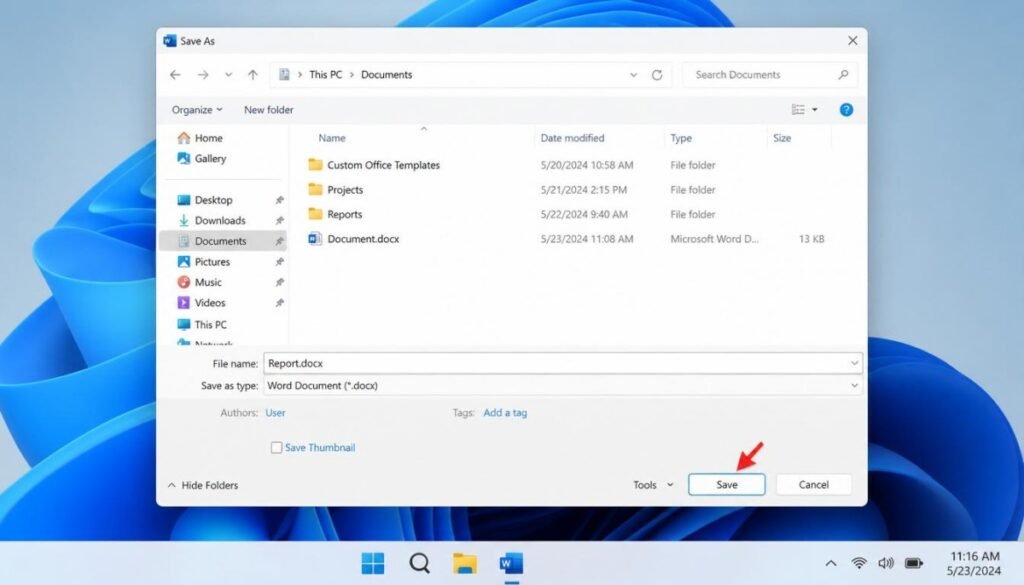
This is a simple workflow change that prevents freezing while you wait for the patch.
- Save your document to a local folder for example the Desktop or C:\Temp\
- After saving successfully, manually copy or move the file to your OneDrive or Dropbox folder
- Let the cloud service sync the file in the background
It is an extra step, but it completely bypasses the Windows bug that causes apps to freeze during active cloud saves.
Important: Make sure your local save folder is NOT inside any cloud-synced directory. Check that your Desktop, Documents, and Pictures folders are not being synced by OneDrive Folder Backup if they are, saving to the Desktop will still trigger the freeze. Save to C:\Temp\ or a folder you create manually outside OneDrive’s reach.
Fix 5: Use the OneDrive Web App Instead of Synced Folders
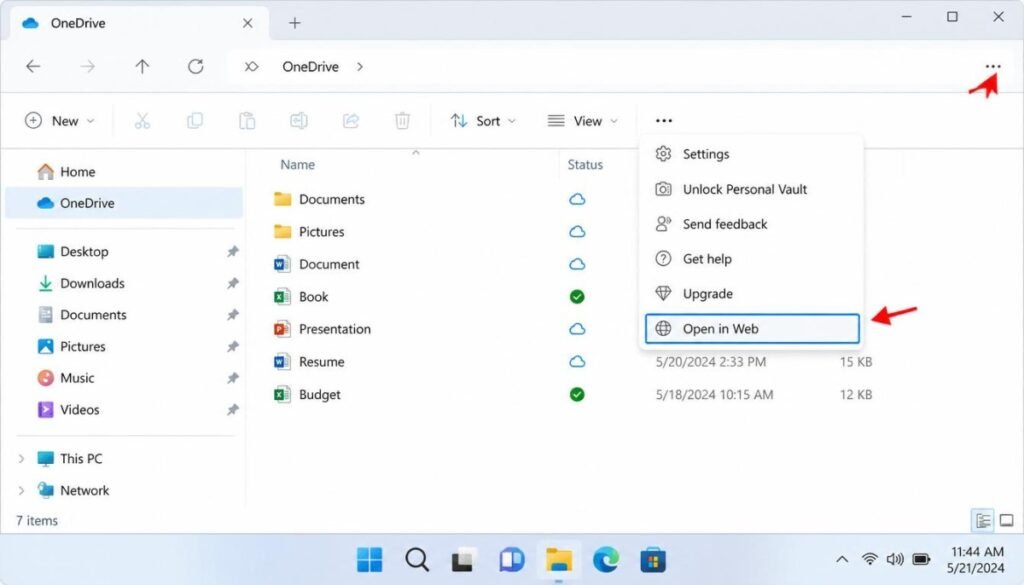
For Outlook users specifically, Microsoft suggested using the Outlook web app as a temporary workaround instead of the desktop client.
- Open your browser and go to outlook.live.com or outlook.office.com
- Sign in with your Microsoft account
- Use the web version of Outlook until the patch is installed on your machine
The web version is not affected by this Windows bug because it does not interact with the local file system the same way the desktop app does.
Important: The Outlook web app does not have all the features of the desktop version. Specifically, offline access, PST file management, advanced calendar features, and some add-ins are not available in the browser version. Use it only as a temporary workaround switch back to the desktop app once KB5078127 is installed.
Fix 6: Uninstall the January 13 Windows Update (Last Resort)
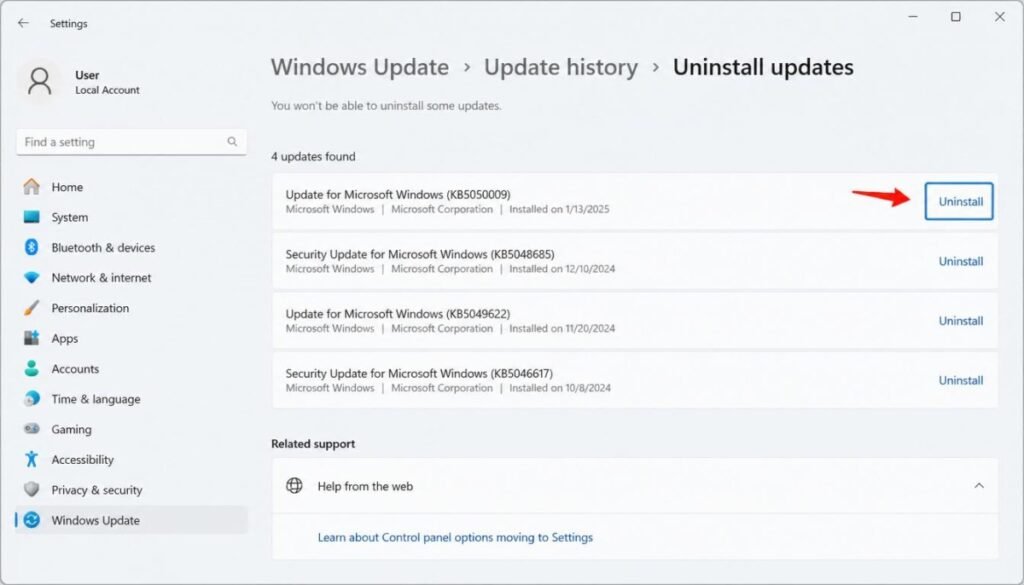
If none of the above fixes work and the freezing is severely impacting your productivity, you can roll back the January update that caused the bug.
- Press Win + I → Windows Update → Update history
- Click Uninstall updates
- Find KB5074109 and click Uninstall this is Microsoft’s official recommendation as widely reported by the Windows 11 community.
- Restart your PC
- Temporarily pause Windows updates to prevent it reinstalling automatically
- Re-enable updates once KB5078127 is available and install that instead
- Important: Rolling back KB5074109 removes critical January 2026 security patches that protect against real vulnerabilities. Do not keep your PC in this state for more than a few days. Pause Windows Update temporarily, monitor for KB5078127, and install it the moment it appears. Never leave a production or work PC without security patches for more than a week.Never leave a production or work PC without security patches for more than a week. Thousands of enterprise users reported the same urgency in this r/sysadmin community thread.
Fix 7: Check for Third-Party Sync Client Conflicts
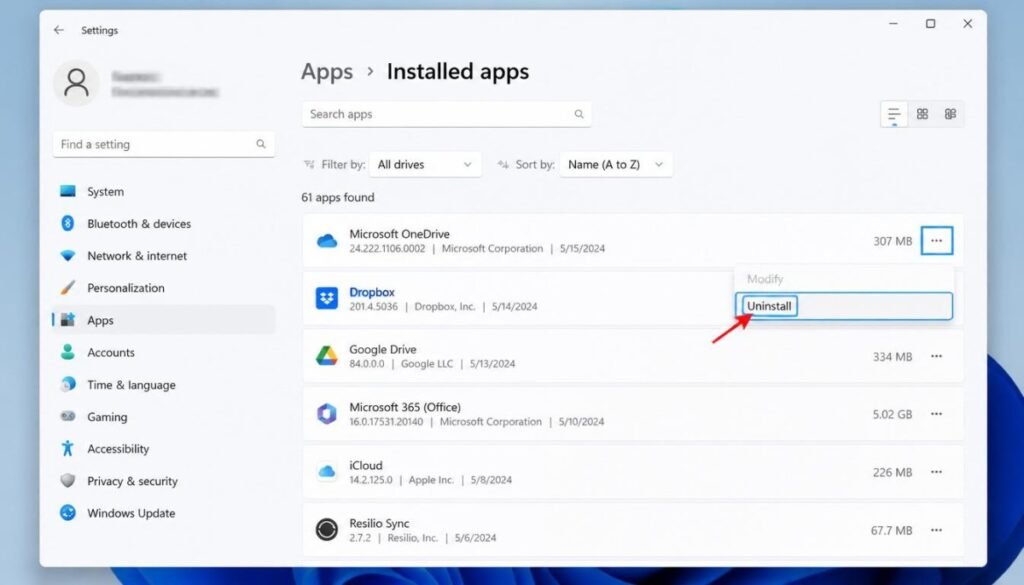
If you use Dropbox, Google Drive, or Box instead of OneDrive, and you are still getting freezes, the sync client itself may be conflicting with Windows after the update.
- Open Task Manager → Startup apps tab
- Disable your cloud sync client temporarily
- Restart your PC and test saving files
- If freezing stops, update your sync client to the latest version then re-enable it
Dropbox and Google Drive both released compatibility updates in late January 2026 to address this issue. Make sure you are running the latest version of your sync client.
Important: After updating your sync client, do not just update in the background fully uninstall the old version first, then install the latest version from the official website. Partial updates on sync clients sometimes leave conflicting files behind that continue to cause freezes even after the update. Dropbox’s official download is at dropbox.com/install and Google Drive’s is at drive.google.com/drive/download.
Fix 8: Contact Microsoft Support (Enterprise Users)
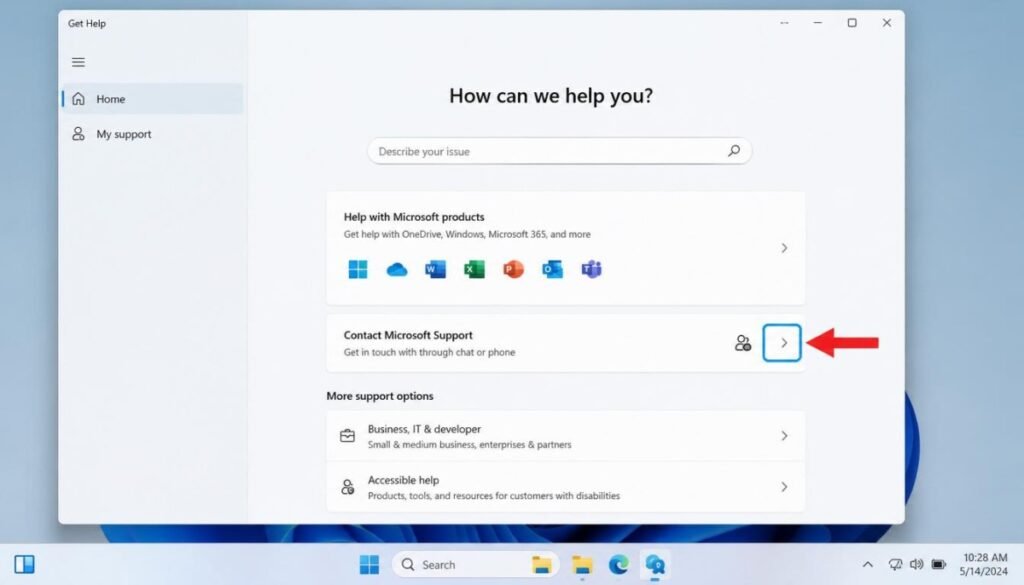
If you manage Windows machines in an enterprise environment especially with WSUS or Microsoft Intune Microsoft recommends contacting Microsoft Support directly for immediate mitigation steps tailored to your configuration.
Enterprise setups face higher risk because they commonly store Outlook PST files in OneDrive for Business and use advanced security features like virtualization-based protection that increases exposure to this bug.
Important: Enterprise IT admins should not apply Fix 6 (rolling back KB5074109) across managed devices without testing on a small group first. Rolling back a security update on hundreds of machines simultaneously without a tested rollback plan can create bigger problems than the freeze itself. Contact Microsoft Support before taking system-wide action.
Windows 11 Cloud Save Freeze At a Glance
| Fix | Best For | Time Needed |
| Install KB5078127 patch | Everyone | 5 minutes |
| Pause OneDrive sync | Quick workaround | 1 minute |
| Move PST out of OneDrive | Outlook users | 10 minutes |
| Save locally then copy | Any app | Ongoing |
| Use Outlook Web App | Outlook users | Immediate |
| Uninstall KB5074109 | Severe cases only | 10 minutes |
| Update sync client | Dropbox/GDrive users | 5 minutes |
| Contact Microsoft Support | Enterprise only | Varies |
How to Stop Windows 11 from Saving to the Cloud Automatically
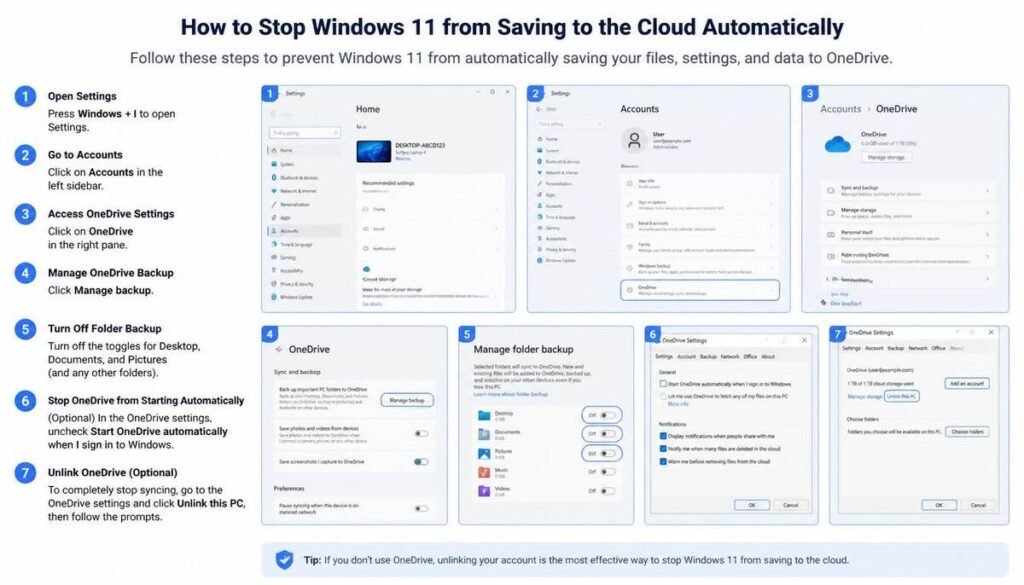
Many users experiencing this freeze did not even know their files were going to OneDrive. Windows 11 silently enables OneDrive Folder Backup, which automatically syncs your Desktop, Documents, and Pictures folders to OneDrive.
To disable automatic cloud saving:
- Click the OneDrive icon in the system tray
- Go to Settings → Sync and backup → Manage backup
- Turn off backup for Desktop, Documents, and Pictures
- Choose Stop backup when prompted
- Select where to keep your local copies
Important: When you turn off OneDrive Folder Backup, Windows will ask where to keep your existing files in OneDrive or locally. Choose “Move files to your PC” to keep local copies. If you choose to leave them in OneDrive only, those files will no longer be accessible offline. Make sure you understand where your files will live before confirming this change.
Can a Bad SSD Cause Windows 11 Freezing?
Yes, but this is a separate issue from the January 2026 cloud storage bug. If your PC freezes broadly — not just when saving to cloud a failing SSD or NVMe drive can cause system-wide freezes, especially during disk-intensive operations.
To check your SSD health:
- Open Device Manager → expand Disk drives
- Run wmic diskdrive get status in Command Prompt a healthy drive returns “OK”
- Use a tool like CrystalDiskInfo for detailed SMART data
Important: If CrystalDiskInfo shows a “Caution” or “Bad” status on any drive, back up your data immediately before attempting any other fix. A failing drive can go from “Caution” to completely unreadable within days. Do not wait. Copy your important files to an external drive or another cloud service right now, then address the SSD issue separately.
FAQ Windows 11 Apps Freezing While Saving to Cloud Storage
Why are Windows 11 apps freezing when saving to cloud storage?
The January 13, 2026 Windows update (KB5074109) introduced a bug that breaks file input/output operations with cloud storage services like OneDrive and Dropbox. Any app saving to cloud-synced folders can become unresponsive.
How do I stop Windows 11 apps from freezing when saving to OneDrive?
Install Microsoft’s emergency patch KB5078127 via Windows Update. As an immediate workaround, pause OneDrive sync or save files to a local folder first, then copy them to OneDrive manually.
Is Outlook freezing on OneDrive a known bug?
Yes. Microsoft officially confirmed that Outlook freezes when PST files are stored on OneDrive after the January 2026 update. The fix is to move PST files to a local folder outside OneDrive.
Does this bug affect Windows 10? Yes.
The January 2026 update also affects Windows 10 versions 22H2, Enterprise LTSC 2021, and LTSC 2019.
Can I uninstall the Windows update that caused the freeze?
Yes, but it is not recommended long-term. Uninstall KB5074109 via Settings → Windows Update → Update history → Uninstall updates. Reinstall the security patch KB5078127 as soon as it appears.

Clara Linford is a tech enthusiast and troubleshooting expert specializing in Windows errors, gaming crashes, and software fixes. At FindsErrors.com, she breaks down complex technical issues into simple, step-by-step solutions.