
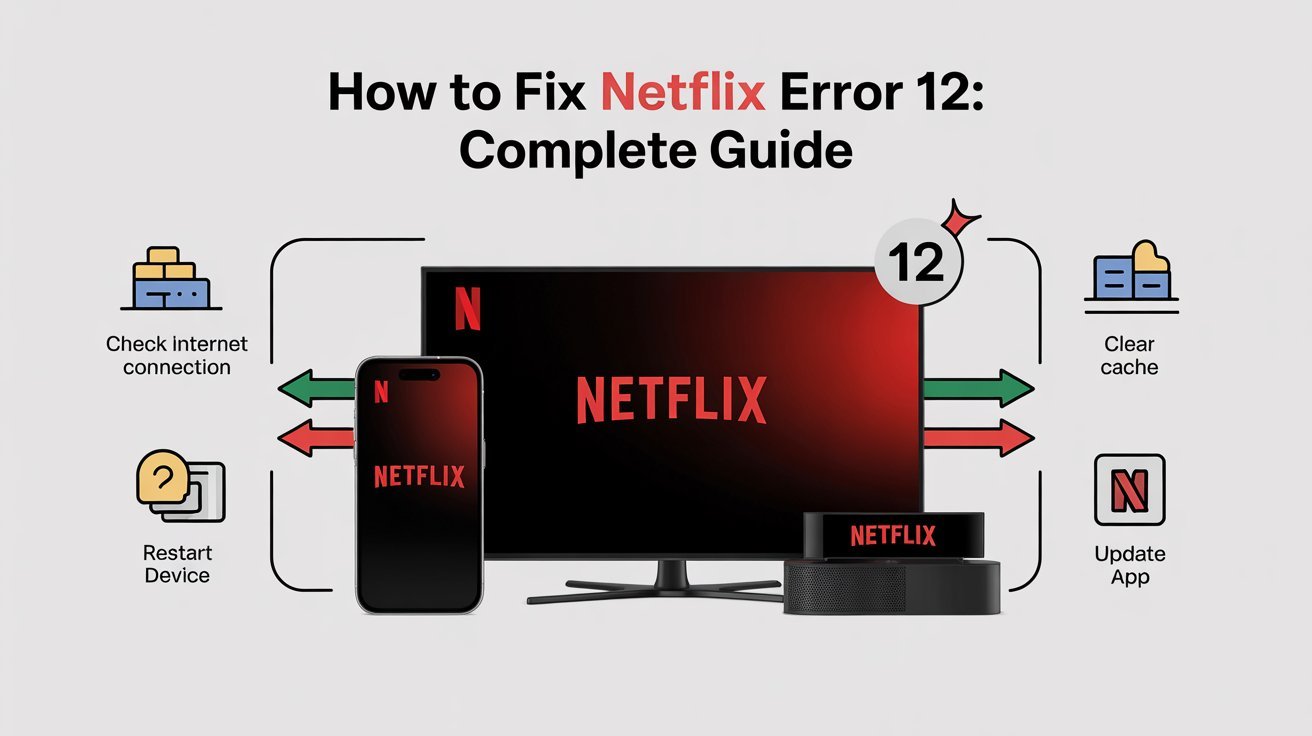
Netflix Error 12 usually appears when the app cannot properly connect to Netflix servers or when there is a problem with internet settings, cached data, or device configuration. Many users see this issue on Smart TVs, Android TVs, streaming sticks, and mobile devices while trying to load videos or open the Netflix app.
This error can feel frustrating because Netflix may suddenly stop working even when your internet seems fine. In most cases, the problem is related to temporary app glitches, VPN conflicts, corrupted cache files, or outdated software settings.
Restart Your Device to Fix Netflix Error 12 Quickly
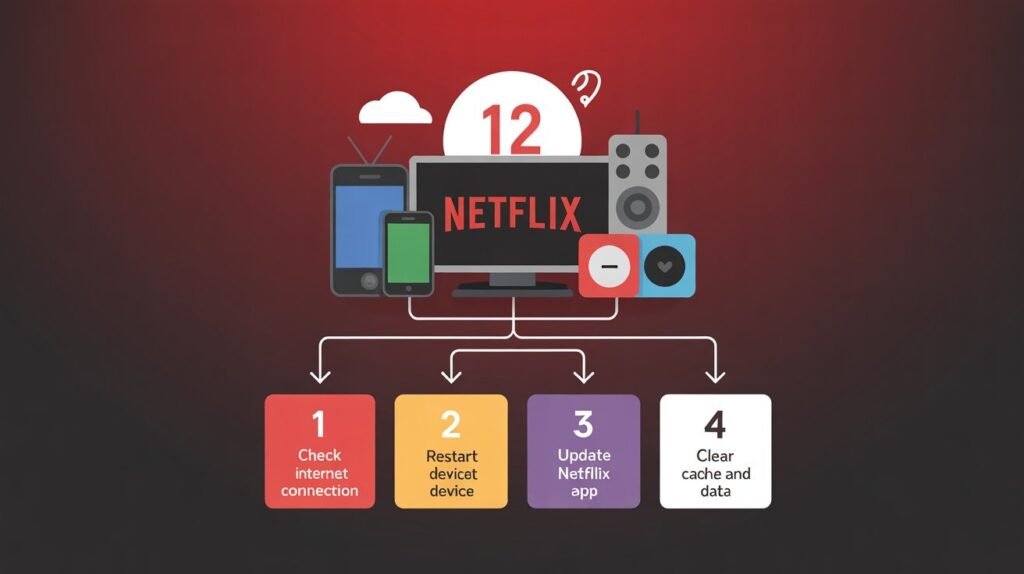
One of the easiest ways to fix Netflix Error 12 is by restarting the device completely. Temporary system bugs often interfere with streaming services, especially after long usage periods or background app conflicts.
Turn off your Smart TV, streaming device, phone, window, or tablet completely for a few minutes before turning it back on. This simple step refreshes system memory and often resolves temporary Netflix connection issues instantly.
Check Your Internet Connection and WiFi Stability
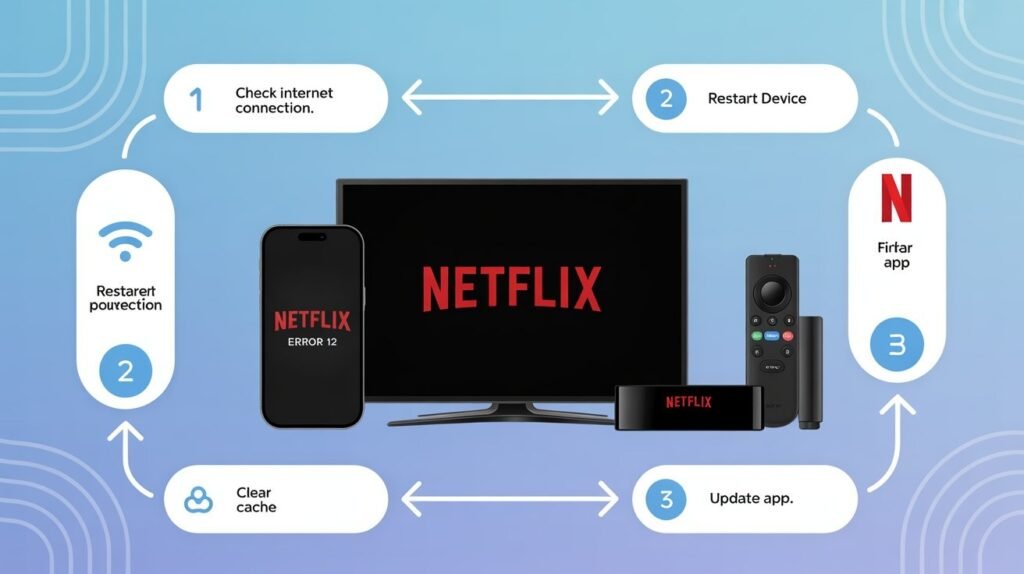
Netflix requires a stable internet connection for streaming properly. Weak WiFi signals, router interruptions, or unstable mobile data can trigger Netflix error codes, including Error 12.
Try restarting your WiFi router and reconnecting the device to the internet. Running a speed test can also help confirm whether your connection is strong enough for Netflix streaming and HD playback.
Clear Netflix App Cache and Temporary Data
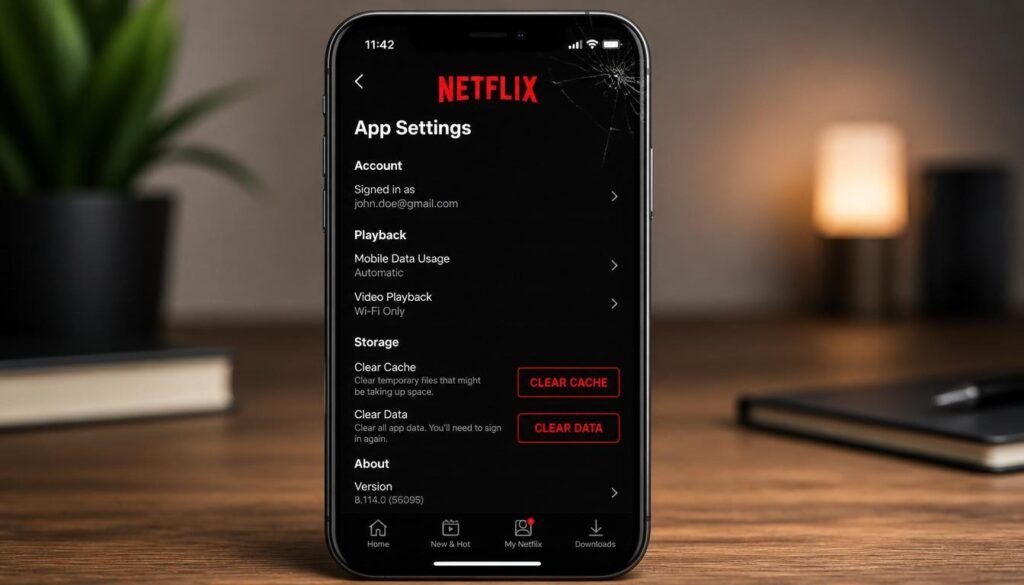
Corrupted cache files are one of the most common causes of Netflix errors on Android TVs, smartphones, and streaming devices. Clearing the app cache removes damaged temporary files that may prevent Netflix from loading correctly.
Go to your device settings, open the Apps section, select Netflix, and choose “Clear Cache.” After clearing the cache, reopen Netflix and check if Error 12 disappears.
Update the Netflix App to the Latest Version
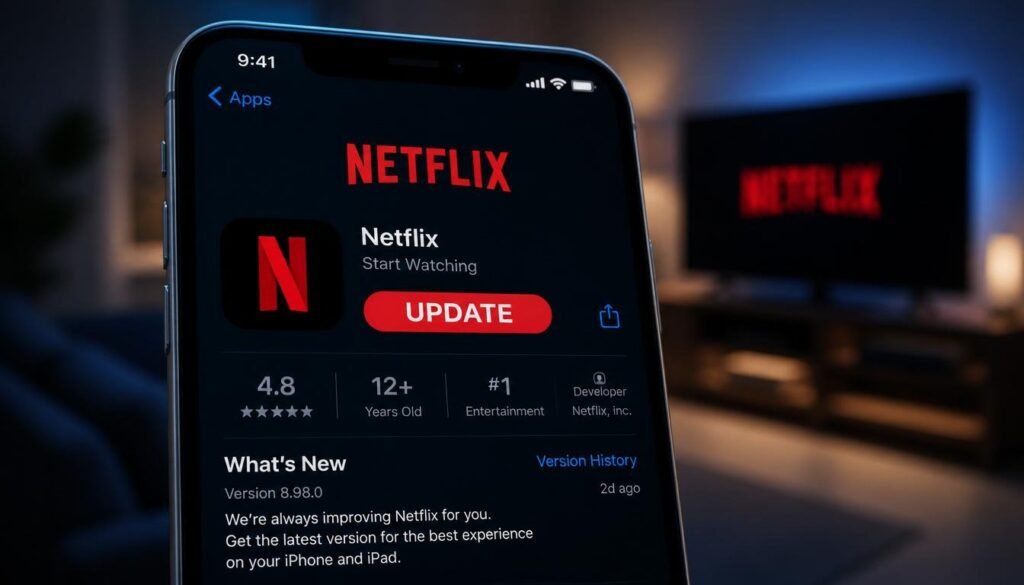
An outdated Netflix app can create compatibility problems with newer operating systems and streaming services. Updating the app helps fix bugs, security issues, and playback errors automatically.
Visit your device’s app store and install the latest Netflix version available. Updated apps usually improve streaming stability and reduce common Netflix error codes.
Disable VPN or Proxy Services
Many users experience Netflix Error 12 because Netflix detects VPN or proxy connections. Netflix restricts some VPN locations due to licensing agreements and regional content restrictions.
If you are using a VPN, disable it temporarily and reconnect to Netflix using your normal internet connection. This often fixes location-related Netflix streaming problems quickly.
How to Fix Netflix Error 12 on Smart TV
Smart TVs sometimes store corrupted app data or lose internet permissions after updates. Restarting the TV, reinstalling Netflix, and reconnecting WiFi can help resolve Netflix Error 12 on Samsung TVs, LG TVs, Android TVs, and other Smart TV platforms.
Some TVs also benefit from firmware updates. Checking for software updates inside TV settings may improve Netflix app performance and compatibility.
Reinstall Netflix to Remove Corrupted Files
If basic fixes do not work, reinstalling Netflix can completely refresh the application. Uninstalling removes damaged files, while reinstalling downloads a clean version directly from the app store.
This method is especially helpful for persistent Netflix error messages that continue appearing after clearing the cache and restarting devices.
How to Clear Netflix Error Codes Properly
Netflix error codes often disappear after resetting the app environment completely. Logging out of Netflix, restarting the device, and signing back into the account can refresh account permissions and streaming access.
This process also helps solve login synchronization problems between Netflix servers and streaming devices.
Why Netflix Is Not Recognizing Your VPN Location
Netflix actively blocks many VPN services because content libraries differ between countries. If Netflix detects VPN traffic, you may receive streaming restrictions or connection errors.
Switching off the VPN, changing servers, or using a trusted internet connection may help restore Netflix access. In some cases, restarting the router after disabling VPN services also improves connection recognition.
How to Fix Netflix Error (-121)
Netflix Error (-121) is commonly linked to corrupted app data or account synchronization problems. Clearing Netflix storage data and reinstalling the app usually resolves this issue on Android devices and Smart TVs.
Make sure your device software is fully updated because outdated operating systems can also create compatibility conflicts with Netflix services.
Reset Network Settings if Netflix Still Does Not Work
If Netflix Error 12 continues appearing, resetting network settings may help remove hidden internet configuration problems. This process refreshes WiFi settings, DNS configurations, and device network permissions.
After resetting network settings, reconnect to WiFi and reopen Netflix. Many users find this step helpful when standard troubleshooting methods fail.
Contact Netflix Support for Advanced Problems
If none of the troubleshooting methods solve the issue, contacting Netflix support may be necessary. Account-related restrictions, regional service outages, or unusual device compatibility issues sometimes require direct assistance.
Netflix support can provide device-specific troubleshooting based on your TV model, streaming device, or operating system version.
FAQs
1. How to fix error 12 on Netflix?
Restart the device, check your internet connection, clear Netflix cache, disable VPN services, and update the Netflix app.
How to Clear Netflix Error Messages?
You can clear Netflix error codes by restarting the device, clearing app cache, reinstalling Netflix, and signing back into your account.
3. Why is Netflix not recognizing my VPN location?
Netflix blocks many VPN servers because of regional streaming restrictions. Disabling the VPN often resolves the issue quickly.

Clara Linford is a tech enthusiast and troubleshooting expert specializing in Windows errors, gaming crashes, and software fixes. At FindsErrors.com, she breaks down complex technical issues into simple, step-by-step solutions.