
If your phone keeps showing the same error message every few seconds, you already know how frustrating it is. The IMS service has stopped popup does not just appear once. It comes back repeatedly, sometimes every five to ten seconds, making the phone almost impossible to use normally.
The good news is that this error is fixable without a factory reset in most cases. This guide walks you through six fixes in order from simplest to most involved. Start with the first one and work your way down until the error stops.
What Is IMS Service and Why Does It Stop
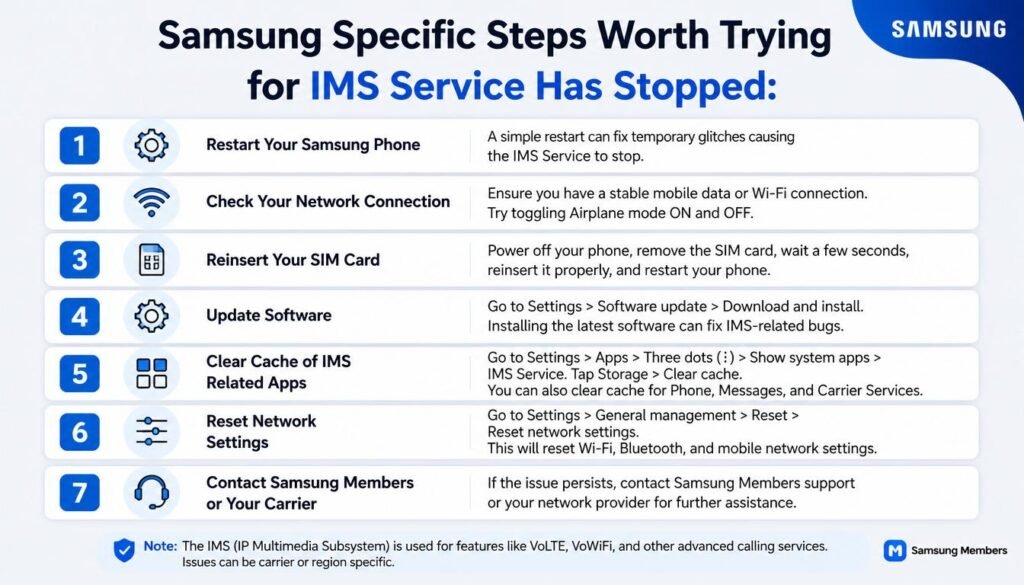
IMS stands for IP Multimedia Subsystem. It is a built-in service on Android phones that manages how your device connects to your carrier network for calls, text messages, and multimedia services including VoLTE and RCS messaging.
When this service crashes or gets interrupted, Android throws the unfortunately IMS service has stopped error. It is not a virus, and it does not mean your phone is hacked. It means something has disrupted the normal communication between your phone and your carrier.
What Causes the IMS Service Has Stopped Error
The IMS service has stopped error usually happens after an Android or security update, a corrupted messaging or IMS app cache, conflicts with third-party messaging apps, changing or replacing the SIM card, or incompatible Rich Communication Services (RCS) settings on your current carrier network.
6 Fixes for IMS Service Has Stopped
Fix 1: Restart Your Phone
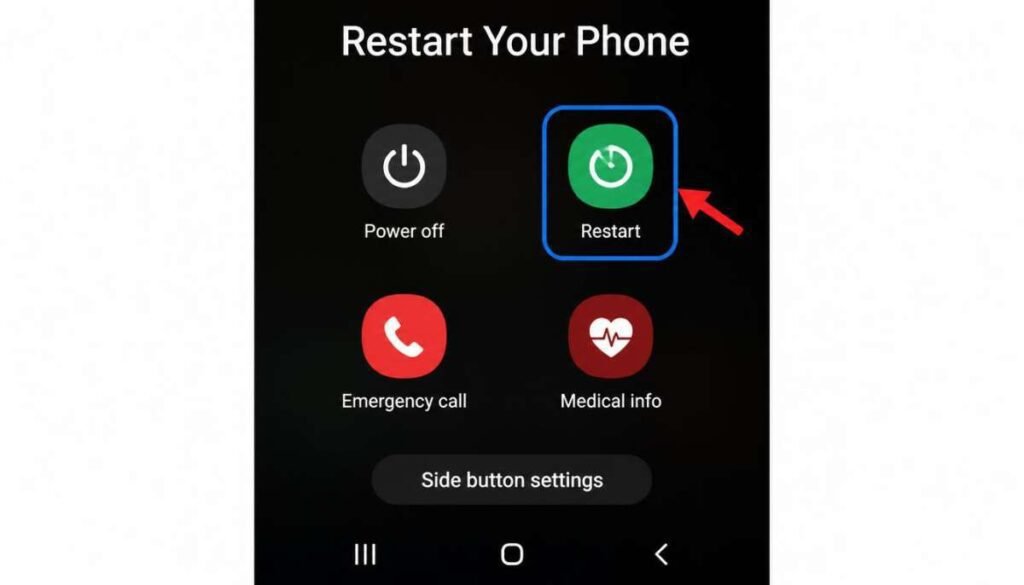
This sounds too simple, but it resolves the error in a surprising number of cases. A restart clears temporary system processes and forces the IMS service to reload fresh from scratch.
Press and hold the power button on your phone. Tap Restart or Reboot from the menu that appears. Wait for the phone to fully boot back up and check if the error has stopped appearing.
If the error comes back within a few minutes, move to Fix 2.
Also Read:This PC Can’t Run Windows 11: Fix Errors, TPM 2.0 Issue & Complete Solution Guide
Fix 2: Disable Rich Communication Services
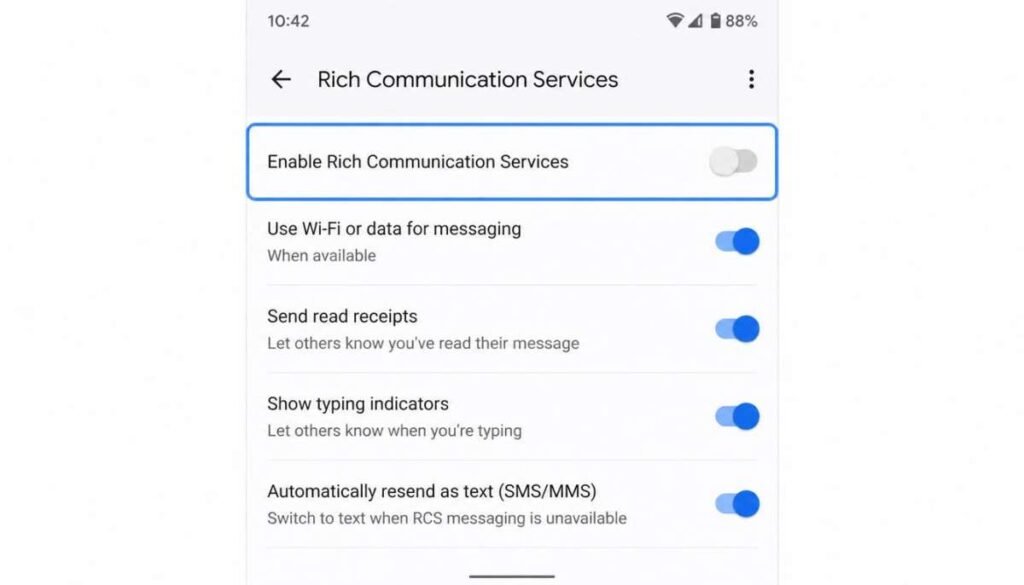
Rich Communication Services, also called RCS or Chat Features, is an enhanced messaging system that runs on top of the standard SMS service. On some networks and devices it conflicts directly with the IMS service and causes the error to appear repeatedly.
Disabling it is the fix that resolves the problem for the largest number of users.
Open the Messages app on your phone. . Look for Chat Features or RCS Chats depending on your Android version. Tap it and toggle off the option that says Enable Chat Features or Turn on RCS Chats. Restart your phone after disabling it and check if the error is gone.
On Samsung devices the path is slightly different. Open Messages, tap the three-dot menu, go to Settings, then select Advanced Messaging or More Settings depending on your device model, and toggle off the advanced messaging option.
Fix 3: Clear the IMS Service App Cache and Data
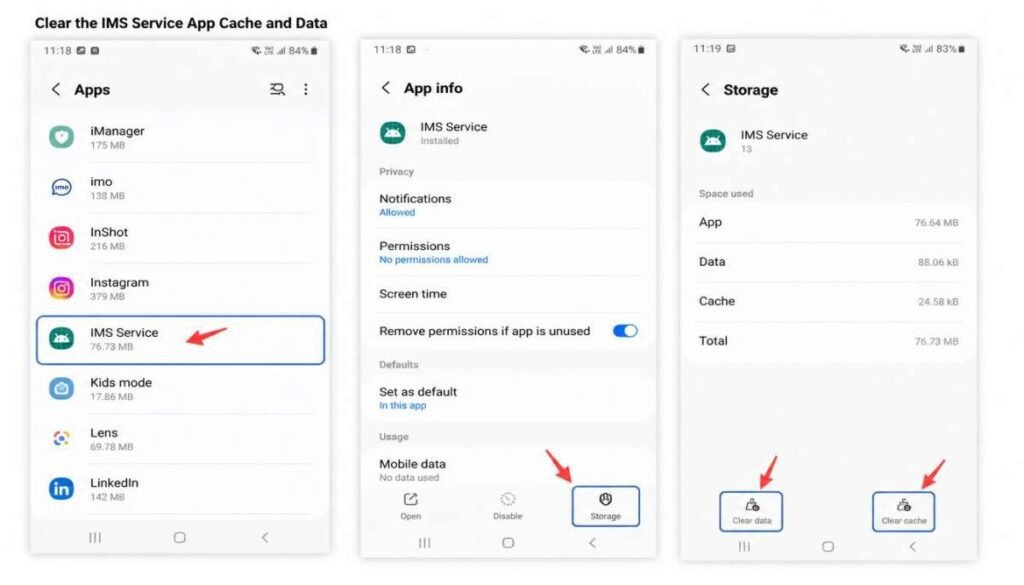
The IMS service is a background app on your phone, and like any app, it can accumulate corrupted cache files that cause it to crash. Clearing the cache and data forces it to start completely fresh.
Open Settings on your phone. Go to Apps or Application Manager. Tap the three-dot menu or look for a Show System Apps option because IMS service is a system app and may not appear in the default list. Scroll down and find IMS Service. Tap Storage and then tap Clear Cache. Tap Clear Data as well. Restart your phone and check if the error persists.
If you cannot find IMS Service in the app list, search for it using the search bar in the Apps section of Settings.
Fix 4: Clear the Messaging App Cache and Data
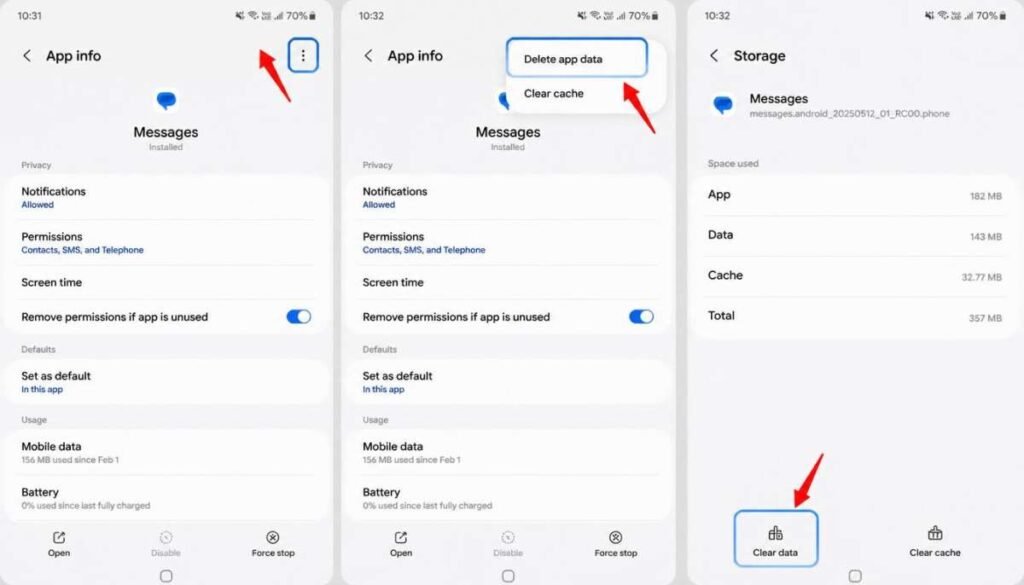
The IMS error is closely connected to the default messaging app on your phone. A corrupted cache in the messaging app can trigger the IMS service to crash repeatedly.
Open Settings and go to Apps or Application Manager. Find your default messaging app. On Samsung devices this will be Samsung Messages. On stock Android devices it will be Messages by Google. Tap Storage, then tap Clear Cache. Tap Clear Data as well.
Note that clearing data from the messaging app will delete locally stored messages on the device. If you want to keep your messages, back them up before doing this step.
Restart the phone after clearing the cache and data and check if the error is gone.
Fix 5: Update All Apps and System Software
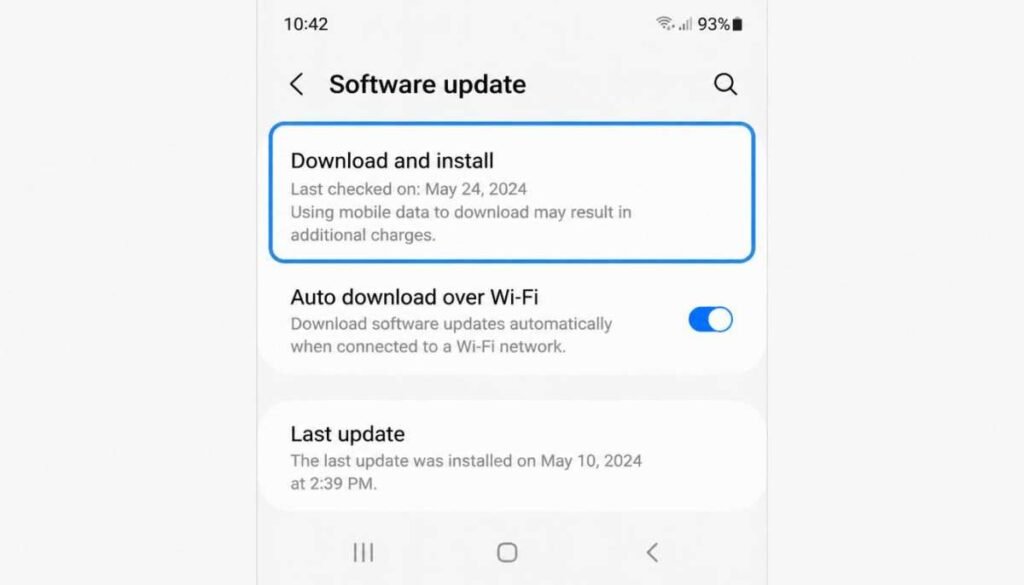
An outdated messaging app or an outdated version of Android can create conflicts with the IMS service, particularly after a recent security patch or system update changes how the service operates.
To update your apps, open the Google Play Store, tap your profile icon in the top right corner, go to Manage Apps and Device, and tap Update All if updates are available. Pay particular attention to your messaging app and any carrier-related apps.
To check for a system update on Android, open Settings, scroll down to Software Update or About Phone, and tap Check for Updates. Install any available update and restart the phone afterward.
Fix 6: Reset Network Settings
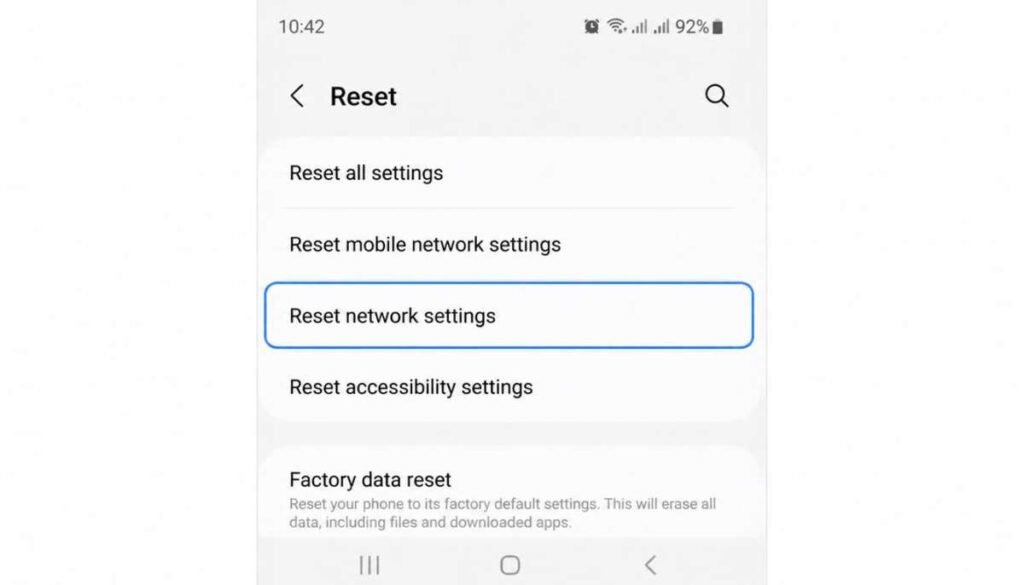
If none of the above fixes have resolved the error, resetting your network settings is the next step. This clears all saved network configurations including carrier settings, APN settings, and VoLTE settings, and restores them to default. It resolves IMS errors that are caused by a corrupted or incorrect network configuration.
Open Settings on your phone. Go to General Management or System depending on your Android version. Tap Reset and then select Reset Network Settings. Confirm the reset.
Be aware that this will remove all saved Wi-Fi networks and passwords, paired Bluetooth devices, and VPN configurations. You will need to reconnect to Wi-Fi networks and re-enter passwords after the reset. Restart the phone once the reset is complete and check if the IMS error has stopped.
Samsung Specific Steps Worth Trying
If you are on a Samsung device and the six fixes above have not resolved the issue, there are two Samsung-specific steps that have helped many users.
The first is to go to Settings, then Connections, then More Connection Settings, and look for an option called VoLTE Calls or Advanced Calling. Turn this off, restart the phone, and then turn it back on again. This resets the VoLTE registration which is directly tied to the IMS service.
The second Samsung-specific fix is to update Samsung Messages through the Galaxy Store rather than the Google Play Store. Samsung releases messaging app updates through both stores and the Galaxy Store version is sometimes more current. Open the Galaxy Store, search for Samsung Messages, and install any available update.
When Nothing Else Works
If all six fixes have been applied and the error is still appearing, a factory reset is the last option. Before doing this, back up everything on your phone including photos, contacts, messages, and app data.
To factory reset on Android, open Settings, go to General Management or System, tap Reset, and select Factory Data Reset. Confirm and allow the phone to complete the reset process.
A factory reset resolves the error in virtually all cases where software is the cause. If the error returns even after a factory reset, the issue may be related to the SIM card or a hardware problem and contacting your carrier or the device manufacturer is the next step.
How to Stop This Error From Coming Back
Keeping your Android system and apps updated is the most effective way to prevent the IMS service error from returning. Updates include fixes for known conflicts between apps and system services.
Avoid using third-party messaging apps as your default SMS app if you experience IMS errors. Third-party apps can interfere with how the IMS service communicates with carrier systems.
If you switch SIM cards or change carriers, restart your phone after inserting the new SIM and allow the IMS service a few minutes to register with the new network before making calls or sending messages.
Final Thoughts
The IMS service has stopped error is one of those problems that looks serious but is almost always fixable with basic troubleshooting. Disabling RCS is the fix that works for most users. Clearing the IMS service and messaging app cache resolves it in most other cases. If neither of those work, resetting network settings almost always finishes the job.
Work through the fixes in order, restart after each one, and the error will stop. For more Android error fixes and troubleshooting guides, explore the full guide collection at findserrors.com.
FAQ: IMS Service Has Stopped
Is IMS service a virus?
No. IMS service is a legitimate built-in Android system service that manages carrier communication for calls and messages. The error message does not indicate a virus or any security threat to your phone.
Why does the IMS service keep stopping every few seconds?
When the IMS service crashes it restarts automatically, which is why the popup appears repeatedly in short intervals. The service keeps trying to run and keeps failing due to an underlying conflict, usually with the messaging app cache, RCS settings, or a recent system update.
Does this error affect calls and messages?
It can. Since IMS service manages VoLTE calls and RCS messaging, a crashing IMS service can cause dropped calls, failed message delivery, or poor call quality. Fixing the error will restore normal call and messaging function.

Clara Linford is a tech enthusiast and troubleshooting expert specializing in Windows errors, gaming crashes, and software fixes. At FindsErrors.com, she breaks down complex technical issues into simple, step-by-step solutions.