
You’re in the middle of something important, a payment, a login, or a download, and suddenly your phone displays an error without explaining what’s wrong. While these issues can be frustrating, most mobile errors are easier to fix than they appear. Problems like corrupted cache files, unstable network connections, outdated apps, or temporary software glitches are responsible for many everyday phone errors.
Instead of searching multiple websites for different solutions, this guide brings together the most common mobile errors in one place. Follow the troubleshooting steps in order, starting with the simplest fixes before moving on to more advanced solutions.
How to Fix Any Mobile Error First
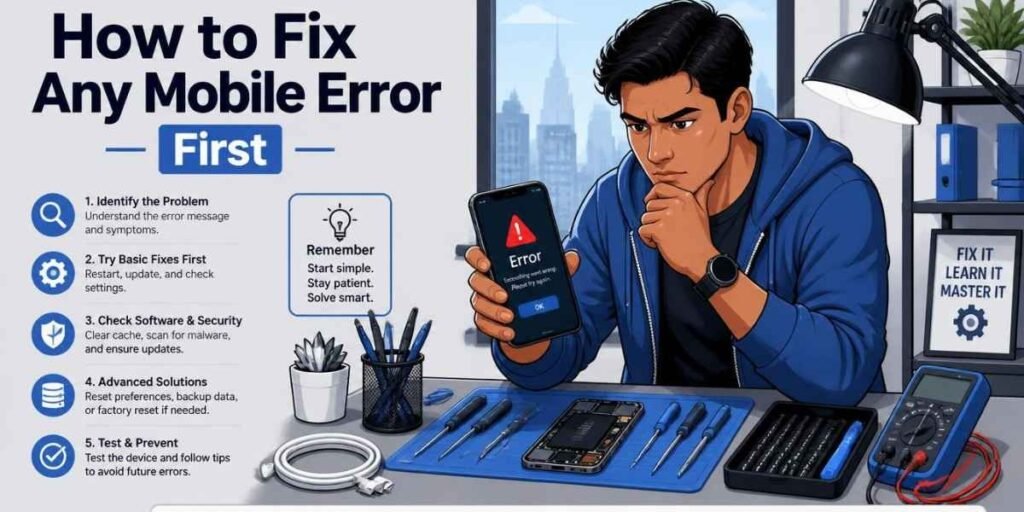
These basic troubleshooting methods solve many common mobile problems. Always try these solutions before assuming your phone has a serious hardware issue.
Also Read : IMS Service Has Stopped: 6 Fixes That Actually Work on Android
Restart Your Phone
A full restart clears temporary files and stops background processes that may be causing the error. Turn your phone completely off, wait about ten seconds, and then power it back on.
Clear App Cache
This removes temporary files that may have become corrupted without deleting your personal data or account information.
Check Your Internet Connection
Many app errors are actually caused by network issues. Open a web browser and visit any website to confirm your internet connection is working before troubleshooting the app itself.
Update the App or Phone Software
Check the Google Play Store or Apple App Store for app updates and install any available system software updates.
Reset Network Settings
If you’re experiencing Wi-Fi, mobile data, or Bluetooth issues, reset your network settings. Keep in mind that this will remove saved Wi-Fi passwords, so you’ll need to reconnect afterward.
Factory Reset (Last Resort)
This restores your phone to its original settings and often resolves persistent software-related issues.
Mobile Network Errors

Network-related problems usually prevent your phone from connecting to the internet, making calls, or sending messages. These issues often have simple solutions.
Mobile Data Not Working
Check whether mobile data is enabled and verify that your carrier’s APN settings are correct. Incorrect APN configurations are one of the most common reasons mobile data stops working.
SIM Card Error
Power off your phone, remove the SIM card, gently clean the gold contacts with a dry microfiber cloth, and insert it again. If the error continues, test the SIM card in another phone to determine whether the issue is with the SIM or the device.
Wi-Fi Not Connecting
Forget the Wi-Fi network, reconnect, and enter the password again. If the problem persists, restart both your router and your phone before trying again.
No Signal on Your Phone
Turn Airplane Mode on for about thirty seconds and then switch it off. This forces your phone to reconnect to the nearest available cellular tower.
App Errors on Mobile

Application problems are among the most common mobile issues. Most can be resolved without reinstalling the entire operating system.
App Keeps Crashing
Start by clearing the app cache. If the app continues crashing, clear its data or uninstall and reinstall the application to replace corrupted files.
App Won’t Open
Force stop the app through your phone’s settings, wait a few seconds, and launch it again. This closes any background process that may be preventing the app from opening correctly.
App Login Error
Clear the app cache and verify that you’re using the correct login credentials. If many users report the same issue, the service may be experiencing temporary server problems.
Google Play Store Error
Clear both the Google Play Store cache and Google Play Services cache. If necessary, remove your Google account from the device and sign in again.
Mobile Login & Verification Errors

Login and verification issues usually occur because of delayed messages, network interruptions, or temporary server problems.
OTP Not Received
Make sure your registered phone number is correct and check whether your SMS inbox has reached its storage limit.
502 Bad Gateway During Login
A 502 error usually indicates a server communication problem. Switch between Wi-Fi and mobile data, clear your browser or app cache, and try again after a few minutes.
Account Verification Error
Incorrect time settings often interfere with account verification and security checks.
Android System Errors

System errors affect the overall performance of your phone and may cause freezing, lagging, or failed software updates.
Phone Hanging or Freezing
Check your available storage because Android devices often slow down when storage is nearly full. Removing unnecessary apps and large files can significantly improve performance.
Software Update Error
Confirm that your phone has enough free storage and a stable Wi-Fi connection before downloading updates. If the download becomes corrupted, delete it and start again.
System UI Not Responding
Wait a few moments to see if the interface recovers automatically. If not, force restart your device. If the issue happens repeatedly, boot into Safe Mode to check for problematic third-party apps.
Mobile Storage Errors
Storage problems can prevent apps from working properly, stop updates from installing, and reduce overall device performance.
Phone Storage Full
Delete unused apps, clear cached files, and move photos or videos to cloud storage. Keeping sufficient free storage helps your phone perform more smoothly.
SD Card Not Detected
Remove the SD card, inspect it for dirt or damage, and reinsert it securely. Testing the card in another device can help determine whether the problem lies with the card or your phone.
Files Not Opening
Corrupted downloads are a common cause of file errors. Download the file again or use another compatible application that supports the file format.
Battery & Charging Errors Mobile Errors
Charging and battery issues are often related to accessories, battery health, or excessive background activity.
Phone Not Charging
Inspect the charging port for dust or lint and carefully clean it if necessary. Also try another charging cable and adapter to rule out faulty accessories.
Slow Charging
Use the original charger whenever possible and close unnecessary background apps while charging. Enabling Airplane Mode can also speed up charging.
Battery Draining Fast
Review battery usage in your settings to identify apps consuming excessive power. Disabling unnecessary background activity and location access can significantly improve battery life.
Mobile HTTP Error Codes Explained
400 Bad Request
The request sent by your browser or app is invalid. Clearing your browser cache and cookies usually resolves the issue.
401 Unauthorized
This error indicates an authentication problem. Sign out, clear the app cache, and log in again.
403 Forbidden
A 403 error means access has been denied. Disable any VPN service and verify that you have permission to access the requested resource.
404 Not Found
The requested webpage or resource no longer exists or has been moved. This is generally not a problem with your phone.
500 Internal Server Error
A server malfunction is preventing the request from completing. Wait a while before trying again.
502 Bad Gateway
A gateway server received an invalid response from another server. Switching networks often resolves this issue.
503 Service Unavailable
The server is temporarily unavailable due to maintenance or heavy traffic. Wait a few minutes before trying again.
Final Thoughts: Mobile Errors
Most mobile errors have straightforward solutions, especially when you approach troubleshooting step by step. Restarting your phone, clearing cache files, updating software, and checking network settings solve a large percentage of everyday issues without requiring professional assistance.
When basic fixes don’t work, move through the more advanced troubleshooting methods described in this guide. Following a logical process not only saves time but also helps you identify the real cause of the problem before considering hardware repairs or replacing your device.
Frequently Asked Questions: Mobile Errors
Why does my phone keep showing random errors?
Random errors are usually caused by outdated software, corrupted app cache, insufficient storage, or unstable network connections.
Does clearing cache delete my personal data?
No. Clearing cache only removes temporary files. Your personal files, photos, messages, and account information remain safe.

Clara Linford is a tech enthusiast and troubleshooting expert specializing in Windows errors, gaming crashes, and software fixes. At FindsErrors.com, she breaks down complex technical issues into simple, step-by-step solutions.