
You open the Play Store to download an app, and nothing happens. Or it crashes. Or you get a cryptic error code with no explanation. Google Play Store Error Fix is frustrating, specifically because the app gives you almost no useful information about what went wrong.
Most of the time the fix is simpler than it looks. Cache corruption, account sync issues, and outdated app data cause the majority of Play Store problems on Android. This guide covers every common error in one place so you don’t have to dig through five different pages to find the fix that actually works for your situation.
Why Google Play Store Errors Happen
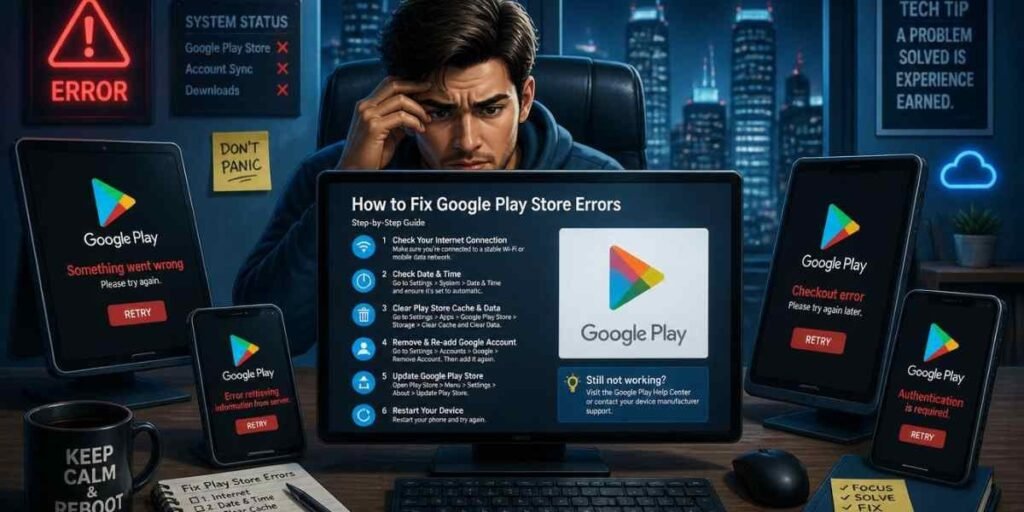
The Play Store is not a single app running independently. It depends on Google Play Services, your Google account sync, your device’s cache, and a live connection to Google’s servers all working together at the same time.
When any one of those breaks down, the Google Play Store Error Fix . The tricky part is figuring out which one broke. That’s what this guide is built around identifying the actual cause, not just throwing random fixes at the problem.
Force Stop and Restart Play Store
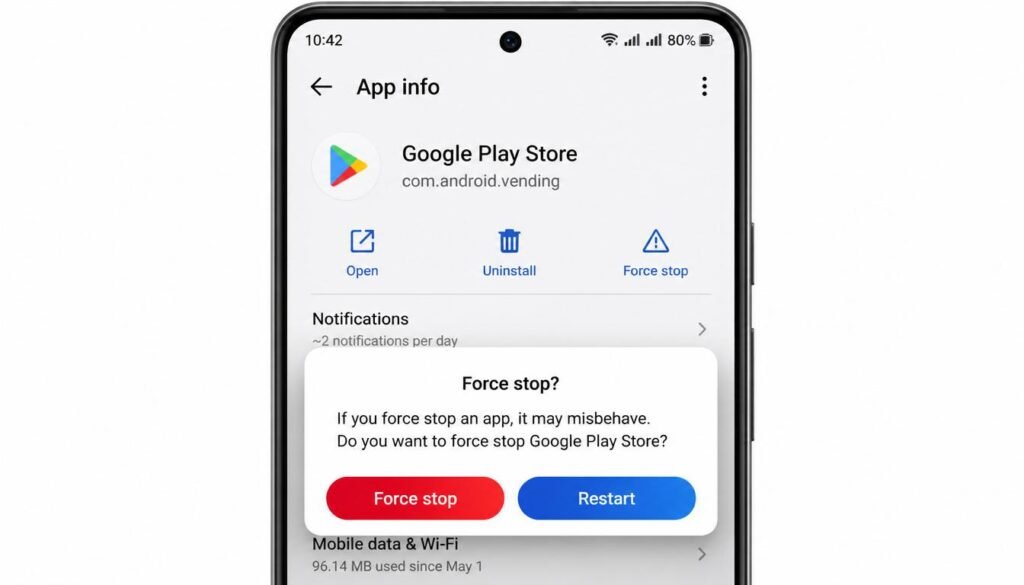
Go to Settings, then Apps, find Google Play Store in the list, and tap Force Stop. Wait five seconds, then reopen the Play Store from your home screen.
Force stopping clears whatever process the app was stuck on. This works surprisingly often for freezing and crashing issues because the Play Store sometimes gets stuck in a loop that a fresh start resolves immediately.
Also Read: Bad Gateway Error Mobile Login Fix 2026
Clear Play Store Cache and Data
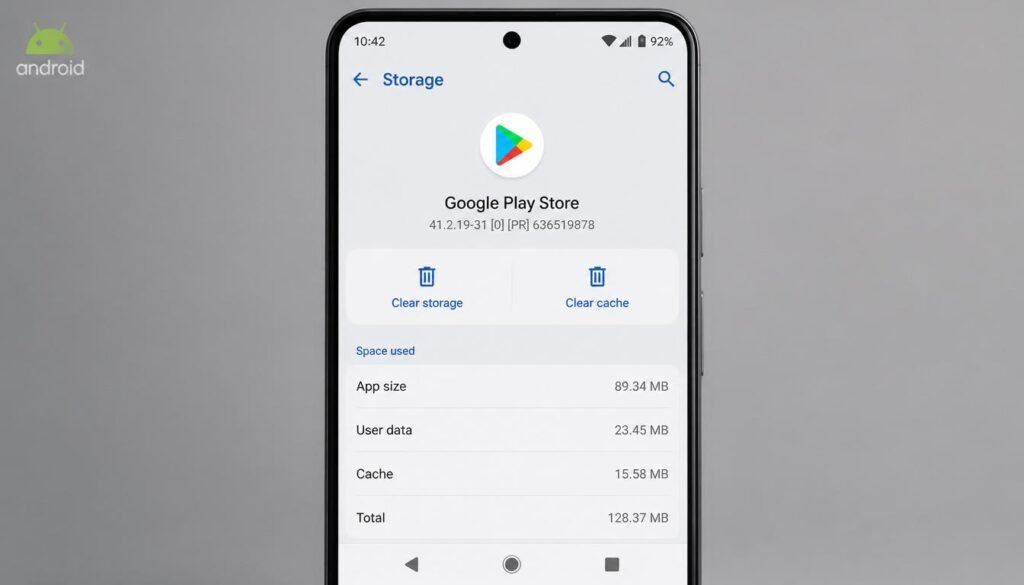
Go to Settings, then Apps, find Google Play Store, tap Storage, and hit Clear Cache first. Reopen the app and test. Clearing data logs you out of the Play Store but does not delete your downloaded apps. This step fixes the majority of crashing and not-opening issues because corrupted cache files are the single most common cause.
Uninstall Play Store Updates
This one surprises people but it works. Sometimes, a Play Store update itself contains bugs that cause crashes across many devices simultaneously.
Go to Settings, then Apps, Google Play Store Error Fix, tap the three dots in the top right corner, and select Uninstall Updates. The Play Store rolls back to the factory version that came with your phone. It will update itself again automatically within a few hours, but by that point, Google has usually pushed a fixed version.
Fix Google Play Store Download and Update Errors
Fix Download Pending That Never Starts
A download stuck on “Pending” for more than a few minutes usually means one of two things either another download is blocking the queue, or the Play Store’s background process has frozen.
Open the Play Store, go to your profile, tap Manage Apps and Device, and cancel any other downloads currently in progress. Then try the download again. If it still hangs, clear the Play Store cache using the steps above and restart your phone before trying once more.
Fix Apps Stuck on Installing
An app stuck on “Installing” after the download completes is almost always a Google Play Services issue rather than a Play Store issue. Go to Settings, Apps, find Google Play Services, tap Storage, and clear its cache. Do not clear its data clearing Play Services data causes deeper account sync problems.
Restart your phone after clearing the Play Services cache and the installation should complete normally.
Fix Download Error Due to Insufficient Storage
The Play Store sometimes shows a download error even when you think you have enough storage. The reason is that Android reserves a portion of storage for system operations, so the actual available space for app downloads is less than what your storage screen shows.
Delete unused apps, clear large cache files from heavy apps like YouTube or Instagram, and check your storage again before retrying. As a general rule, keep at least 1GB free for smooth Play Store operation.
Common Google Play Store Error Codes and Their Fixes
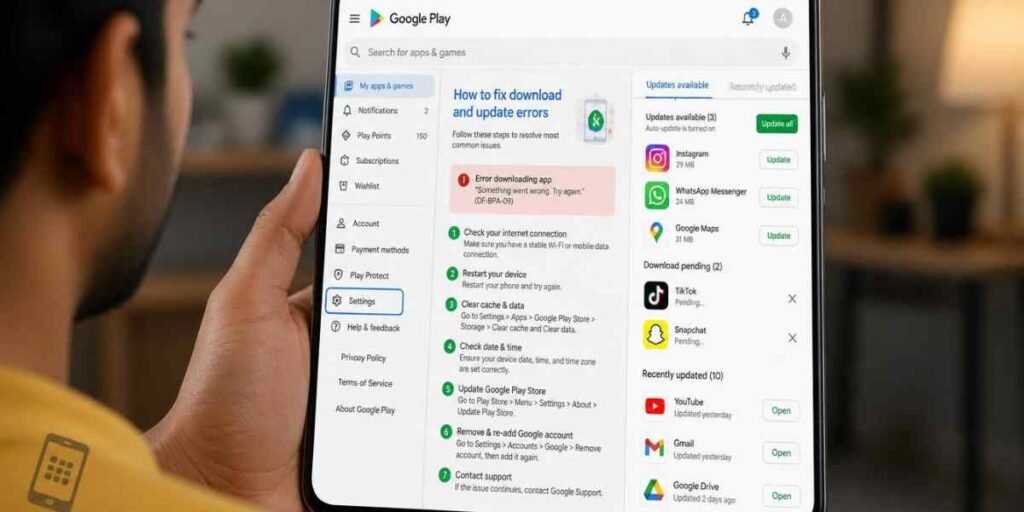
Error codes look technical but each one points to a specific cause. Here are the ones that appear most frequently.
Error 963 Cache Conflict Fix
Error 963 appears during app downloads and is caused by a conflict between cached data and the new download. Clear the Play Store cache and Google Play Services cache, restart your phone, and try the download again. This error almost never requires anything beyond a cache clear.
Error 491 Account Conflict Fix
Error 491 means your Google account has a sync conflict with the Play Store. The fix is to remove your Google account from the device and add it back.
Restart your phone, go back to Settings and Accounts, and add your Google account again. This re-establishes a clean connection between your account and the Play Store.
Error 944 Server Side Issue
Error 944 means Google’s servers are down or experiencing issues at that moment. Check downdetector.com for Google Play and wait for Google to resolve the server issue on their end. Trying repeatedly won’t help and won’t make it resolve faster.
Error 403 Account Permission Fix
Error 403 is an account authentication error. It usually appears when you have multiple Google accounts on one device and the Play Store gets confused about which account to use for a specific app purchase or download.
Go to Settings, then Accounts, and temporarily remove all Google accounts except the primary one you use for the Play Store. Clear the Play Store cache, restart, then try the download. Add your other accounts back afterward.
Fix Google Play Store Authentication Error
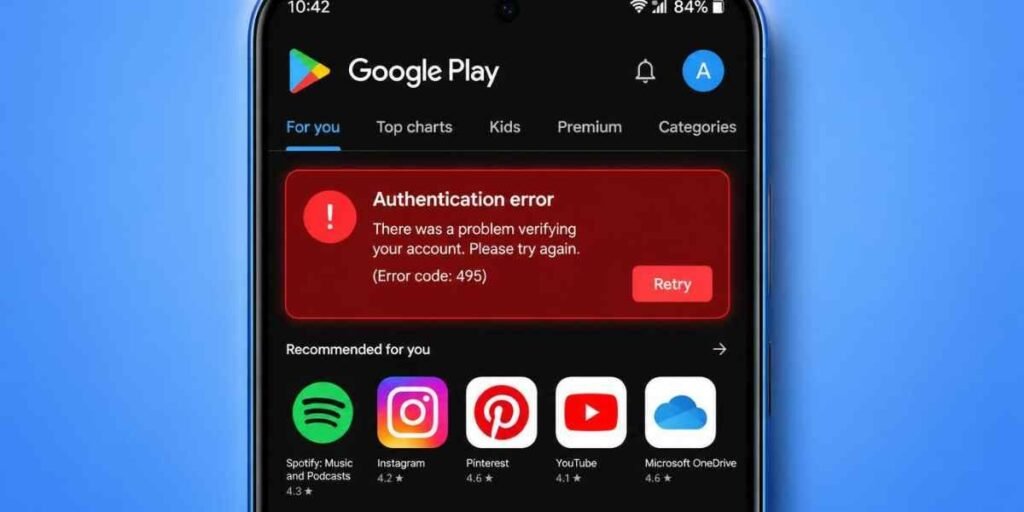
Authentication errors appear as “Authentication is required” or “You need to sign in” messages even when you are already signed in.
Remove and Re-Add Google Account
This is the most reliable fix for authentication errors. Go to Settings, then Accounts, remove your Google account, restart the phone, and add the account again fresh. The restart between removing and adding is important skipping it sometimes causes the same authentication error to persist.
Sync Google Account Manually
Go to Settings, then Accounts, tap your Google account, and select Sync Now or tap the sync icon. A forced sync refreshes the account tokens that the Play Store uses to verify your identity. This is a faster fix to try before removing and re-adding the account entirely.
Google Play Services vs Play Store Which One to Fix
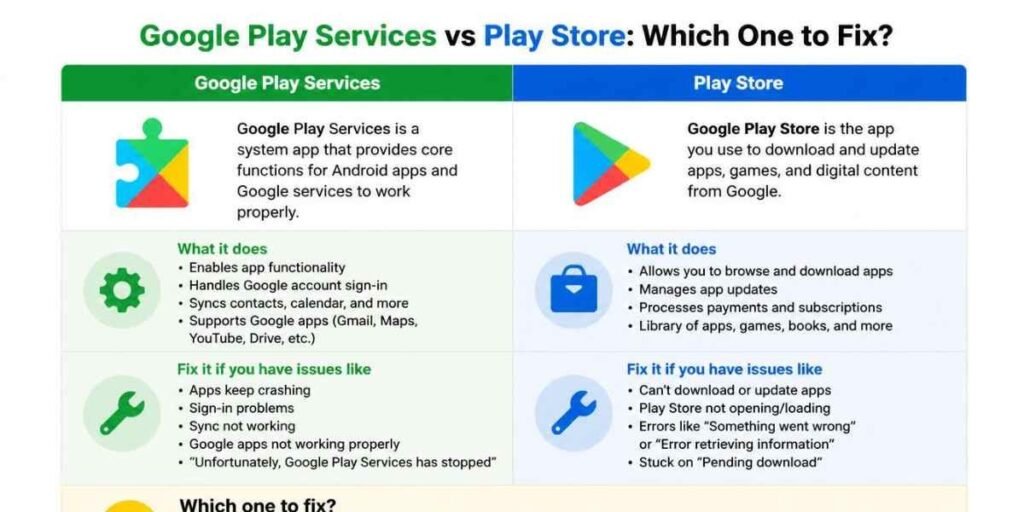
Google Play Store is the app you see the one you use to browse and download apps. Google Play Services runs silently in the background and handles account authentication, app updates, and Google’s core functions across Android.
When your Play Store crashes or shows errors, the problem is sometimes in Play Services rather than the Play Store itself. If clearing the Play Store cache does not fix your issue, go to Settings, Apps, find Google Play Services, clear its cache, and test again. Fixing the wrong app wastes time and leaves the actual problem untouched.
Fix Google Play Store on Specific Android Versions
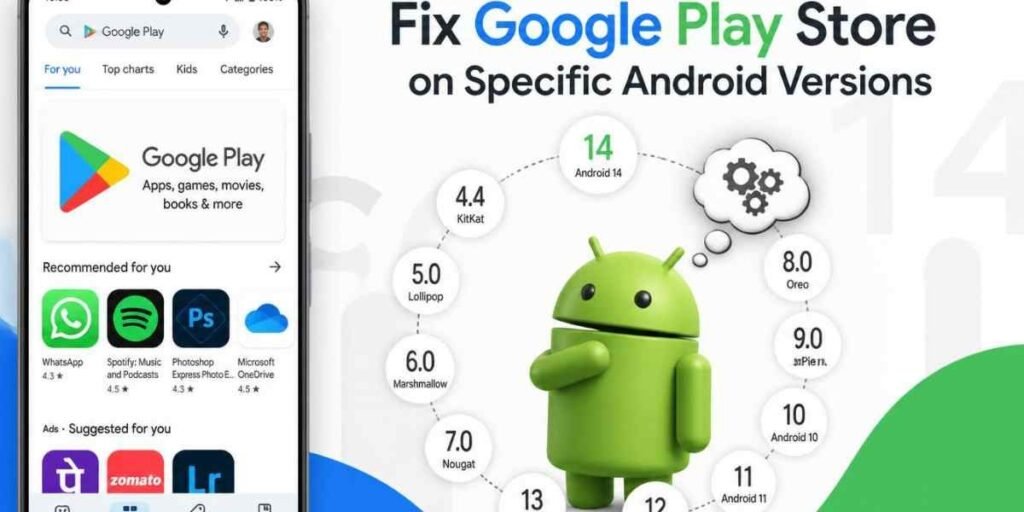
Android 12 and 13
Android 12 and 13 introduced stricter background process limits that sometimes interfere with Play Store downloads. If downloads consistently fail on these versions, go to Settings, Apps, Google Play Store, and check that Battery Usage is not set to Restricted. Change it to Unrestricted and try again.
Also check that Google Play Store has permission to run in the background under Settings, Apps, Special App Access, Battery Optimization.
Android 14
Android 14 introduced tighter permission controls that have caused Play Store authentication errors on some devices, particularly after a system update. If Play Store errors started appearing after an Android 14 update, go to Settings, Privacy, Permission Manager, and verify that Google Play Store and Google Play Services have all their permissions enabled.
If problems persist on Android 14, uninstalling Play Store updates as described earlier often resolves conflicts introduced by the system update.
When Nothing Works Last Resort Fixes
Reset App Preferences
This resets all disabled apps, notification settings, and default app choices back to their original state.
It does fix situations where a disabled background service is silently blocking the Play Store from functioning. This step fixes problems that cache clearing and account removal cannot touch.
Factory Reset as Final Option
A factory reset should only be considered after every other option has been exhausted. It wipes the device completely and restores it to the state it was in when it left the factory.
Before doing this, back up everything photos, contacts, app data, files. After a factory reset, the Play Store almost always works normally because whatever software conflict was causing the problem no longer exists on a clean device.
Final Thoughts
Google Play Store errors follow patterns. Crashing and freezing almost always come down to corrupted cache. Download errors usually point to account sync or storage issues. Error codes narrow the cause down to a specific problem with a specific fix.
Work through the fixes in order from simplest to most involved. Clear cache first, address account sync second, check Google Play Services third. Most problems resolve within the first two steps. The advanced fixes are there for the situations where simple steps genuinely do not work not as a starting point.

Clara Linford is a tech enthusiast and troubleshooting expert specializing in Windows errors, gaming crashes, and software fixes. At FindsErrors.com, she breaks down complex technical issues into simple, step-by-step solutions.