
If Bluetooth has suddenly disappeared from the Windows 11 Settings app, don’t panic. In most cases, the problem is caused by a corrupted Bluetooth driver, a disabled system service, a recent Windows update, or a power management issue—not a permanently damaged Bluetooth adapter.
The good news is that you can usually restore the missing Bluetooth option without reinstalling Windows. This guide walks you through every proven solution, starting with the simplest fixes and progressing to more advanced troubleshooting. By the end, you’ll know exactly why the Bluetooth toggle disappeared and how to restore it.
Why Is Bluetooth Disappearing from Settings in Windows 11?
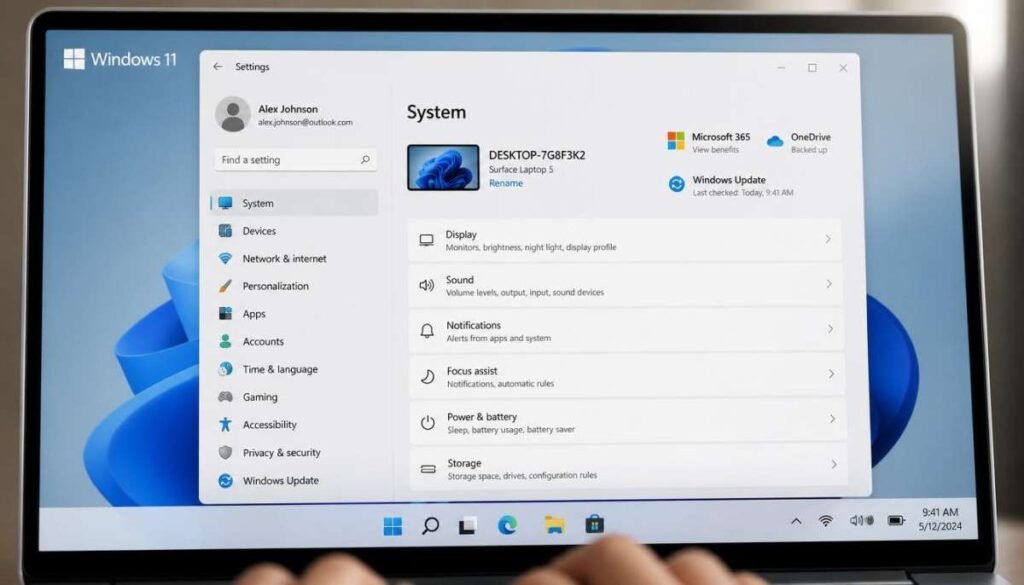
When Windows 11 cannot detect your Bluetooth hardware, it automatically removes the Bluetooth toggle from Settings, Quick Settings, and sometimes even Device Manager. Instead of showing an error, Windows simply behaves as though no Bluetooth adapter exists.
Several factors can cause this behavior, including:
- Corrupted or outdated Bluetooth drivers
- Failed Windows updates
- Bluetooth Support Service stopping unexpectedly
- Hidden or disabled Bluetooth devices
- Incorrect BIOS or UEFI settings
- Power management conflicts after sleep or hibernation
- Hardware communication failures
- Faulty Bluetooth adapters
Understanding the underlying cause makes troubleshooting much easier. Rather than trying random fixes, start by identifying what changed before Bluetooth disappeared. For example, did the issue begin after a Windows update, after waking the PC from sleep, or after installing new drivers? Recognizing that pattern often points directly to the correct solution.
How to Tell Why Bluetooth Disappeared
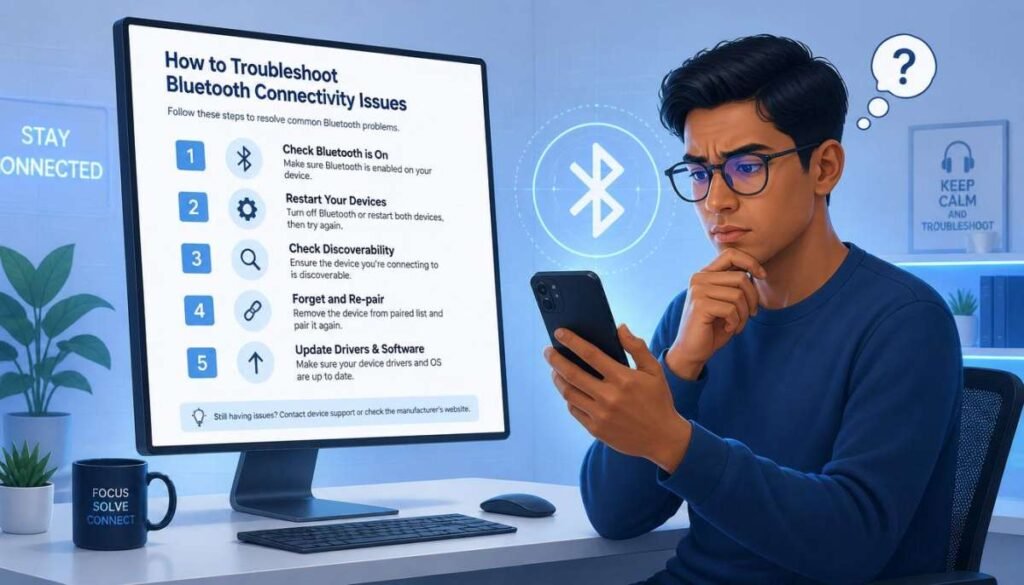
Before making changes, determine how Windows is responding to your Bluetooth hardware.
If the Bluetooth option is missing only from Settings but still appears in Device Manager, the problem is usually related to Windows services or driver corruption.
If Bluetooth is missing from both Settings and Device Manager, Windows may no longer recognize the Bluetooth adapter. This commonly indicates a driver failure, disabled hardware, BIOS configuration issue, or hardware malfunction.
If you notice an Unknown USB Device or an unidentified network controller in Device Manager, Windows has detected hardware but cannot load the proper driver.
When Bluetooth disappears after installing a Windows update, the update may have replaced or damaged the existing driver. Likewise, if Bluetooth disappears after waking the computer from sleep, aggressive power management settings may be preventing the adapter from waking correctly.
Once you’ve identified the likely cause, follow the fixes below in order.
Also Read: Download Digital Critical Error: What It Means and How to Fix It
Fix 1: Restart Your Computer Completely
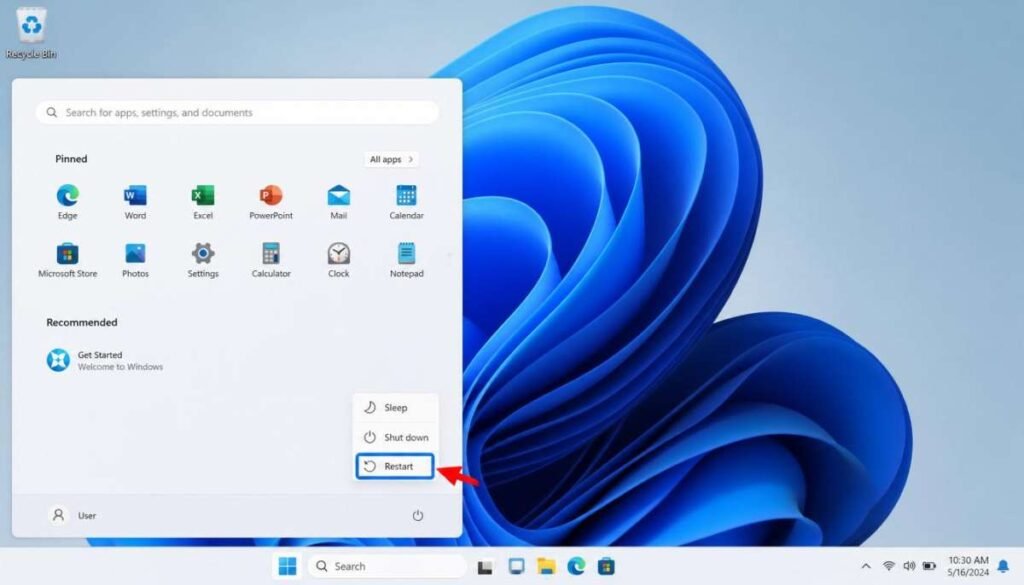
A complete restart is often enough to restore Bluetooth if the adapter has become temporarily unresponsive.
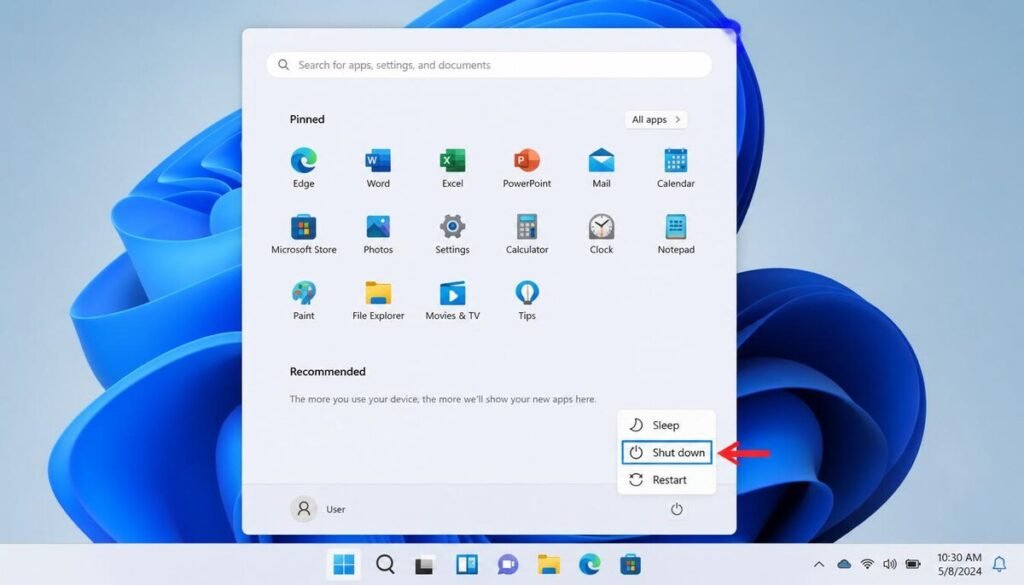
Instead of selecting Restart, choose Shut Down, wait at least 30 seconds, and then power the computer back on. This forces Windows to reload the Bluetooth controller and hardware initialization sequence.
If the Bluetooth option returns after a full shutdown, the issue was likely caused by a temporary hardware communication problem rather than permanent driver corruption.
Fix 2: Check for Hidden Bluetooth Devices in Device Manager
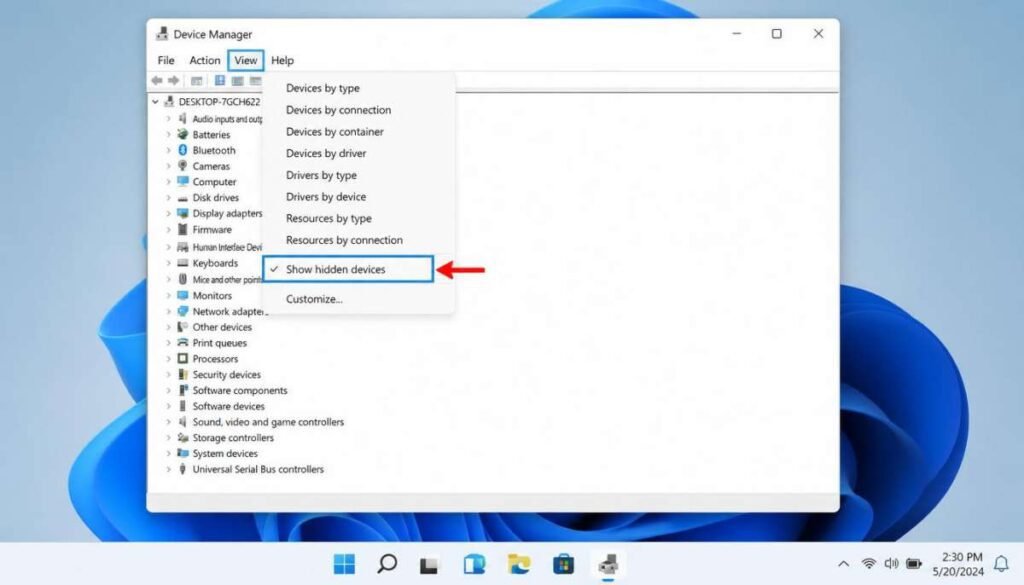
Windows sometimes hides malfunctioning Bluetooth adapters instead of displaying them normally.
Open Device Manager, select View, and enable Show hidden devices.
Expand the Bluetooth category and look for faded or grayed-out Bluetooth devices. If your adapter appears, right-click it and choose Enable if available.
Also inspect the Unknown Devices section. If Windows lists an unidentified device, the Bluetooth hardware may simply need the correct driver rather than being missing entirely.
This simple check often reveals whether Windows can still detect the hardware.
Fix 3: Restart the Bluetooth Support Service
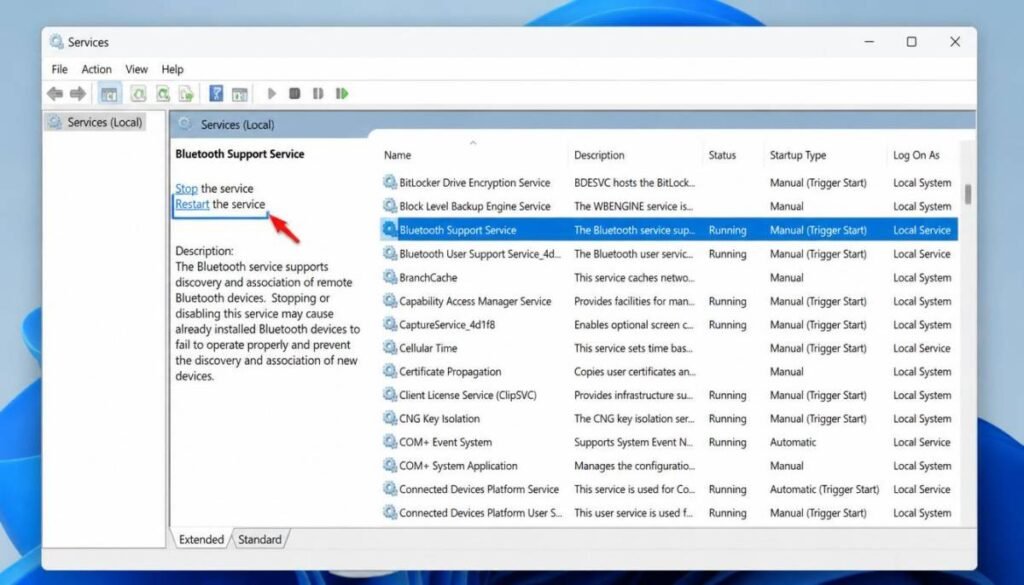
Windows relies on the Bluetooth Support Service to manage Bluetooth discovery, pairing, and communication. If this service stops running, Windows may remove Bluetooth completely from the Settings application.
Open the Run dialog by pressing Windows + R, type services.msc, and then press Enter.
Locate Bluetooth Support Service, then:
- Click Restart
- Open Properties
- Set Startup Type to Automatic
- Apply the changes
- Restart your computer
If the service had stopped unexpectedly, the Bluetooth toggle often reappears immediately after restarting it.
Fix 4: Run the Windows Bluetooth Troubleshooter
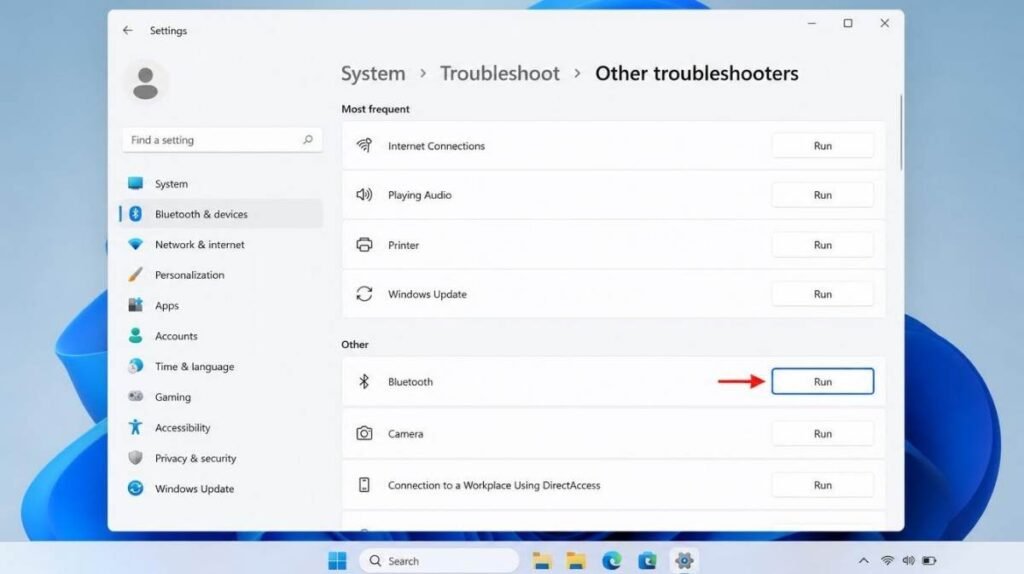
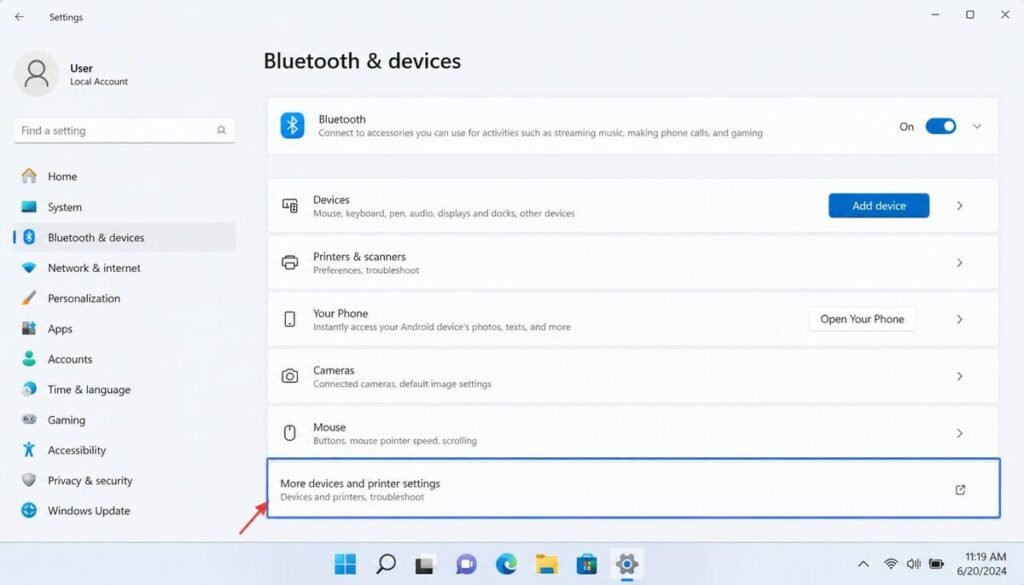
Windows 11 includes a built-in troubleshooter that automatically checks Bluetooth services, drivers, permissions, and configuration settings.
Open:
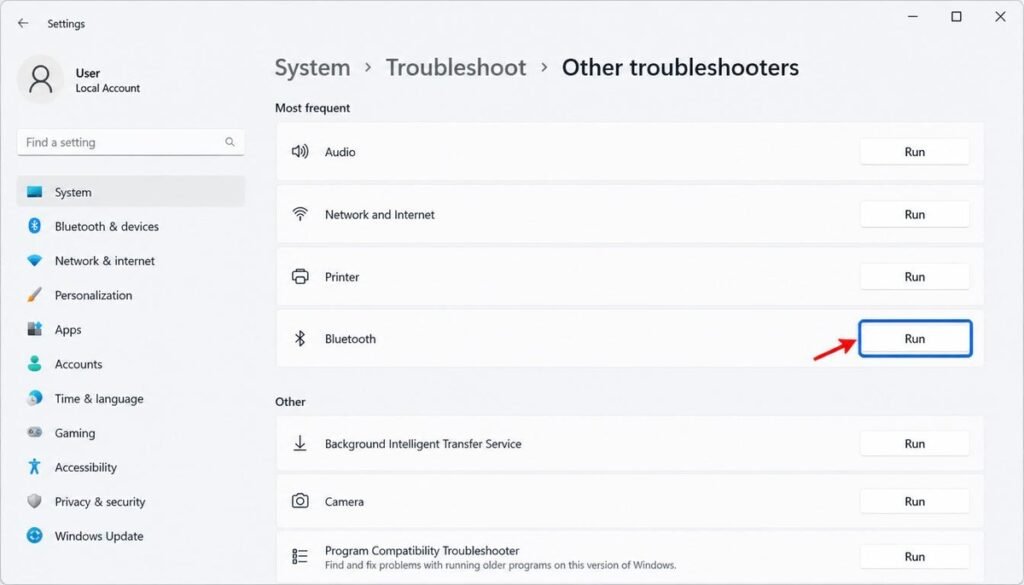
Settings → System → Troubleshoot → Other troubleshooters
Find Bluetooth and select Run.
The troubleshooter can automatically detect disabled services, incorrect configurations, and common driver issues. While it may not solve every problem, it is a safe first step that requires only a few minutes.
Fix 5: Reinstall the Bluetooth Driver
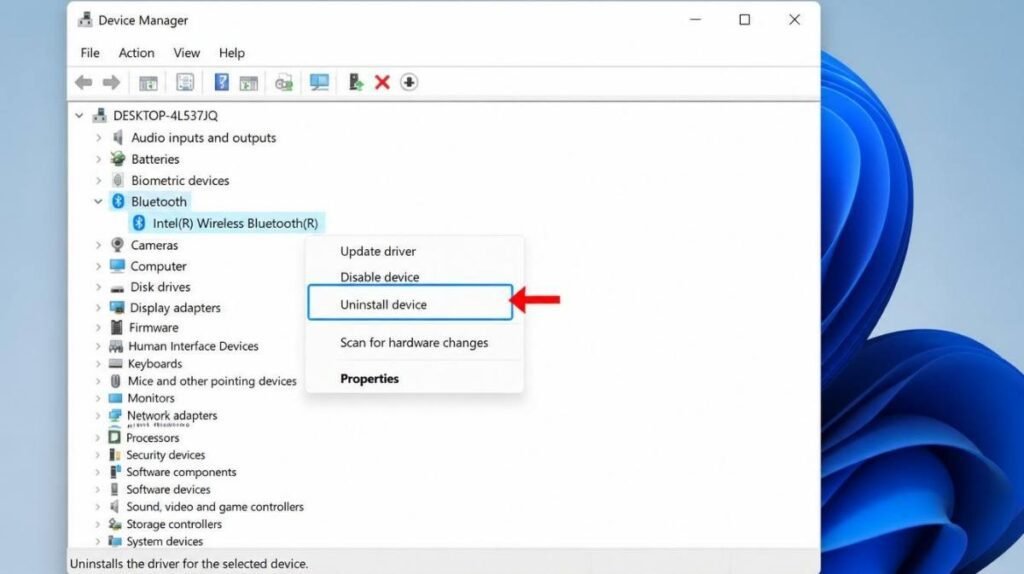
Driver corruption is one of the most common reasons Bluetooth disappears from Windows 11.
Open Device Manager, then remove your Bluetooth adapter.
Depending on your hardware, it may appear as:
- Intel Wireless Bluetooth
- Realtek Bluetooth Adapter
- MediaTek Bluetooth
- Qualcomm Bluetooth
- Broadcom Bluetooth
- Generic Bluetooth Adapter
After uninstalling the driver, restart your computer.
Windows will attempt to reinstall a compatible driver automatically during startup. If the Bluetooth toggle returns, the original driver was likely corrupted.
Fix 6: Install the Latest Bluetooth Driver from Your Computer Manufacturer
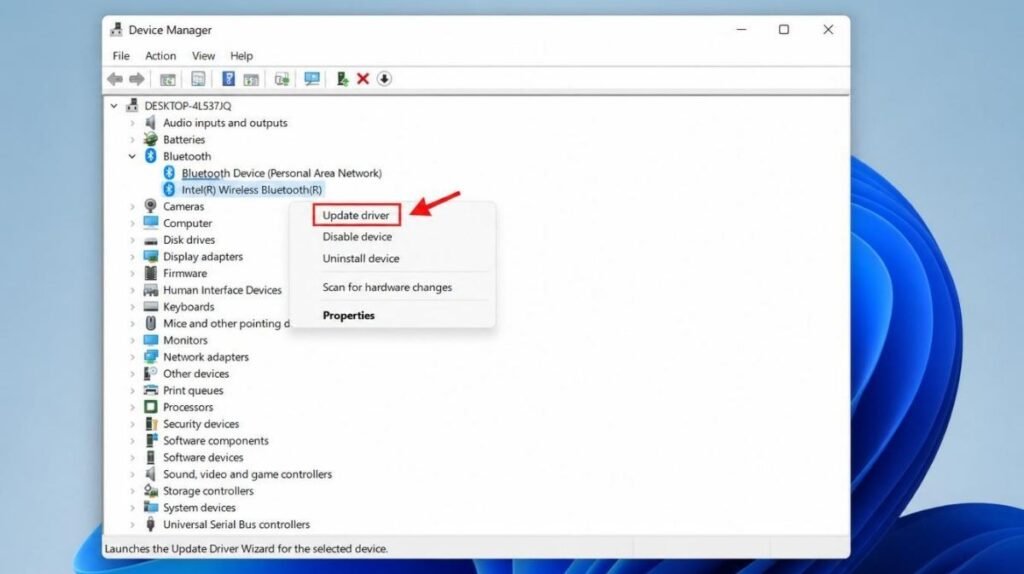
Windows Update installs generic Bluetooth drivers, but these are not always the most reliable.
For the best compatibility, download the latest Bluetooth driver directly from your computer manufacturer’s support website.
Use your laptop or motherboard model number to locate the correct driver package.
Manufacturer drivers include firmware updates, chipset optimizations, and hardware-specific fixes that generic drivers often lack. Installing the official driver can resolve recurring Bluetooth problems that Windows Update cannot.
Fix 7: Disable Bluetooth Power Saving
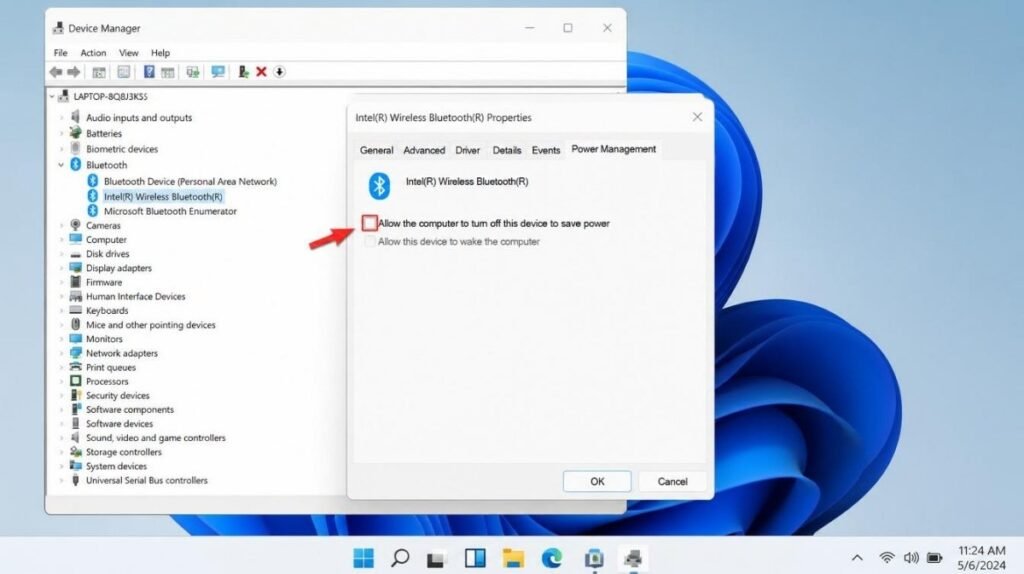
Power management settings sometimes allow Windows to turn off the Bluetooth adapter to save energy.
Although this improves battery life, it can also cause Bluetooth to disappear after the computer wakes from sleep.
Open Device Manager, right-click your Bluetooth adapter, choose Properties, then open the Power Management tab.
Clear the option that allows Windows to turn off the device to save power.
Restart your computer after making the change.
This adjustment is particularly effective on laptops experiencing intermittent Bluetooth failures.
Reddit Users Share Their Solutions
Fix 8: Repair Corrupted Windows System Files
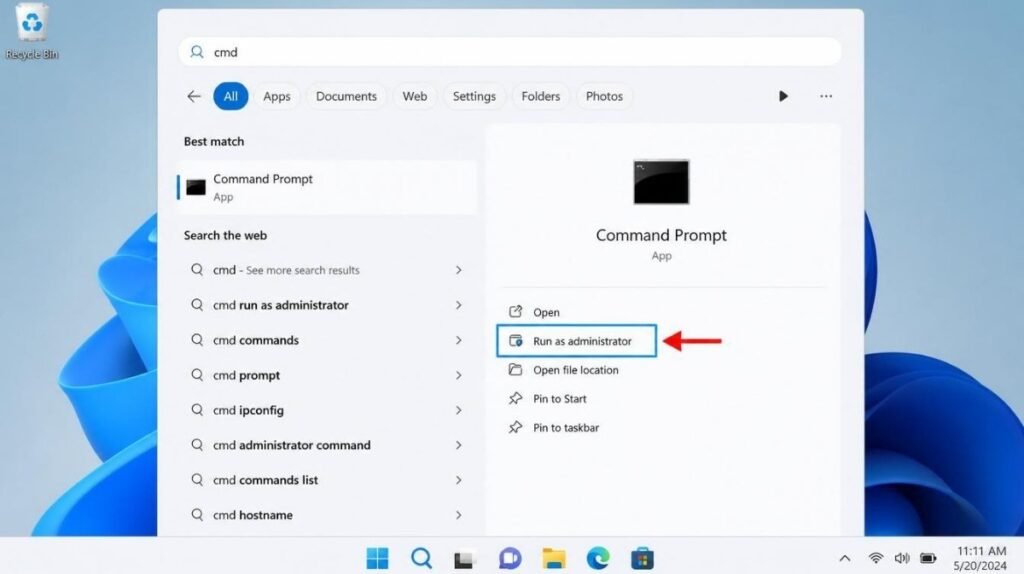
Damaged Windows system files can prevent Bluetooth drivers and services from loading correctly.
Open Command Prompt as Administrator and run:
sfc /scannow
After the scan finishes, run:
DISM /Online /Cleanup-Image /RestoreHealth
These commands repair corrupted Windows components that Bluetooth services depend on.
Restart your computer after both scans complete.
Fix 9: Check BIOS or UEFI Settings
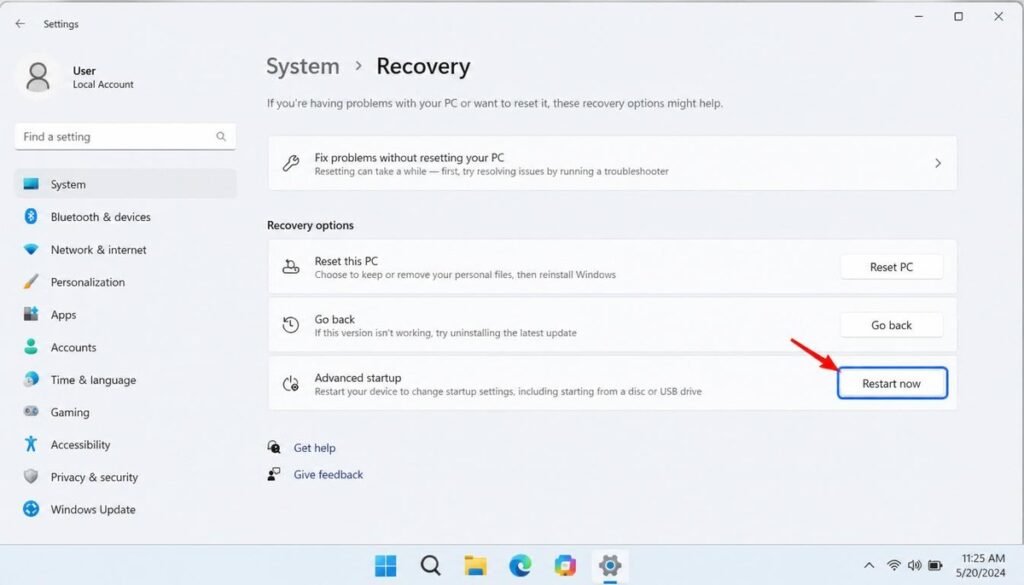
Some desktop motherboards and business laptops allow Bluetooth hardware to be disabled directly in BIOS or UEFI firmware.
Restart your computer and enter BIOS Setup.
Look for options related to:
- Wireless Devices
- Bluetooth Controller
- Internal Bluetooth
- Wireless Configuration
If Bluetooth is disabled, enable it, save the settings, and restart Windows.
Fix 10: Perform a Complete Power Drain Reset
A power drain resets the embedded controller responsible for communicating with internal hardware.
Turn off your computer completely.
Disconnect the charger and remove the battery if your laptop has a removable battery.
Hold the power button for approximately 30 to 40 seconds.
Reconnect power and start the computer normally.
This procedure often restores Bluetooth after firmware communication failures.
Fix 11: If Bluetooth Disappeared After a Windows Update
Major Windows updates occasionally replace stable Bluetooth drivers with incompatible versions.
If Bluetooth disappeared immediately after updating Windows:
- Check Optional Driver Updates
- Roll back the Bluetooth driver
- Review Windows Update history
- Install the latest manufacturer driver
- Restore Windows if necessary
Many Bluetooth issues reported after Windows 11 feature updates are resolved once manufacturers release updated drivers.
Fix 12: Determine Whether the Bluetooth Hardware Has Failed
If none of the previous solutions restore Bluetooth, hardware failure becomes more likely.
Signs of hardware failure include:
- Bluetooth never appears in Device Manager
- BIOS cannot detect Bluetooth
- Linux Live USB also cannot detect the adapter
- Hardware diagnostics report wireless failures
If the internal Bluetooth module has failed, replacing the module or using a USB Bluetooth adapter may be the most practical solution.
How to Prevent Bluetooth from Disappearing Again
Although Bluetooth issues cannot always be avoided, several best practices reduce the risk of future problems.
Keep your Bluetooth drivers updated using your computer manufacturer’s official support page rather than relying solely on Windows Update. Install Windows feature updates only after verifying driver compatibility, especially on older laptops.
Creating regular System Restore points provides an easy recovery option if a future driver update causes Bluetooth to disappear again. Additionally, avoid using aggressive driver-cleaning utilities unless absolutely necessary, as they can accidentally remove essential Bluetooth components.
Finally, if your computer frequently enters sleep mode, review your power management settings to ensure Windows does not disable the Bluetooth adapter to conserve energy.
Final Thoughts
Bluetooth disappearing from Windows 11 Settings is usually the result of software, driver, or configuration issues rather than permanent hardware damage. In most cases, restarting Bluetooth services, reinstalling the correct drivers, repairing Windows system files, or installing the latest manufacturer driver restores Bluetooth functionality.
If the problem began after a Windows update or sleep cycle, focus on power management settings and updated drivers before assuming the hardware has failed. By following the troubleshooting steps in this guide from the simplest fixes to advanced diagnostics, you can identify the exact cause and restore Bluetooth without performing a complete Windows reinstallation.
Frequently Asked Questions
Can antivirus software cause Bluetooth to disappear in Windows 11?
Yes, although it’s uncommon. Some antivirus or security programs can interfere with Bluetooth services or drivers, preventing Windows from detecting the Bluetooth adapter. Temporarily disabling the software can help determine if it’s causing the issue.
Will resetting Windows 11 fix a missing Bluetooth option?
Resetting Windows 11 can fix Bluetooth issues caused by corrupted system files or software conflicts. However, it’s best to try driver updates, service resets, and system repairs first, as a reset should be considered a last resort.
Why does Bluetooth keep disappearing after every restart?
If Bluetooth disappears after every restart, the problem is often caused by an outdated driver, incorrect power management settings, or a Windows update that repeatedly installs an incompatible driver. Installing the latest driver from your PC manufacturer’s website usually resolves the issue.
Is a USB Bluetooth adapter a good replacement for a built-in Bluetooth module?
Yes. A quality USB Bluetooth adapter is an effective solution if the internal Bluetooth hardware has failed. Most modern adapters support Bluetooth 5.0 or later and work with Windows 11 after installing the appropriate drivers.

Clara Linford is a tech enthusiast and troubleshooting expert specializing in Windows errors, gaming crashes, and software fixes. At FindsErrors.com, she breaks down complex technical issues into simple, step-by-step solutions.