
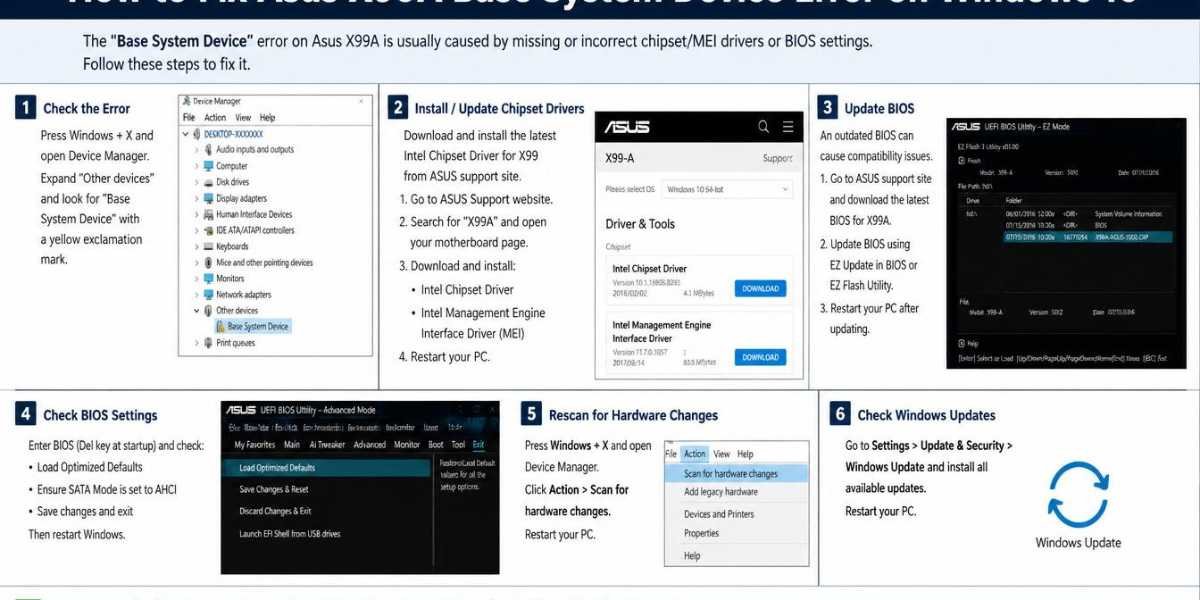
If you are using an Asus X99A motherboard and seeing a yellow exclamation mark in Device Manager, you are dealing with a Base System Device error. Asus X99abase system device error window 10. This is one of the most common issues X99A users face after installing or upgrading to Windows 10. The good news is that it is completely fixable and does not require any technical expertise.
This guide walks you through every working method to resolve this error step by step. Whether you are a first-time builder or an experienced PC user, these fixes are straightforward and proven to work. Asus x99abase system device error window 10. Follow each method in order, and your Device Manager will be clean before you know it.
What Is the Base System Device Error
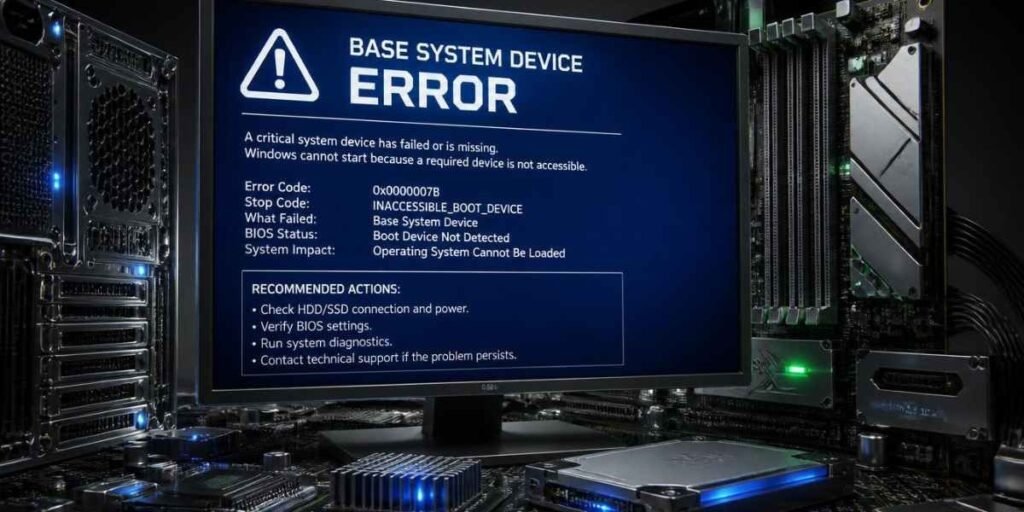
The Base System Device error means your PC could not find the official driver for a connected device. A yellow exclamation mark appears in Device Manager and the faulty device is usually listed under the Other Devices section.
On the Asus X99A motherboard, this error shows up because Windows 10 does not automatically install all the Intel X99 chipset-related drivers during setup. The X99 platform can show multiple Base System Device entries in Device Manager, all of which are chipset components that need proper Intel drivers to be recognized correctly.
Why Does This Error Happen on the Asus X99A Base System Device Error
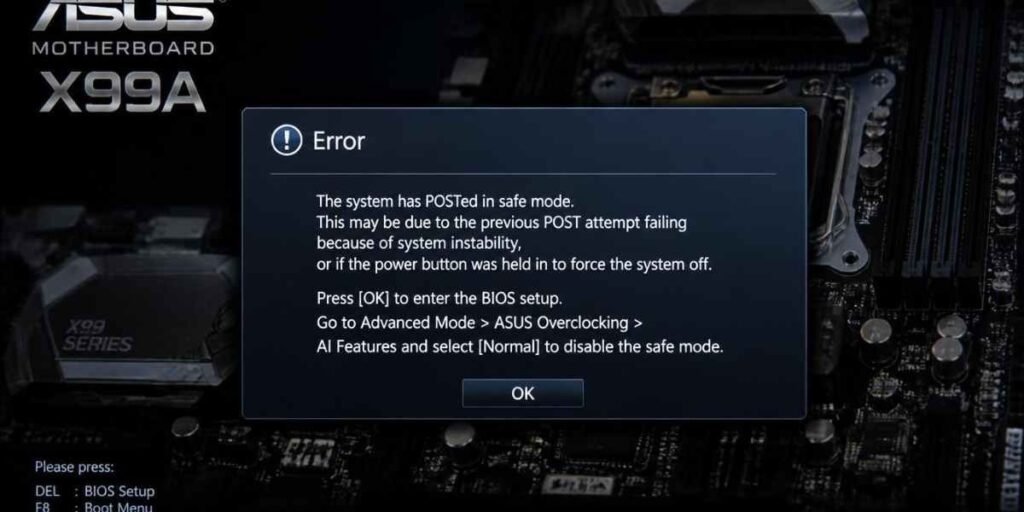
The second is an outdated Windows installation where the latest updates have not been applied.Specifically on the X99A, the problem comes down to two missing driver packages. Windows 10 does not bundle the Intel Chipset INF driver or the Intel Management Engine Interface by default, so both need to be installed manually after the operating system is set up.
Method 1: Download the Chipset Driver From the ASUS Website
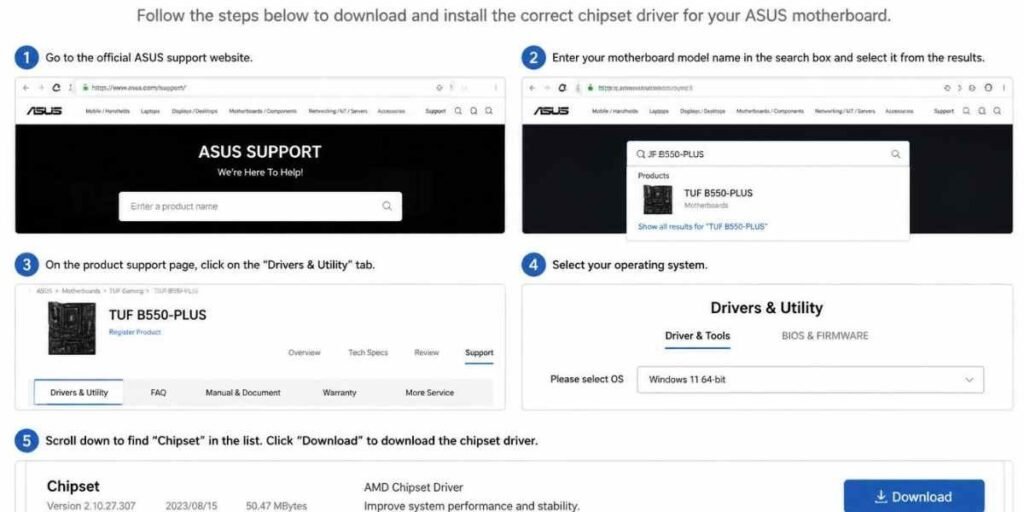
Ths is the most reliable fix for Asus X99A users and should always be tried first. Go to the website and search for your X99-A model. Select Drivers and Utilities, choose Windows 10 as your operating system, find the Chipset section, and download the Intel Chipset Driver. Run the downloaded file, complete the installation, and restart your PC. After restarting, open Device Manager and check if the yellow exclamation marks are gone.
The ASUS website provides a chipset driver version that is more up-to-date than what Intel lists on its own website, making the ASUS support page a better source for X99 platform drivers on Windows 10.
Method 2: Install the Intel Management Engine Interface on Asus X99A
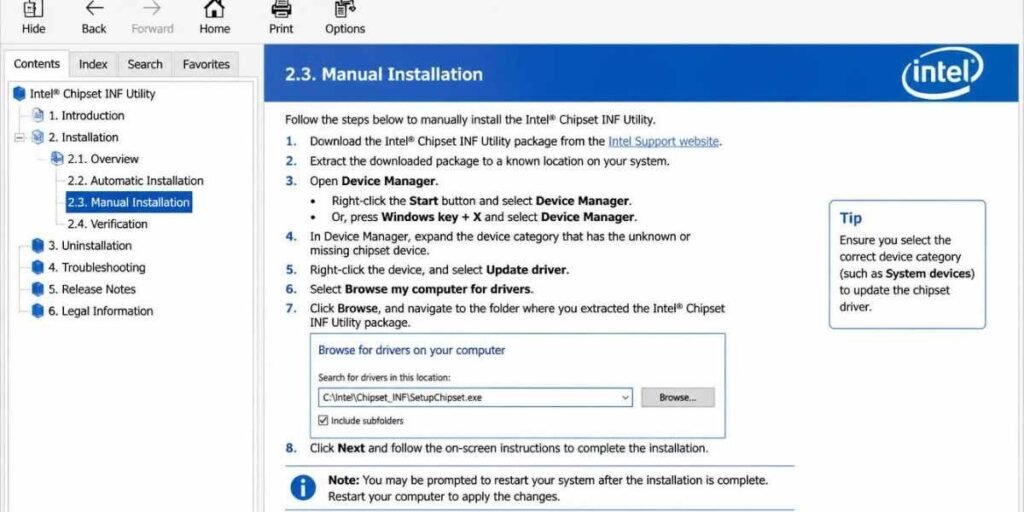
Installing only the chipset driver will not clear all Base System Device entries. The Intel Management Engine Interface is a separate driver that handles another set of chipset components on the X99A board.
Two driver packages are needed to fully resolve this issue. The first is the Intel Chipset Device Software and the second is the Intel Management Engine Interface. Both are available from the ASUS support page and together they resolve the majority of Base System Device errors on Intel platform motherboards.
Download the Intel Management Engine Interface from the same ASUS X99-A support page, install it after the chipset driver, and restart your PC once more.
Method 3: Use the Intel Chipset INF Utility Manually
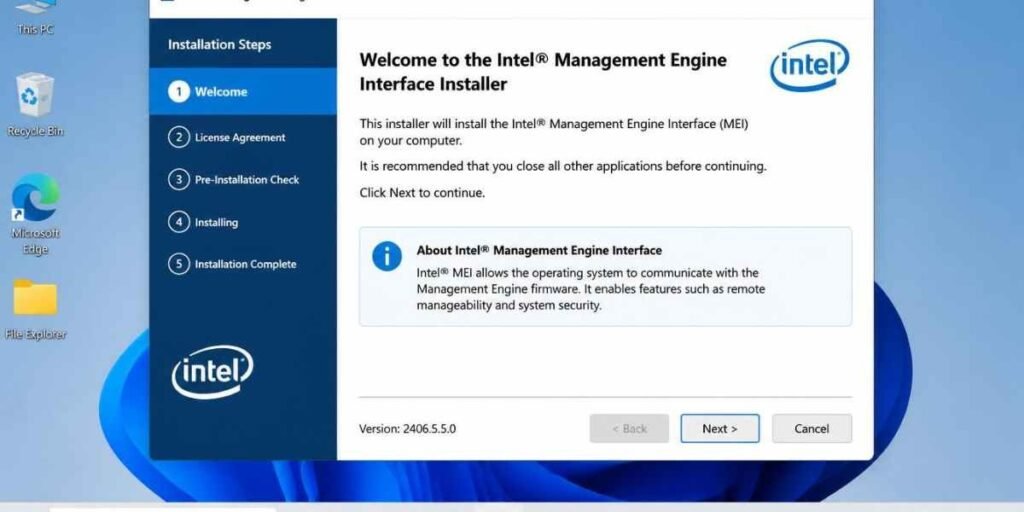
If the standard installer does not work, you can extract the driver files manually and point Device Manager directly to them.
Download the Intel Chipset INF Utility and run it without clicking any setup buttons. Open File Explorer and navigate to C:\Users\yourusername\AppData\Local\Temp. Look inside each folder there to find where the chipset INF Utility extracted the driver files. Copy that folder to your desktop and cancel the setup. Then open Device Manager, right click on Base System Device, select Update Driver, choose Browse my computer for drivers, and point it to the folder you copied to the desktop.
Method 4: Run Windows Update Including Optional Updates
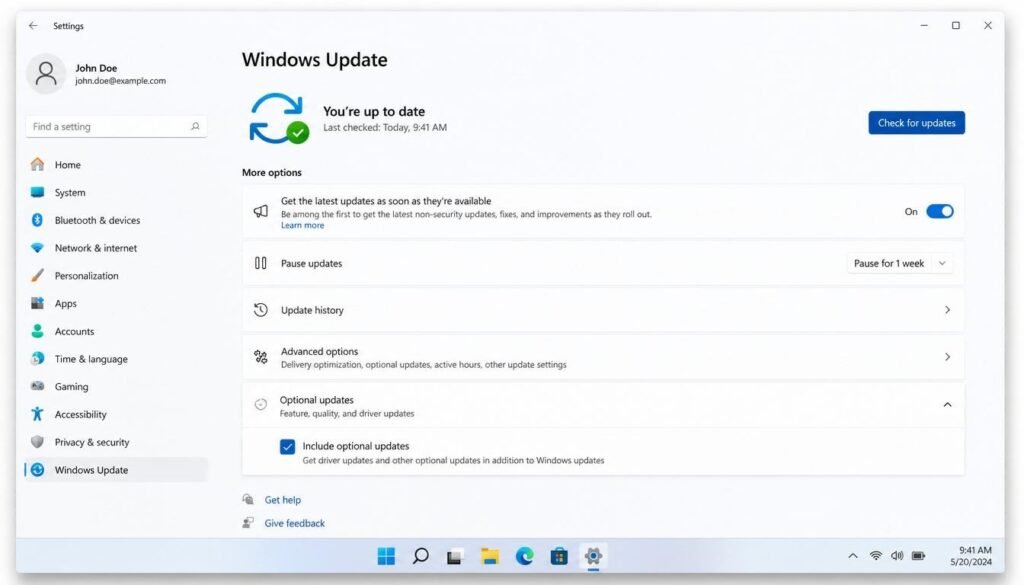
Windows Update can sometimes find and install missing drivers automatically. This method takes the least effort and is worth trying before manual installation.
Press Windows key and I together to open the Settings app and select Update and Security. Click Check for updates and install everything available. After updating, restart your PC and check Device Manager again.
The optional updates section often contains chipset and system device drivers that are not installed by default, so do not skip that step.
Method 5: Find the Exact Driver Using Hardware ID Asus X99A
If any Base System Device entries remain after all other methods, you can identify exactly which driver each one needs by its Hardware ID.
Open Device Manager and right-click on any remaining Base System Device entry. Change the dropdown to Hardware IDs and copy the string shown. Search that string on Google and you will find which specific driver or chipset component it belongs to. Cross-referencing the Hardware ID against OEM driver pages from manufacturers like Dell or HP is a reliable way to find the correct driver since the same Intel chipset is used across many systems.
What to Check After Fixing the Error Asus X99A
Once all drivers are installed and your PC is restarted, open Device Manager and confirm no yellow exclamation marks are remaining under Other Devices or anywhere else. After installing the correct chipset INF files, Windows recognizes the device names properly and understands that some of them do not require additional drivers, which clears the remaining flags automatically.
If a few entries persist, go back to the ASUS X99-A support page and check whether there are any remaining drivers you have not installed, such as the SM Bus Controller driver or any utility-related packages.
Final Thought
The Asus X99A Base System Device error looks intimidating, but it always comes down to the same root cause: missing Intel chipset drivers. Install the Intel Chipset Driver and Intel Management Engine Interface from the official ASUS support page, restart your PC, and the problem is resolved in most cases. If a few entries remain, the Hardware ID method will take care of the rest. Your system deserves to run clean and error-free.
Frequently Asked Questions
Why does the Asus X99A show Base System Device errors after Windows 10 installation?
Windows 10 does not include Intel X99 chipset drivers in its default installation. The Intel Chipset INF driver and Intel Management Engine Interface both need to be downloaded and installed manually from the ASUS support page to clear all Base System Device errors.
Will Asus X99A Base System Device errors affect my PC performance?
The system will generally still work, but some hardware features may not function correctly until the drivers are installed. It is always best to clear all Device Manager errors to ensure every component is running as intended.

Clara Linford is a tech enthusiast and troubleshooting expert specializing in Windows errors, gaming crashes, and software fixes. At FindsErrors.com, she breaks down complex technical issues into simple, step-by-step solutions.