
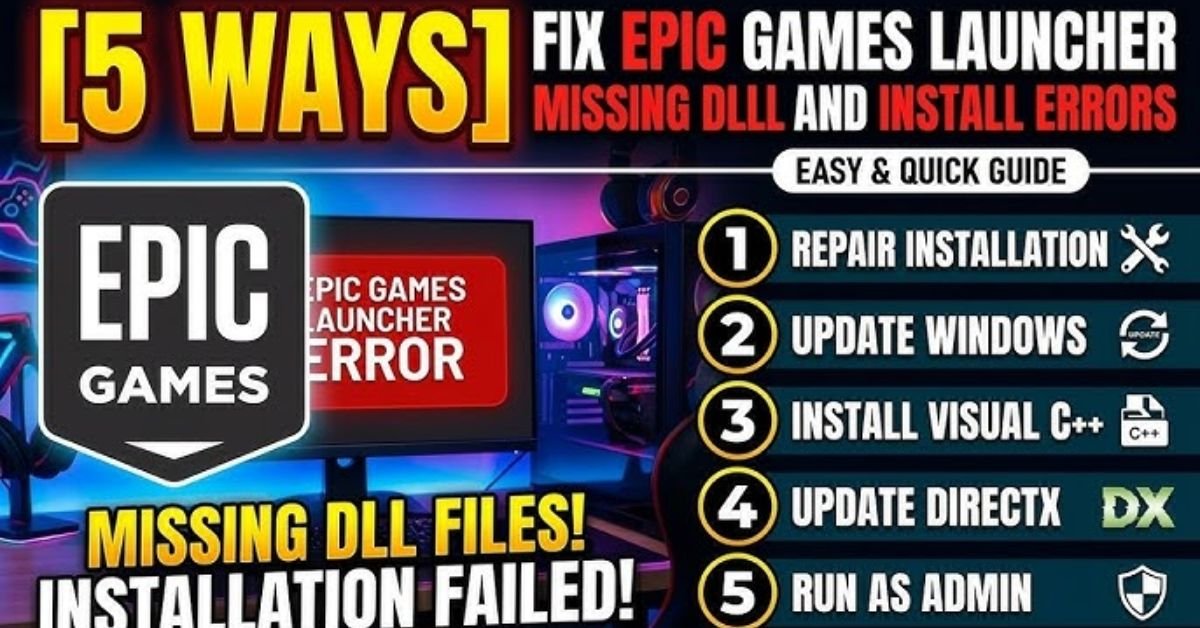
Are you trying to launch a new game or software, only to be stopped by a frustrating popup saying, “The program can’t start because MSVCP140.dll is missing from your computer”? Do not worry; you are not alone. Missing DLL file errors are among the most common issues Windows users face today.
When you install heavy applications or modern PC games (like GTA V, Valorant, or Adobe Photoshop), they rely on shared background files to run smoothly. If these files get deleted, corrupted, or misplaced, Windows triggers an error. In this comprehensive guide, we will provide you with the ultimate DLL file missing error solution using five proven, safe, and 100% working methods.
What is a DLL File and Why Do Errors Happen?
DLL stands for Dynamic Link Libraries. These are essential system files created by Microsoft that allow multiple software programs to share the same functionalities simultaneously. This smart sharing system saves your computer’s RAM and hard drive space.
However, these files can easily break down due to several common reasons:
- Accidental Deletion: A user or an uninstaller accidentally removes a shared file.
- Malware Infections: Viruses or malicious software corrupt or delete critical system libraries.
- Corrupted Installations: A software installation or Windows update gets interrupted midway.
- Outdated Frameworks: Missing core dependencies like DirectX or Microsoft Visual C++ packages.
5 Proven Methods to Solve Missing DLL File Errors
Follow these step-by-step troubleshooting methods to restore your missing files safely without putting your operating system at risk.
Method 1: Run the SFC Scanner (System File Checker)
Windows includes a built-in utility called the System File Checker (SFC). This tool automatically scans your entire computer for corrupted, modified, or missing system files and repairs them instantly.
- Click on the Windows Search bar and type cmd or Command Prompt.
- Right-click on the Command Prompt icon and select Run as Administrator.
- Type the following command exactly as shown and press Enter:
sfc /scannow
Note: This scan may take 5 to 15 minutes to complete. Once finished, restart your computer and check if the error is gone.
Method 2: Install Microsoft Visual C++ Redistributables
A vast majority of runtime errors (such as msvcp140.dll or vcruntime140.dll) occur because the Microsoft Visual C++ package is either missing or outdated. To fix this:
- Visit the official Microsoft download website.
- Download the latest Visual C++ Redistributable Packages (Architecture: 2015-2022).
- If you run a 64-bit operating system, it is highly recommended to install both the x64 and x86 (32-bit) versions for maximum compatibility.
- Complete the installation wizard and reboot your PC.
⚠️ CRITICAL WARNING: Avoid Third-Party DLL Downloading Websites!
There are hundreds of shady websites offering free, individual DLL file downloads. Never download standalone files from these platforms to paste them into your System32 folder manually. These files are often injected with hidden malware, spyware, or trojans that can severely compromise your computer’s security. Always use official software distributors.
Method 3: Update System Graphics and Windows Drivers
Outdated hardware drivers can cause severe communication errors between your software programs and the Windows system library.
- Open your Windows Settings by pressing the shortcut keys Win + I.
- Navigate to Update & Security and click on Check for Updates.
- If you are a gamer or designer, open your dedicated GPU software (like NVIDIA GeForce Experience or AMD Software) and update your graphics drivers to the latest stable release.
Method 4: Reinstall the Problematic Software or Game
If the missing DLL error only appears when launching one specific application, the issue likely occurred during its installation phase. A file might have crashed while being extracted.
To fix this, go to your Control Panel > Uninstall a Program, remove the application entirely, and perform a fresh installation. This process automatically reinstalls all required program dependencies.
Method 5: Deploy the DISM Repair Tool
If the standard SFC scanner fails to patch the issue, you can use the more advanced Deployment Image Servicing and Management (DISM) tool. This command uses the internet to fetch fresh, clean files directly from Microsoft’s official cloud servers.
- Open the Command Prompt as an Administrator once again.
- Input the following command and hit Enter:
DISM.exe /Online /Cleanup-image /Restorehealth
Allow the process to reach 100%, close the terminal window, and restart your computer.
Quick Reference Table for Common DLL Errors
To save you time, we have mapped out the most frequent DLL errors along with their direct, root-cause solutions:
| Error File Name | Primary Cause | Direct Resolution Method |
| MSVCP140.dll / VCRUNTIME140.dll | Missing Microsoft Visual C++ Runtime | Install the Latest Microsoft Visual C++ 2015-2022 package. |
| D3dx9_43.dll / Xinput1_3.dll | Missing or outdated Microsoft DirectX | Download and run the Microsoft DirectX End-User Runtime installer. |
| Kernel32.dll / Ntdll.dll | Damaged core Windows system files | Execute the SFC Scanner tool and apply pending Windows updates. |
Conclusion
Resolving a missing DLL file error does not require complex technical degrees or risky third-party downloads. By following these five standard troubleshooting steps, you can safely repair your system architecture and get your games or applications running again in no time.
Did this guide help you fix your problem? Let us know which method worked best for you in the comments section below!
Frequently Asked Questions (FAQs)
1. Is it safe to download DLL files from free websites?
No, downloading individual DLL files from third-party websites is highly unsafe. These files are unregulated and frequently bundled with malware, ransomware, or spyware. Instead, always download the official runtime packages (like Visual C++ or DirectX) directly from Microsoft.
2. Can a virus cause a missing DLL file error?
Yes. Viruses and malware often target vital system libraries. They can either infect the DLL file, causing your antivirus software to delete it, or corrupt the file directly so that Windows can no longer read it properly.
3. Where are DLL files stored in Windows 10 and 11?
By default, 64-bit system DLL files are stored in the C:\Windows\System32 directory, while 32-bit system DLL files are stored in the C:\Windows\SysWOW64 folder.
4. Why does it say MSVCP140.dll is missing after installing a game?
This happens because the game requires the Microsoft Visual C++ Redistributable framework to read its graphical and processing instructions. Installing the latest Visual C++ package from Microsoft’s website fixes this instantly.
5. Can updating Windows fix my DLL errors?
Yes, running a standard Windows Update often patches background system bugs, updates outdated frameworks, and restores missing system files automatically.

Clara Linford is a tech enthusiast and troubleshooting expert specializing in Windows errors, gaming crashes, and software fixes. At FindsErrors.com, she breaks down complex technical issues into simple, step-by-step solutions.