






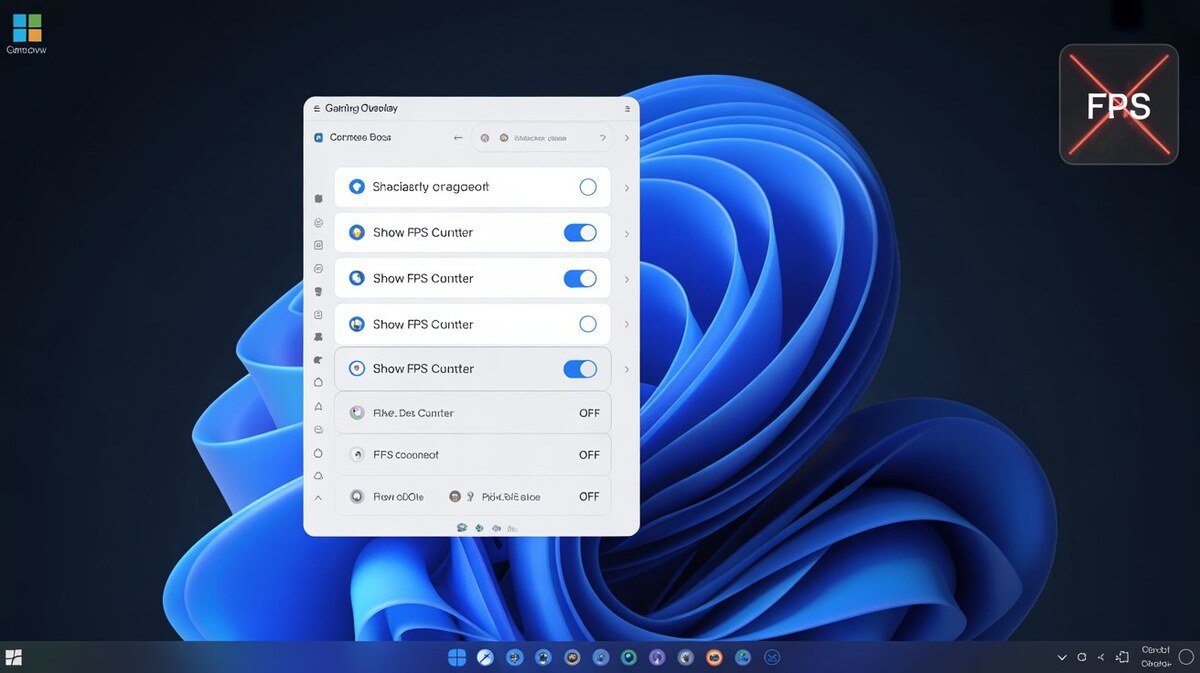
If you’re seeing a random FPS number stuck in the corner of your screen, don’t worry, your PC isn’t broken.
Many Windows 11 users suddenly notice a small FPS counter in the top-right or top-left corner while gaming, and it simply won’t go away. Some think it’s malware. Others assume Windows enabled a hidden feature after an update.
In reality, it’s almost always a performance overlay from Steam, NVIDIA, AMD, Xbox Game Bar, or another graphics tool.
The good news? You can remove it in less than two minutes once you identify where it’s coming from.
In this guide, I’ll show you exactly how to find the source and turn it off.
Why Is an FPS Counter Showing on My Windows 11 Screen?
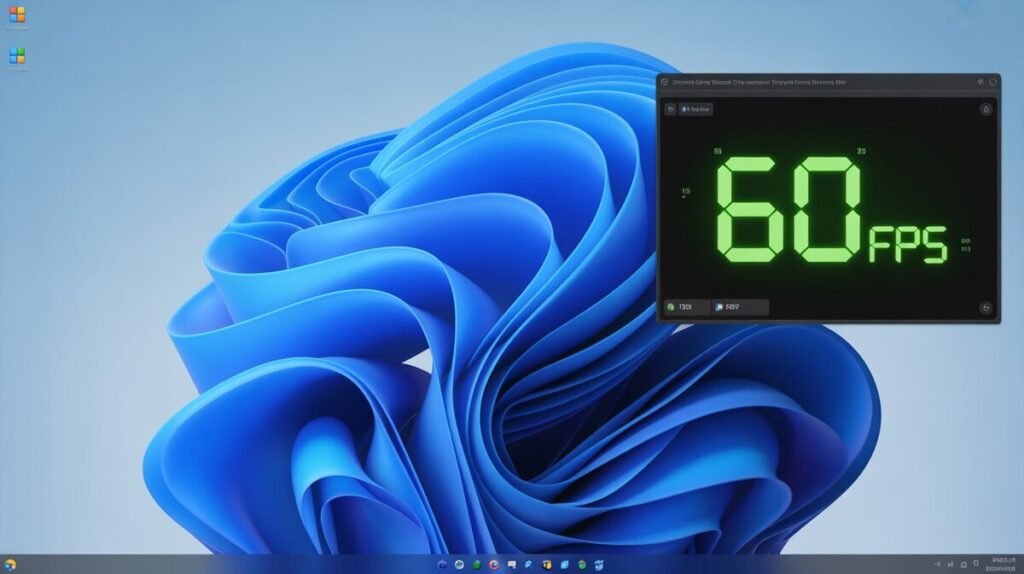
If an FPS counter suddenly appears on your screen, it’s almost never a Windows 11 bug or a virus. In most cases, it’s a performance overlay that was enabled by a gaming application or graphics driver.
This usually happens after a graphics driver update, installing a new game, updating Steam, or accidentally pressing a keyboard shortcut like Win + G or Alt + Z. Many overlays turn on automatically after updates or when certain performance settings are enabled.
Windows 11 itself doesn’t randomly show FPS numbers. The counter typically comes from software like Steam, NVIDIA GeForce Experience, AMD Adrenalin, Xbox Game Bar, or another monitoring tool running in the background.
The key thing to understand is this: the FPS counter is just a monitoring feature, not a system error. Once you identify which app enabled it, you can turn it off in seconds.
Quick Way to Identify the Source of the FPS Counter
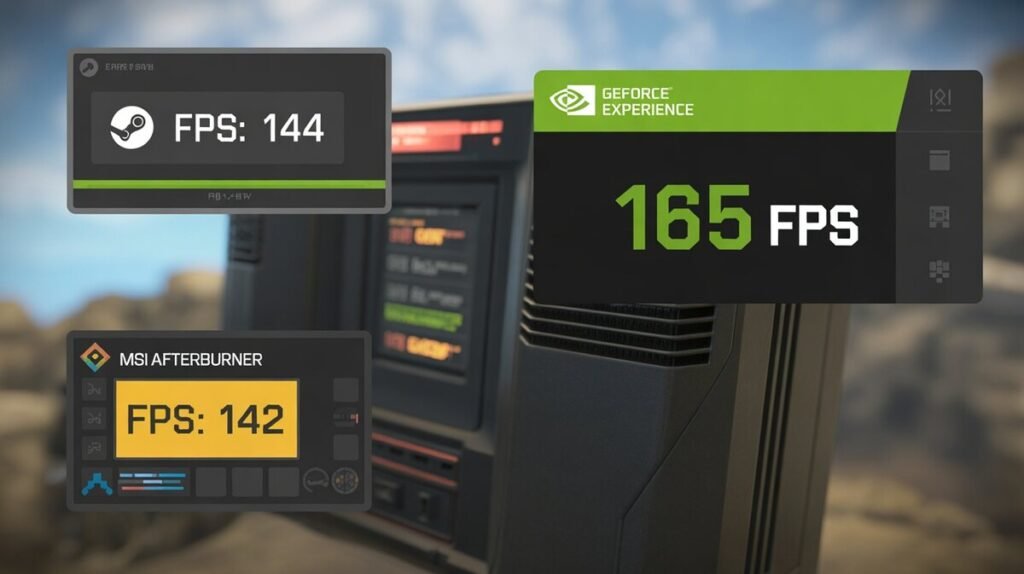
Before you try disabling anything, take a close look at how the FPS counter appears on your screen. Its position, color, and layout usually reveal exactly which software is responsible.
FPS in the Top-Left Corner Only
If you notice a tiny FPS number hanging out in the top-left corner of your screen, usually in plain white or yellow text, chances are it’s coming from Steam. Steam comes with a built-in FPS counter that many gamers turn on for performance testing and then completely forget about. It only shows up in games launched through Steam and stays fixed in that corner, without displaying extra details like GPU or CPU usage. If the number looks simple and just says “FPS,” Steam is almost always the culprit.
FPS Display in the Upper-Right Corner Alongside GPU and CPU Information
If the numbers appear in the top-right corner and include additional details like GPU usage, CPU usage, latency, or frame time, this is commonly the NVIDIA performance overlay.
This overlay often gets enabled after a graphics driver update or by pressing the shortcut Alt + Z. It may show multiple performance metrics stacked vertically instead of just a single FPS number.
If your system uses an NVIDIA graphics card and the stats look detailed, NVIDIA GeForce Experience is likely responsible.
FPS with CPU, GPU & RAM Box Layout
If you see FPS along with CPU, GPU, and RAM usage inside a small movable box, this usually comes from the Xbox Game Bar.
Windows 11 includes Xbox Game Bar as a built-in gaming overlay. If the Performance widget is pinned, it stays visible even when you close the main overlay screen.
This layout often looks like a compact performance panel rather than just floating numbers.
Red Numbers or Detailed Performance Graphs
If the FPS counter appears in red text or includes detailed graphs, temperatures, or hardware statistics, it is often coming from AMD Adrenalin software or a third-party tool like MSI Afterburner.
These overlays are more advanced and are typically used for monitoring system performance, overclocking, or benchmarking.
If you see temperature readings or animated graphs, you’re likely dealing with a dedicated performance monitoring application.
Real-Life Reddit Examples of FPS Counters Annoying Gamers
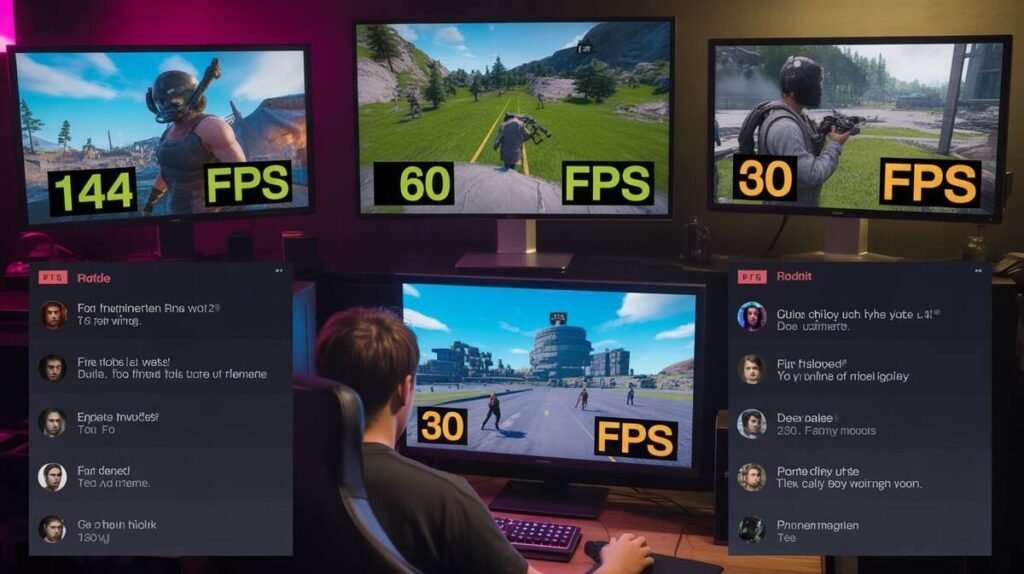
We all know Reddit is the place where gamers vent their frustrations, and FPS counters are no exception. One Reddit user shared how the Steam FPS overlay kept blocking the health bar in Cyberpunk 2077, making it impossible to react quickly during fights. Another gamer complained about MSI Afterburner showing double FPS numbers because both RTSS and RivaTuner were active at the same time.
These real-life examples show that even small on-screen distractions can ruin immersion and gameplay, so turning off these counters isn’t just cosmetic; it actually helps your performance.
r/lenovoLegion says
I have legion 5 Yesterday when I updated the nvidia app this started showing up Done restarting but no luck Uninstalled the nvidia app no luck Please help to remove it..
Source: reddit
Method 1: Disable the FPS Counter with Xbox Game Bar
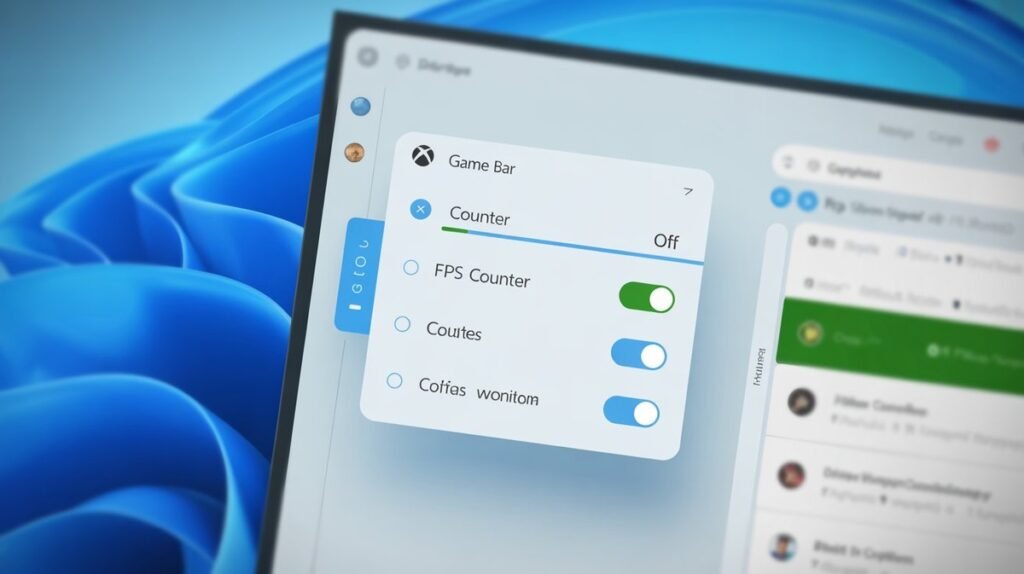
One of the most common reasons for an FPS counter appearing in Windows 11 is the built-in Xbox Game Bar performance widget.
If the widget is pinned, it stays on your screen even after you close the overlay which makes many users think it’s a system issue.
Here’s how to remove it properly:
Step-by-Step Instructions
- Press Win + G on your keyboard.
- Look for the Performance widget.
- In the Performance panel, find the FPS option.
- If FPS is checked, uncheck it.
- Most importantly, click the Pin icon to unpin the widget.
- Press Win + G again to close the overlay.
That’s it. The FPS counter should disappear immediately.
Method 2: Disable Steam FPS Counter (Top‑Left Fix)
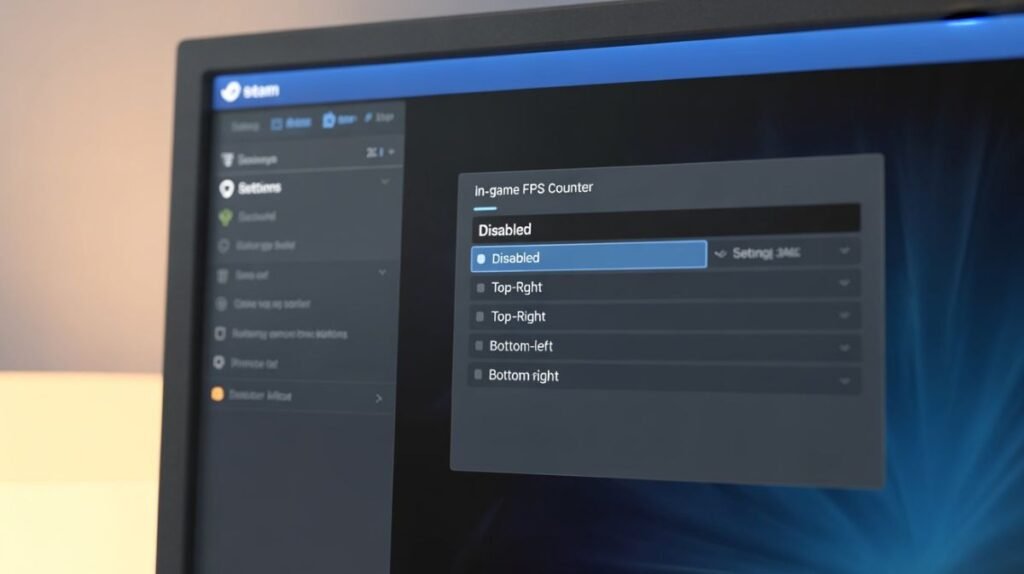
So, you’ve noticed that little FPS number popping up in the top-left corner while you’re gaming on Steam, right? Yeah, it can be pretty annoying, especially if it’s covering part of your HUD or just distracting you from the action. The good news? Turning it off is actually super easy.
Here’s the deal: Steam has this built-in FPS counter that shows your frames per second through its overlay. By default, it likes to hang out in the top-left corner. The moment you disable it, you get a cleaner screen without affecting your game’s performance. Neat, right?
Here’s how you do it, step by step:
- Open your Steam client. Launch Steam like you normally would.
- Go to the Steam menu at the top-left of your window.
- Click on Settings (or Preferences if you’re using a Mac). This is where you’ll find all the options for customizing and managing the overlay features.
- Select the “In-Game” tab. Look for the FPS Counter option.
- Change the dropdown to “Off.” That’s it, no more FPS numbers staring at you.
- Save your changes and restart Steam. Just to make sure everything kicks in smoothly.
And here’s a little extra tip: if you want to go all-in and remove the overlay entirely, you can uncheck “Enable the Steam Overlay while in-game” in the same menu. That’ll kill any little distractions, including the FPS number.
Honestly, that’s all there is to it. Once you turn it off, your screen looks way cleaner, and your gameplay feels more immersive. Simple, right?
Method 3: Turn Off NVIDIA FPS Overlay (Top-Right Fix)
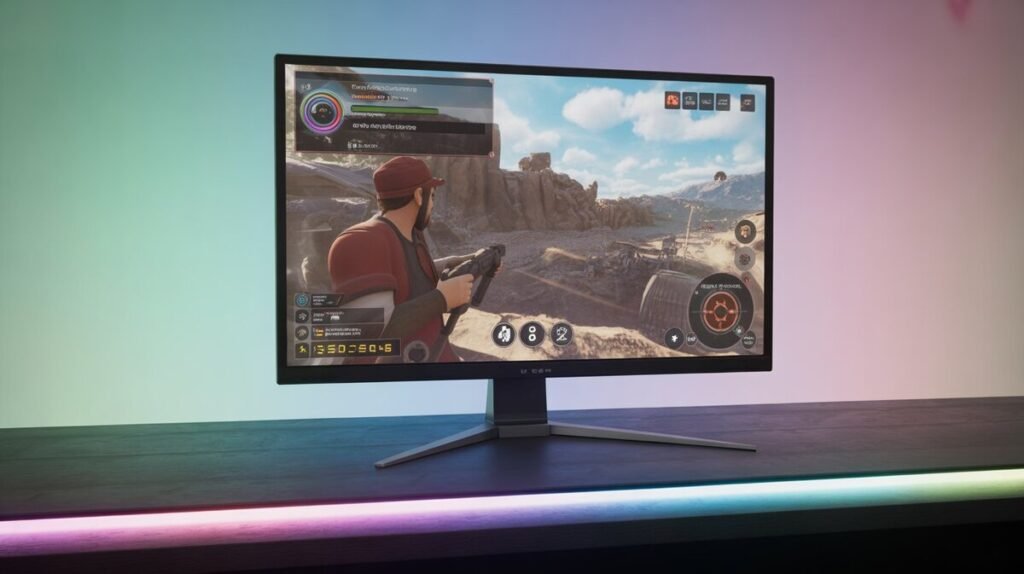
Okay, so now you’ve probably noticed another FPS counter this time chilling in the top-right corner of your screen while playing games. Chances are, it’s coming from NVIDIA’s overlay, not Steam. And honestly, it can be just as distracting. Don’t worry, turning it off is pretty straightforward.
Here’s the scoop: NVIDIA’s GeForce Experience has an in-game overlay that shows FPS, GPU stats, and other handy info. But sometimes, all you want is a clean screen without numbers staring at you while you’re in the middle of a boss fight or a clutch moment.
Here’s how you fix it:
- Launch NVIDIA GeForce Experience the same way you usually open it, simply start the application from your desktop, Start menu, or applications folder.
- Click on the Settings (gear icon). You’ll find it in the top-right corner.
- Go to the “In-Game Overlay” section. This is where all overlay magic happens.
- Click on “Settings” under the overlay. Then choose “HUD Layout.”
- Select FPS Counter → Turn it Off. Yep, that’s literally all it takes to make it disappear from the top-right.
Method 4: Disable AMD FPS Counter in Windows 11
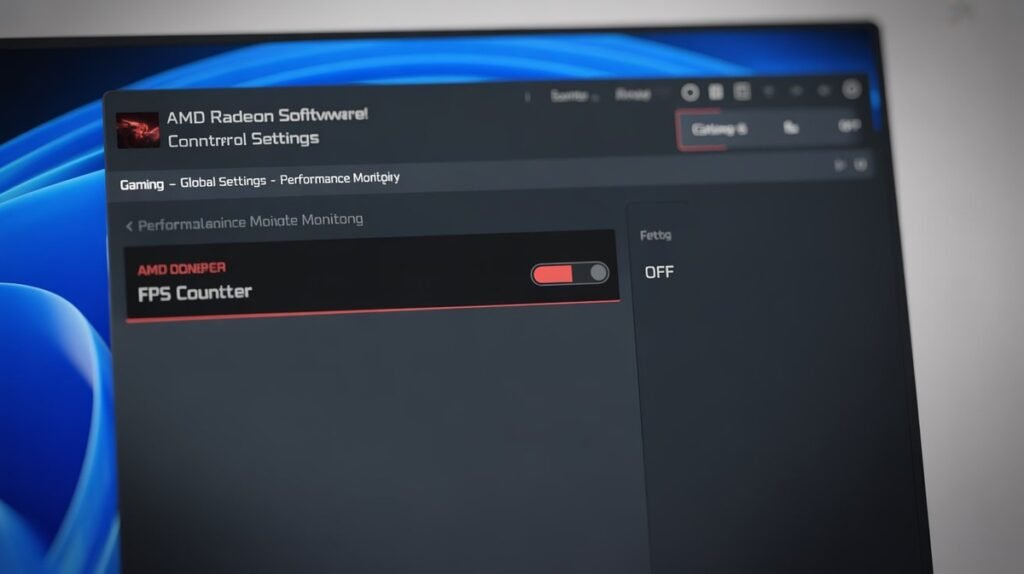
Alright, AMD users, this one’s for you. If you’re seeing an FPS number popping up on your Windows 11 screen while gaming, it’s probably from the AMD Radeon Software overlay. Luckily, turning it off is easier than you think, and it’ll instantly give you a cleaner, distraction-free gaming experience.
Step-by-step guide:
- Open AMD Radeon Software. Press Win + S and search for “Radeon Software” to launch it.
- Click on Settings (gear icon). You’ll find this in the top-right corner.
- Go to the “Graphics” or “Performance” section. Depending on your version, FPS overlay options may appear under either tab.
- Find the FPS counter option. It may appear under names such as “Performance Metrics Overlay” or “In-Game FPS.”
- Switch it off. That’s it, goodbye top-left or top-right FPS number!
- Restart your game. This ensures the changes apply properly and you’re back to a distraction-free screen.
Method 5: Remove Intel Arc FPS Overlay
Intel Arc graphics users, I didn’t forget you! Intel’s drivers also come with an in-game overlay that can show FPS stats, and it tends to appear in the corner of your screen. If you don’t need it cluttering your view, here’s the quick fix:
Step-by-step guide:
- Open Intel Graphics Command Center. Search for it in the Start menu or taskbar.
- Go to the “System” or “Gaming” section. Overlay settings are usually under the Gaming tab.
- Find the FPS Counter option. It may be labeled as “Performance Overlay” or “FPS Overlay.”
- Turn it off. Switch the toggle, and the FPS number will disappear instantly.
- Restart your game. This guarantees the overlay stays off for your next gaming session.
Keyboard Shortcuts That Accidentally Enable FPS Counter
Sometimes, FPS counters pop up without you even touching settings. That’s usually because a hotkey was pressed by accident. Here are the most common keyboard shortcuts for popular graphics overlays:
- Steam: Shift + Tab → opens overlay; sometimes triggers FPS display if enabled.
- NVIDIA: Alt + R → toggles in-game overlay; FPS may show if HUD layout has it on.
- AMD Radeon: Ctrl + Shift + O → opens performance overlay with FPS stats.
- Intel Arc: Ctrl + Shift + F → toggles FPS overlay in Intel Graphics Command Center.
FPS Counter Still Not Gone? Check These Apps
So, you’ve tried all the Steam, NVIDIA, AMD, and Intel fixes, but that stubborn FPS number is still showing up? Don’t worry, sometimes third-party apps are the real culprits. These programs can display performance overlays, and even if you disable the graphics driver counters, they’ll keep showing FPS until you tweak them.
Here’s a quick rundown of the usual suspects:
- MSI Afterburner
This is one of the most popular tools for monitoring GPU stats. If the FPS overlay is enabled here, it’ll appear in every game. Open Afterburner → go to Settings → Monitoring → uncheck “Show in On-Screen Display” for FPS. - RivaTuner Statistics Server (RTSS)
Often bundled with MSI Afterburner, RTSS controls the actual overlay. Check if the FPS display is active and turn it off, or just close RTSS while gaming. - Razer Cortex
Razer Cortex’s FPS counter is sometimes auto-enabled when the software is running. Open Cortex → go to FPS Counter Settings → toggle off the display. - NZXT CAM
NZXT CAM overlays your system stats, including FPS. Open CAM → go to Overlay Settings → disable FPS or the performance overlay completely.
Final Thoughts
FPS counters are great for monitoring performance, but they can be distracting if you don’t need them. Whether it’s Steam, NVIDIA, AMD, Intel Arc, or Xbox Game Bar, disabling the right overlay is quick and simple.
Follow the methods in this guide, double-check your hotkeys, and check third-party apps. Your screen will finally be clean and distraction-free, making your gaming experience smooth and immersive.
FAQs About FPS Counters in Windows 11
Q1: Is it safe to disable FPS counters?
Yes! FPS overlays are purely for monitoring performance. Turning them off won’t harm your PC or games.
Q2: Why did my FPS counter appear suddenly?
Usually, after driver updates, new game installs, or accidentally pressing hotkeys like Win + G or Alt + Z.
Q3: Can I check FPS without keeping it on-screen?
Absolutely. Most overlays let you assign hotkeys to toggle FPS counters temporarily.
Q4: What if multiple overlays are active?
They can conflict, showing multiple FPS numbers. Disable all overlays from apps like Steam, NVIDIA, AMD, and third-party tools for a clean screen.