









In 2026, the gaming landscape has shifted toward massive asset libraries. With titles now frequently exceeding 200GB, the traditional “Steam Disk Write Error” has evolved from a simple “disk full” notification into a complex conflict between hardware and software. Modern games utilize advanced technologies like the DirectStorage API, which bypasses the CPU to send data directly to the GPU. While this eliminates loading screens, it puts immense pressure on your storage controller.
When your NVMe Gen 5 SSD hits peak speeds, it generates thermal energy that can cause the drive to throttle or disconnect momentarily. Furthermore, Windows 11’s enhanced security layers, such as Smart App Control and Virtualization-based Security (VBS), often misinterpret high-speed data fragments as a threat, locking the folder mid-download. This guide moves beyond the basic “restart your PC” advice to tackle the technical root causes of disk errors in the modern era.
Method 1: Configuring Windows 11 Dev Drive (ReFS) for Steam Performance
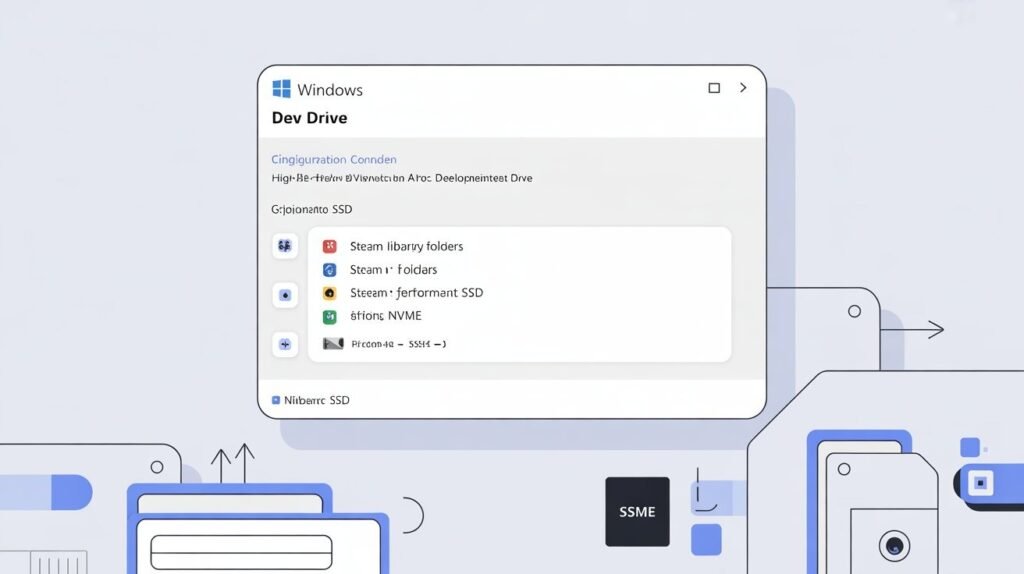
Windows 11 now offers a feature called Dev Drive, which utilizes the Resilient File System (ReFS) instead of the standard NTFS. ReFS is specifically designed to handle massive file operations with lower CPU overhead.
Why it happens: Standard NTFS drives use a journaling system that can become a bottleneck during the rapid metadata changes of a 200GB download, leading to a “Write Hang.”
Step-by-Step Instructions:
- Go to your Windows Settings and select the System category.
- Click on Storage from the sidebar menu.
- Choose a partition with at least 300GB of free space and select Create Dev Drive.
- Specify the size and ensure the format is set to ReFS.
- Once created, open Steam Settings > Storage.
- Click the Add Drive (+) icon and select your new ReFS Dev Drive.
- Move your high-bandwidth games here. ReFS handles the “Copy-on-Write” mechanism much more efficiently, virtually eliminating file-lock errors.
Method 2: Solving DirectStorage GPU Decompression Errors
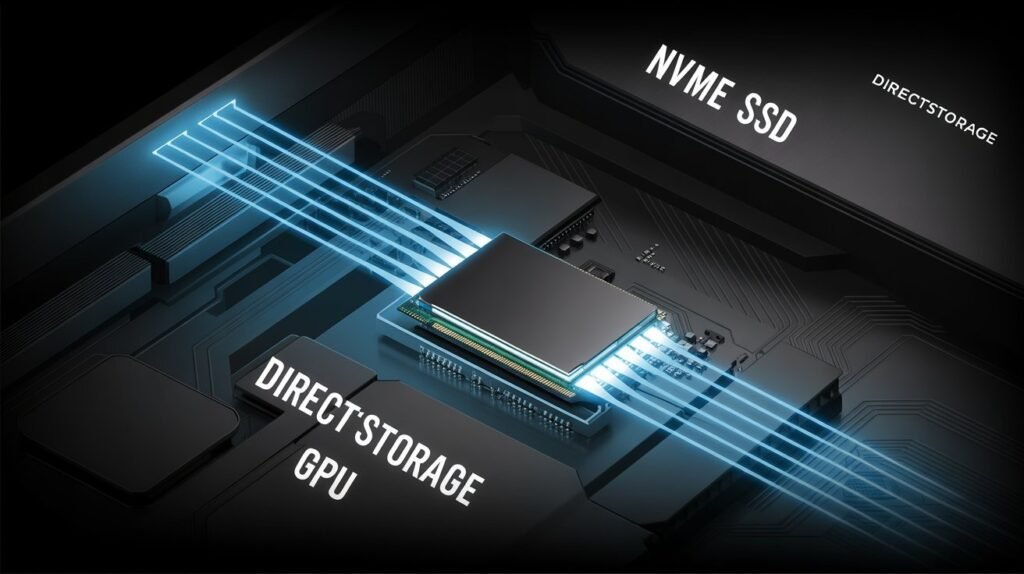
“With DirectStorage 1.2 and above, the GPU handles asset decompression directly. However, if there is a timing mismatch between the SSD’s NVMe controller and the GPU driver, the file ‘commit’ process will fail. This desync is a common hidden cause behind persistent Steam disk write errors.”
Why it happens: Incompatibility between the SSD’s firmware and the GPU’s decompression buffer causes the data stream to break.
Step-by-Step Instructions:
- Ensure you are using an NVMe Gen 4 or Gen 5 SSD. DirectStorage does not support older SATA drives for decompression.
- Update your GPU drivers (NVIDIA/AMD/Intel) to the latest March 2026 build.
- Open the Steam Console (Win + R, then type steam://open/console).
- Type bDirectStorageEnable 0 if you suspect your hardware is failing to handle the speed.
- Check your SSD manufacturer’s website for a Firmware Update. Many Gen 5 drives received patches specifically for DirectStorage stability.
Method 3: Mitigating NVMe Gen 5 Heat Throttling
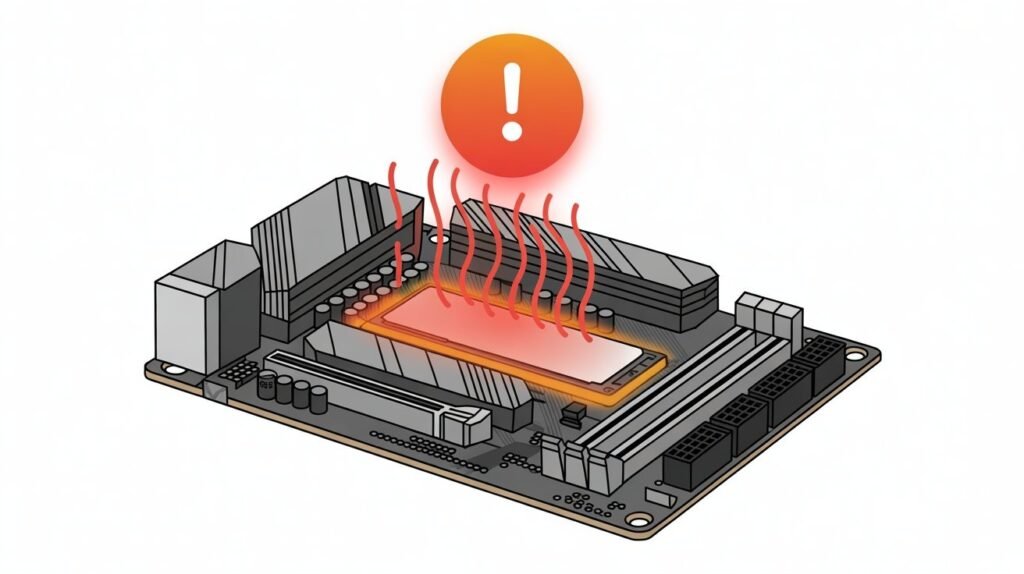
PCIe 5.0 SSDs are blazingly fast but can reach temperatures above 80°C during a sustained 100GB update. When the drive gets too hot, the controller shuts down write operations to protect the NAND flash.
Why it happens: Thermal throttling causes a momentary “I/O Timeout,” which Steam interprets as a disk failure.
Step-by-Step Instructions:
- Download a monitoring tool like HWInfo64 and watch the “Drive Temperature 2” (Controller temperature) during a download.
- If it exceeds 75°C, you must improve physical cooling. Ensure your motherboard’s M.2 heatsink is properly tightened with a fresh thermal pad.
- Software Solution: Go to Steam > Settings > Downloads.
- Toggle on Limit bandwidth and set it to 50 MB/s (400 Mbps). By slowing down the download, you reduce the write intensity, keeping the SSD under the thermal limit.
Method 4: Bypassing Windows 11 Smart App Control (SAC)
Smart App Control is an AI-powered security layer in Windows 11 that blocks “untrusted” or “unsigned” file modifications.
Steam Disk Write Error. Why it happens: Steam’s background service (SteamService.exe) can sometimes be flagged when it tries to modify protected game folders during a patch.
Step-by-Step Instructions:
- Open Windows Security from the Start menu.
- Open the Windows Security app and select App & Browser Control.
- If it is on, you cannot simply turn it off without a Windows reset; however, you can add an Exclusion.
- Locate the Exclusions header at the bottom of the page.
- Select Folder and add your entire Steam library path (e.g., D:\SteamLibrary). This tells the AI to stop interfering with Steam’s write operations.
Method 5: Mac-Specific Fixes for macOS Sequoia and Sonoma
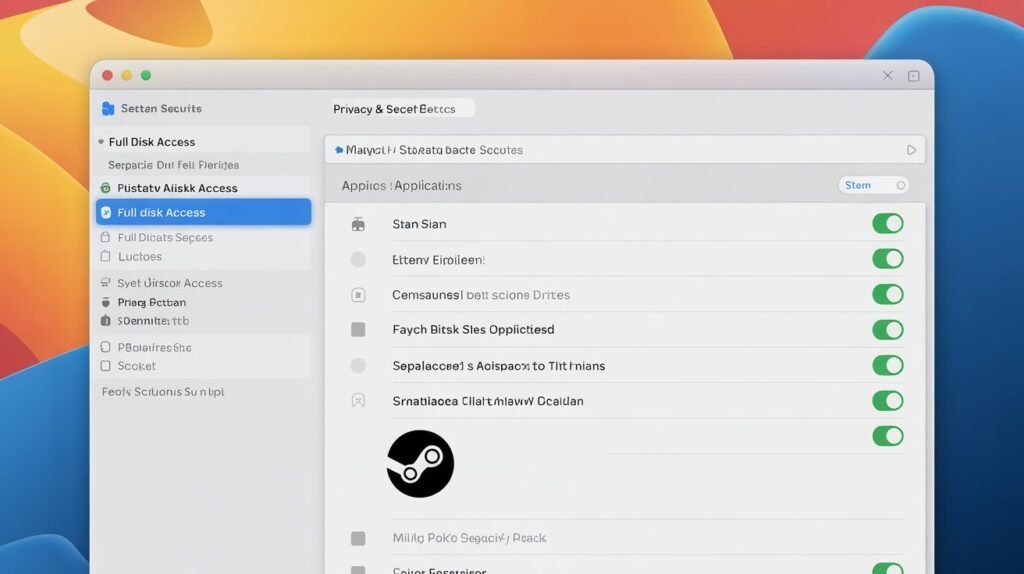
Modern macOS versions have strict “Transparency, Consent, and Control” (TCC) frameworks. Even if Steam is installed, it may not have permission to write to external NVMe enclosures.
Why it happens: The “Full Disk Access” permission is often revoked after a macOS update, leading to a write error.
Step-by-Step Instructions:
- Open System Settings on your Mac.
- Scroll down until you see the Full Disk Access menu.
- Find Steam in the list and toggle the switch to On.
- If Steam is not in the list, click the + icon, navigate to your Applications folder, and add it manually.
- Restart Steam. This allows the client to bypass the “Sandbox” restrictions that prevent game files from being modified.
Method 6: Linux and Steam Deck Terminal Ownership Fixes
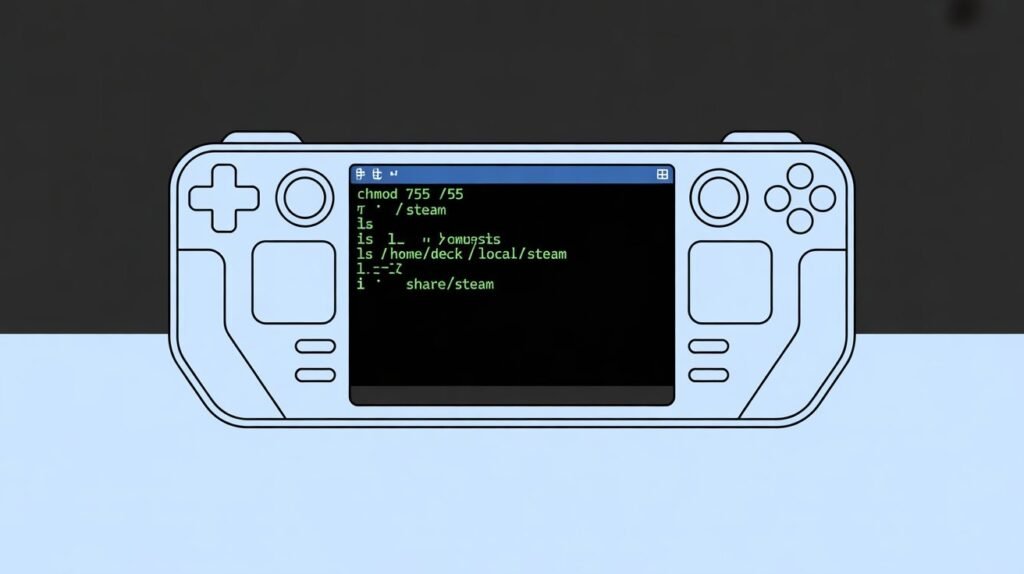
On Linux (including SteamOS on the Steam Deck), Steam Disk Write Error are almost always related to “Mount Point Permissions” or “EXT4 Ownership” conflicts.
Why it happens: If a drive is formatted or mounted by the “root” user, the “deck” or “standard” user cannot write to the Steamapps folder.
Step-by-Step Instructions:
- Switch to Desktop Mode on your Steam Deck or open a terminal on your Linux distro.
- Identify your library path. Usually, it is /home/deck/.local/share/Steam or an external path like /run/media/mmcblk0p1/.
Run the ownership command:
- sudo chown -R $USER:$USER /path/to/your/SteamLibrary
Set the correct permissions:
- sudo chmod -R 755 /path/to/your/SteamLibrary
- Verify your fstab entries for external drives. Ensure the mount options include exec,uid=1000,gid=1000 to allow the user full write access.
Method 7: Repairing the Steam Library Folder Structure
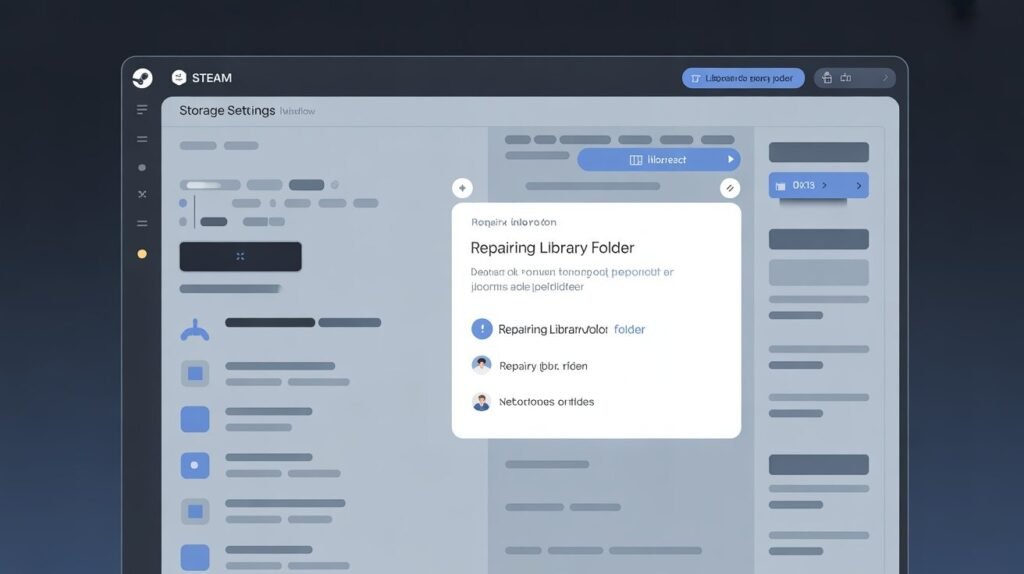
Steam has a built-in repair tool that resets the folder permissions and manifest files without redownloading the entire game.
Why it happens: Manifest files (.acf) can become “Read-Only” due to a system crash, preventing Steam from updating the download progress.
Step-by-Step Instructions:
- In the Steam client, click on Steam > Settings.
- Navigate to the Storage tab.
- Select the drive where the error is occurring.
- Click the three dots (…) next to the drive space bar and select Repair Folder.
- Windows will prompt for administrative permission. This process will reset the Access Control Lists (ACLs) for every game in that library.
Method 8: Resolving I/O Device Errors on External NVMe Drives
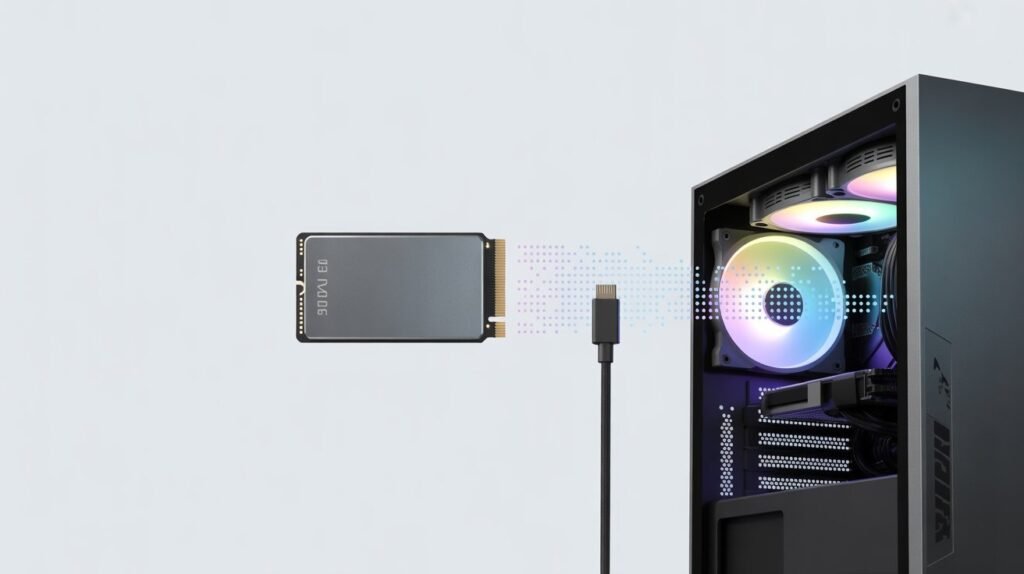
Using high-speed external NVMe drives (USB 4.0 or Thunderbolt 4) often leads to disk write errors if the cable or port cannot handle the throughput.
Why it happens: Signal degradation over a low-quality USB cable causes the “Handshake” between the drive and the PC to fail during heavy writes.
Step-by-Step Instructions:
- Ensure you are using a certified USB 4.0 or Thunderbolt 4 cable. Standard phone charging cables will trigger I/O errors.
- Connect the drive directly to the motherboard’s rear I/O port, not a front-panel case port or a non-powered hub.
- Go to Device Manager > Disk Drives, right-click your external SSD, and select Properties.
- Under the Policies tab, ensure Better performance and Enable write caching on the device are checked.
Method 9: Purging the 0-Byte “Ghost” Files
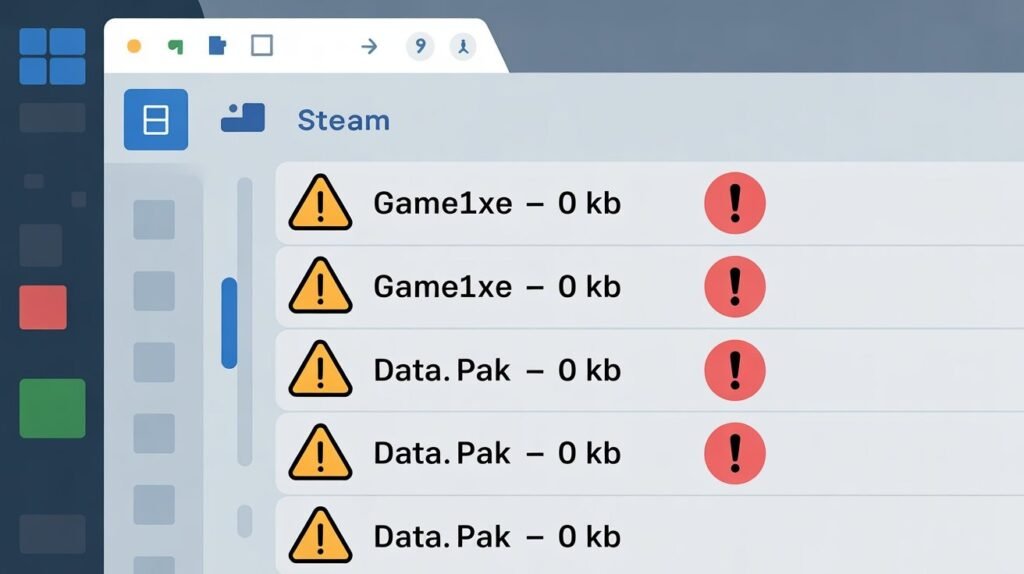
When a download is interrupted by a power surge or network drop, Steam creates a temporary “holding” file that is 0KB in size.
Why it happens: Steam tries to write to the file, but because it is corrupted as a 0-byte system lock, the OS denies the write request.
Step-by-Step Instructions:
- Close Steam completely.
- Navigate to Steam/steamapps/common.
- Search for any file with a size of 0 KB.
- Delete these files. Also, go to Steam/steamapps/downloading and delete the folder corresponding to the Game ID (you can find the ID on SteamDB).
- Restart Steam; it will now recreate the file structure from scratch.
Method 10: Disabling Windows Indexing on Game Folders
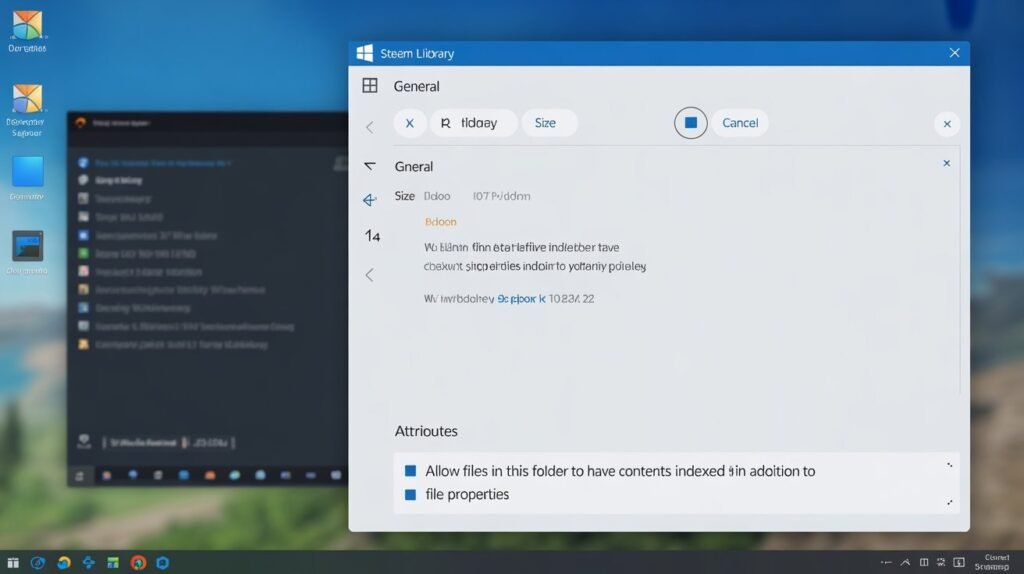
Windows Search Indexing constantly monitors folders for changes. During a massive Steam update, the Indexer and Steam both try to access the same file at once.
Why it happens: A “Sharing Violation” occurs when the Indexer locks a file to read it while Steam is trying to write to it.
Step-by-Step Instructions:
- Right-click your SteamLibrary folder and select Properties.
- Click the Advanced button in the General tab.
- Uncheck the box: Allow files in this folder to have contents indexed in addition to file properties.
- Apply changes to the folder, subfolders, and files. This frees up the drive to focus entirely on Steam’s data stream.
Final Thoughts: The Future of Gaming Storage
As we move further into 2026, the complexity of game data will only increase. Fixing a “Steam Disk Write Error” is no longer about clearing space; it is about optimizing the pathway between your NVMe controller and the operating system. By utilizing Dev Drives (ReFS) and managing Gen 5 thermal limits, you can ensure that even the largest 200GB+ titles install without a hitch. If all else fails, always check your physical connections in the era of 10GB/s transfer speeds; even a speck of dust in an M.2 slot can be the culprit.
Frequently Asked Questions
Can an SSD cause a Steam disk write error?
Yes. Modern NVMe SSDs can overheat during large 200GB downloads. When the drive gets too hot, it stops writing to protect itself. To fix this, use a good heatsink or limit your download speed in Steam settings to keep the drive cool.
How do I fix the Steam disk write error on Linux or Steam Deck?
This is usually a permission problem. Open the terminal and type sudo chown -R $USER:$USER /path/to/library. This command gives Steam full ownership of the folder so it can save game files without being blocked.
Why is Windows 11 blocking my Steam downloads?
Windows 11 has a high security feature called Smart App Control that sometimes locks Steam folders. Go to Windows Security and add your Steam folder to the Exclusions list to resolve this issue. This tells Windows to trust Steam and stop blocking its files.
Does DirectStorage affect disk write errors?
Yes. DirectStorage sends data straight to your GPU. If your GPU drivers are old, the connection breaks and causes a write error. To fix this, always keep your GPU drivers and SSD firmware updated to the latest 2026 versions.