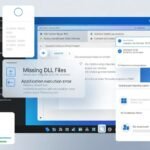





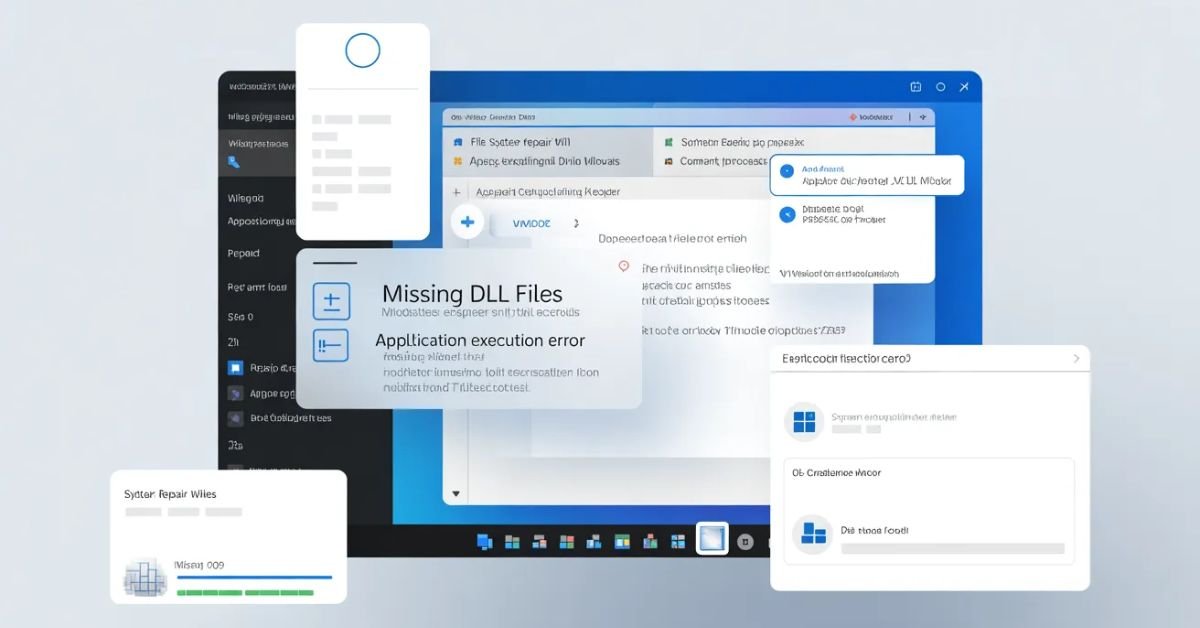
Have you ever tried to launch a favorite game or a professional software only to be greeted by a pop-up saying “The code execution cannot proceed because MSVCP140.dll was not found”?
These errors are incredibly common but can be very frustrating. A missing or corrupted DLL (Dynamic Link Library) file can prevent your most important applications from running. At FindsErrors.com, we specialize in providing safe, step-by-step solutions to these technical glitches. This guide will teach you everything you need to know about fixing DLL errors like a pro.
1. What are DLL Files and Why are They Missing?
DLL stands for Dynamic Link Library. Think of them as “instruction manuals” that multiple programs share at the same time. Instead of every app having its own copy of a function, they all “link” to one DLL file to save memory.
Common Reasons for DLL Errors:
- Accidental Deletion: Sometimes users or unoptimized “cleanup” tools delete these files by mistake.
- Corrupted Installations: A failed software update can leave DLL files in a “half-written” state.
- Malware Infection: Viruses often target or replace DLL files to gain control of your system.
- Overwritten Files: Installing an older version of a program might overwrite a newer, working DLL file.
2. The Golden Rule: Never Download DLLs from Random Websites
Before we fix the issue, a warning: Do NOT download individual DLL files from “DLL Downloader” websites. These files are often outdated, contain malware, or are incompatible with your specific version of Windows. Always use official Microsoft redistributables or system tools.
3. Solution 1: Reinstalling Microsoft Visual C++ Redistributables
Most “Missing DLL” errors (like vcruntime140.dll or msvcp140.dll) are caused because the Visual C++ Redistributable package is missing or corrupted.
How to Fix:
- Go to Control Panel > Programs and Features.
- Look for “Microsoft Visual C++ Redistributable” (versions 2015, 2017, 2019, and 2022).
- If they are there, right-click and select Change > Repair.
- If they are missing, visit the official Microsoft website and download the “All-in-One” x64 and x86 installers.
4. Solution 2: Using the SFC and DISM Power Duo
If the DLL file is a core part of the Windows Operating System, you can’t just “install” it. You have to let Windows repair itself.
- SFC (System File Checker): Open CMD as Administrator and type $sfc /scannow$. This will scan the System32 folder and replace any missing or corrupt DLLs from a local backup.
- DISM: If SFC fails, use $DISM /Online /Cleanup-Image /RestoreHealth$. This command downloads fresh, healthy versions of system files directly from Microsoft’s servers.
5. Solution 3: Re-Registering a DLL File Manually
Sometimes the DLL file is present on your computer, but Windows “forgot” where it is or how to use it. You need to re-register it in the Windows Registry.
Step-by-Step:
- Open Command Prompt as Administrator.
- Type regsvr32 [name_of_dll].dll (e.g., regsvr32 setupapi.dll) and press Enter.
- You should see a message saying “DllRegisterServer succeeded.”
6. Fixing “The Application was Unable to Start Correctly (0xc000007b)”
This specific error code usually happens when there is a conflict between 32-bit and 64-bit files. For example, a 64-bit application trying to load a 32-bit DLL.
The Fix:
- Ensure you have both x86 (32-bit) and x64 (64-bit) versions of the Visual C++ Redistributables installed.
- Update your .NET Framework to the latest version.
7. Update Your Graphics Drivers (DirectX Errors)
If you get a DLL error while starting a game (e.g., d3dx9_43.dll), it is related to DirectX.
- Fix: Download the “DirectX End-User Runtime Web Installer.” This will scan your PC and add any missing legacy DirectX files that modern Windows versions sometimes skip.
8. Perform a Malware Scan
Some DLL errors are actually a sign that a virus is trying to hide.
- Run a full scan with Windows Defender or Malwarebytes.
- If a file like kernel32.dll is being flagged, do not delete it manually; let the antivirus “Quarantine” or “Repair” it.
9. Use System Restore as a Last Resort
If the errors started after you installed a specific software or driver:
- Search for “Create a restore point” in the Start menu.
- Click System Restore.
- Choose a date before the errors started. This will revert your system files and registry to a working state.
10. Conclusion: No More Execution Errors
DLL errors might seem scary, but they are almost always fixable with the right Microsoft tools. By avoiding shady download sites and focusing on repairing your system’s core libraries, you can keep your PC running fast and error-free.
Explore the Windows Errors category on FindsErrors.com for more specific error code guides!