









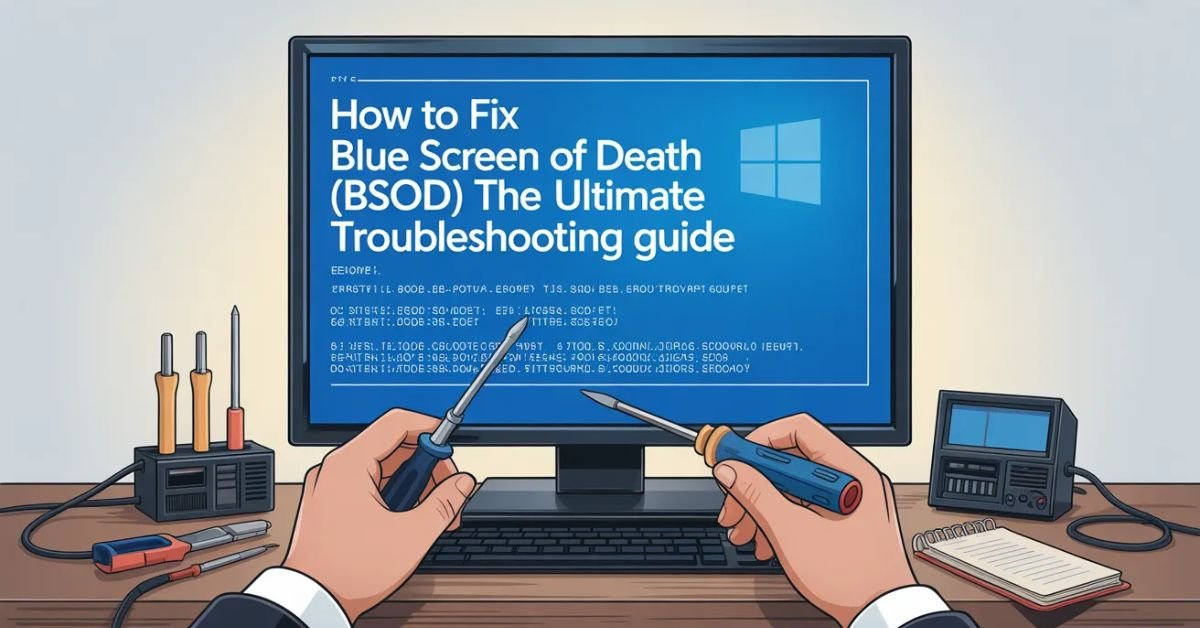
The Blue Screen of Death (BSOD) is perhaps the most feared sight for any Windows user. One minute you are working on an important project or playing a game, and the next, your entire screen turns blue with a cryptic error code like CRITICAL_PROCESS_DIED or IRQL_NOT_LESS_OR_EQUAL.
At FindsErrors.com, we understand how frustrating system crashes can be. That’s why we’ve compiled this professional, step-by-step guide to help you identify the cause of BSODs and fix them permanently.
1. What Causes a Blue Screen of Death?
A BSOD happens when Windows encounters a “Stop Error.” This is a safety measure where the system shuts down to prevent damage to your hardware or data.
Common Triggers:
- Faulty Drivers: Old or incompatible hardware drivers.
- Hardware Failure: Issues with RAM, Hard Drive, or Power Supply.
- Overheating: CPU or GPU crossing safe temperature limits.
- Corrupted Registry: Vital system settings getting messed up.
- Software Conflicts: Two programs (usually antivirus) fighting for the same resource.
2. Identify the BSOD Error Code
Before fixing anything, look at the bottom of the blue screen. You will see a “Stop Code.” Common ones include:
- 0x0000000A (IRQL_NOT_LESS_OR_EQUAL): Usually a driver or memory issue.
- 0x0000003B (SYSTEM_SERVICE_EXCEPTION): Often related to system files or GUI drivers.
- 0x000000EF (CRITICAL_PROCESS_DIED): A critical Windows component stopped working.
3. Immediate Fix: Boot into Safe Mode
If your PC is stuck in a “Blue Screen Loop” (restarting again and again), you need to enter Safe Mode. Safe Mode loads only the essential drivers.
- Interrupt the boot process 3 times (turn off the PC while it’s starting).
- Go to Troubleshoot > Advanced options > Startup Settings > Restart.
- Press 4 or F4 for Safe Mode.
- Once in Safe Mode, you can uninstall the buggy driver or software that caused the crash.
4. Update or Roll Back Drivers
Drivers are the bridge between your software and hardware. If the bridge is broken, the system crashes.
- To Update: Right-click Start > Device Manager. Right-click components like “Display adapters” and select Update driver.
- To Roll Back: If the BSOD started after an update, right-click the device > Properties > Driver tab > Roll Back Driver.
5. Use the “BlueScreenView” Tool
Sometimes the blue screen vanishes too fast. You can use a free tool called BlueScreenView (by NirSoft) to read the “Minidump” files that Windows creates during a crash. It will highlight the exact file (like nvlddmkm.sys for NVIDIA) that caused the problem.
6. Check Your Hardware Health
If software fixes don’t work, your hardware might be dying.
Test Your RAM:
- Type Windows Memory Diagnostic in the search bar.
- Click Restart now and check for problems.
- If it reports errors, you may need to replace your RAM stick.
Test Your Hard Drive:
- Open CMD as Administrator.
- Type $chkdsk c: /f /r$ and press Enter.
- This will scan for bad sectors and repair them.
7. Repair System Files (The Power Trio)
Corrupted system files are a huge reason for BSODs. Run these commands in CMD (Admin):
- $sfc /scannow$ (Repairs basic system files).
- $DISM /Online /Cleanup-Image /RestoreHealth$ (Repairs the Windows Image).
8. Check for Overheating
If your PC crashes only when you are doing heavy tasks (rendering or gaming), it’s likely heat.
- Solution: Open your PC case and clean the dust from fans.
- Monitor: Use software like HWMonitor to ensure your CPU stays below 80°C.
9. Uninstall Recent Windows Updates
Sometimes Microsoft releases a buggy update. If your BSOD started right after an update:
- Go to Settings > Windows Update > Update history.
- Click Uninstall updates.
- Remove the most recent “Security Update” or “Cumulative Update.”
10. Conclusion: A Stable PC is Possible
A Blue Screen isn’t the end of your computer. Most of the time, it’s just a driver or a setting that needs a quick fix. By following this guide, you can troubleshoot almost any BSOD error and keep your system running smoothly.
For more specific fixes for individual error codes, check out our Windows Errors category at FindsErrors.com.